|
<< Click to Display Table of Contents >> Orders |
  
|
|
<< Click to Display Table of Contents >> Orders |
|
The Orders Dashboard provides insights and trends on both Total Ancillary Orders and Average Orders Per Visit.
Select Web Client > Report Dashboard > Interactive Reports & Dashboards > Orders
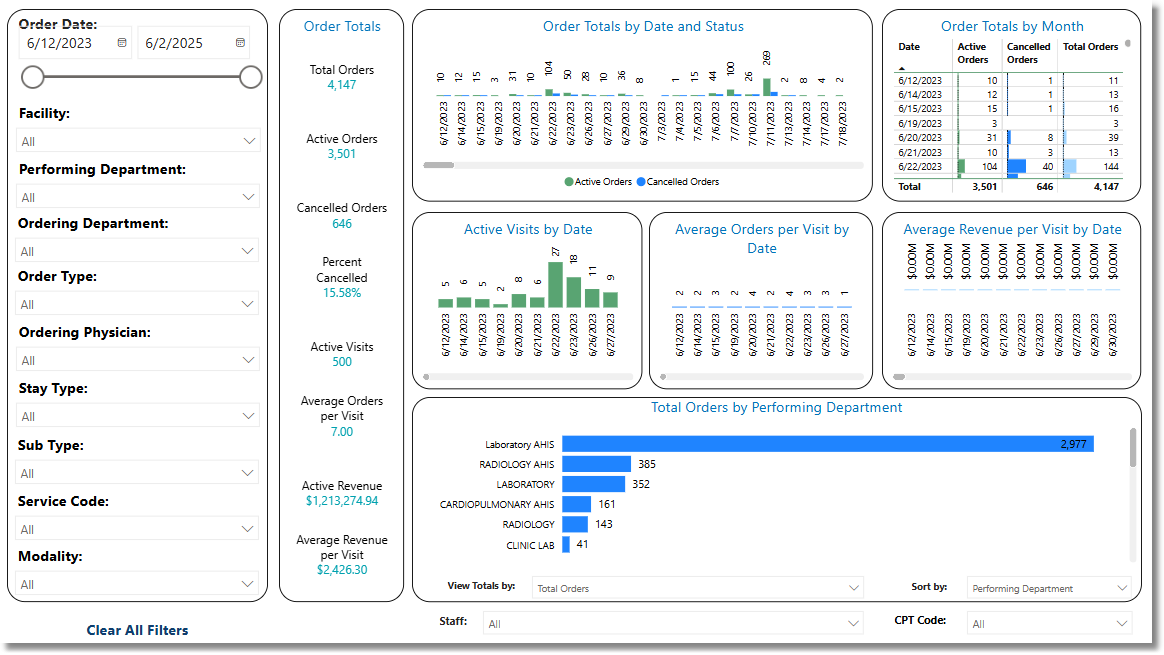
Orders
Filters
Filters can be applied to refine the data displayed. Each filter features a drop-down menu with a built-in search field, allowing for efficient selection of specific criteria.
•Charge Date: Use the calendar or slider to select a specific Charge Date Range.
•Facility: Use the drop-down menu to select a specific facility.
•Performing Department: Use the drop-down menu to select a specific department.
•Ordering Department: Use the drop-down menu to select a specific department.
•Order Type: Use the drop-down menu to select a specific Order Type.
•Ordering Physician: Use the drop-down menu to select a specific Physician.
•Stay Type: Use the drop-down menu to select a specific Stay Type.
•Sub Type: Use the drop-down menu to select a specific Sub Type.
•Service Code: Use the drop-down menu to select a specific Service Code.
•Modality: Use the drop-down menu to select a specific Modality.
•Clear All Filters: Select this option to clear all previously applied filters.
NOTE: If no filters are selected, the data will populate using the default setting of All.
Slicers
The following slicers are available to further refine the dashlets:
•Staff: Use the drop-down menu to specify which staff option should be used. The default setting is All.
▪Select all
▪Non Staff
▪Staff
▪Unknown
•CPT Code: Use the drop-down menu to specify which CPT Code(s) should be used. The default setting is All.