|
<< Click to Display Table of Contents >> Cart Fill and Catch-Up List |
  
|
|
<< Click to Display Table of Contents >> Cart Fill and Catch-Up List |
|
This table provides the ability to automatically print the Cart Fill List and Catch-Up List Reports. The report can be set to print for selected patient stay types and/or selected nursing stations.
Select Tables > Clinical > Pharmacy Report Control category > Cart Fill and Catch-Up List
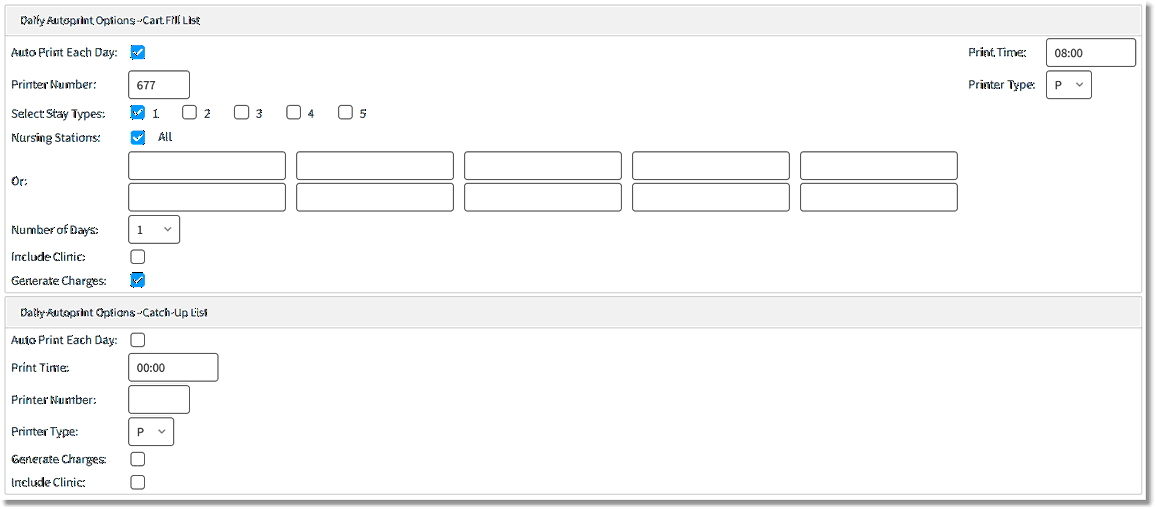
Cart Fill and Catch-Up Options
•Auto Print Each Day / Print Time
▪Default: Blank, or no entry
▪Options: Y (yes), ✓ (check mark), or N (no)
▪Usage: Allows report to be set to automatically print. This switch must be set to yes in order for other options to be accessible. After selecting the check box, enter the desired time for the report to print in the Print Time field, using military format.
NOTE: Reports can only be set to print at the top of the hour.
•Printer Number / Printer Type
▪Default: Blank, or no entry
▪Options: 3-digit printer number and printer type code
▪Usage: Used to enter the printer number and type of printer to which the report will be sent. Selecting the printer type ensures the report is sent in the correct format. Printer types are as follows:
oM - Okidata 320p or Turbo
oE - Okidata 395
oP - Lexmark Laser
•Select Stay Types
▪Default: Blank, or no entry
▪Options: Y (yes), ✓ (check mark), or N (no)
▪Usage: Designates the stay types for which the report will print. One or more stay types may be selected.
•Nursing Stations
▪Default: Blank, or no entry
▪Options: Y (yes), ✓ (check mark), or N (no) or entry of select nursing departments.
▪Usage: Select All to print the report for ALL nursing stations, or leave the box deselected and select up to ten nursing stations.
•Number of Days
▪Default: Blank, or no entry
▪Options: 00 - 99
▪Usage: Sets the default number of days that the report will print for.
•Include Clinic
▪Default: Blank, or no entry
▪Options: Y (yes), ✓ (check mark), or N (no)
▪Usage: Allows the report to include clinic patients.
•Generate Charges
▪Default: Blank, or no entry
▪Options: Y (yes), ✓ (check mark), or N (no)
▪Usage: If set to Y (Yes), the system will generate charges at the time the report is generated. If set to N (No), charges will not generate.
•Auto Print Each Day / Print Time
▪Default: Blank, or no entry
▪Options: Y (yes), ✓ (check mark), or N (no)
▪Usage: Allows report to set to automatically print. This switch must be set to yes in order for other options to be accessible. After selecting the check box, enter the desired time for the report to print in the Print Time field, using military format.
NOTE: Reports can only be set to print at the top of the hour.
•Printer Number / Printer Type
▪Default: Blank, or no entry
▪Options: 3-digit printer number and printer type code
▪Usage: Used to enter the printer number and type of printer to which the report will be sent. Selecting the printer type ensures the report is sent in the correct format. Printer types are as follows:
oM - Okidata 320p or Turbo
oE - Okidata 395 P - Lexmark Laser
•Generate Charges
▪Default: Blank, or no entry
▪Options: Y (yes), ✓ (check mark), or N (no)
▪Usage: If set to Y (Yes), the system will generate charges at the time the report is generated. If set to N (No), charges will not generate.
•Include Clinic
▪Default: Blank, or no entry
▪Options: Y (yes), ✓ (check mark), or N (no)
▪Usage: Allows the report to include clinic patients.