|
<< Click to Display Table of Contents >> General Settings |
  
|
|
<< Click to Display Table of Contents >> General Settings |
|
The Clinical Monitoring General Settings section contains all activation options for Pharmacy clinical monitoring.
Select Web Client > Tables > Clinical > Pharmacy Control > Clinical Monitoring > General Settings
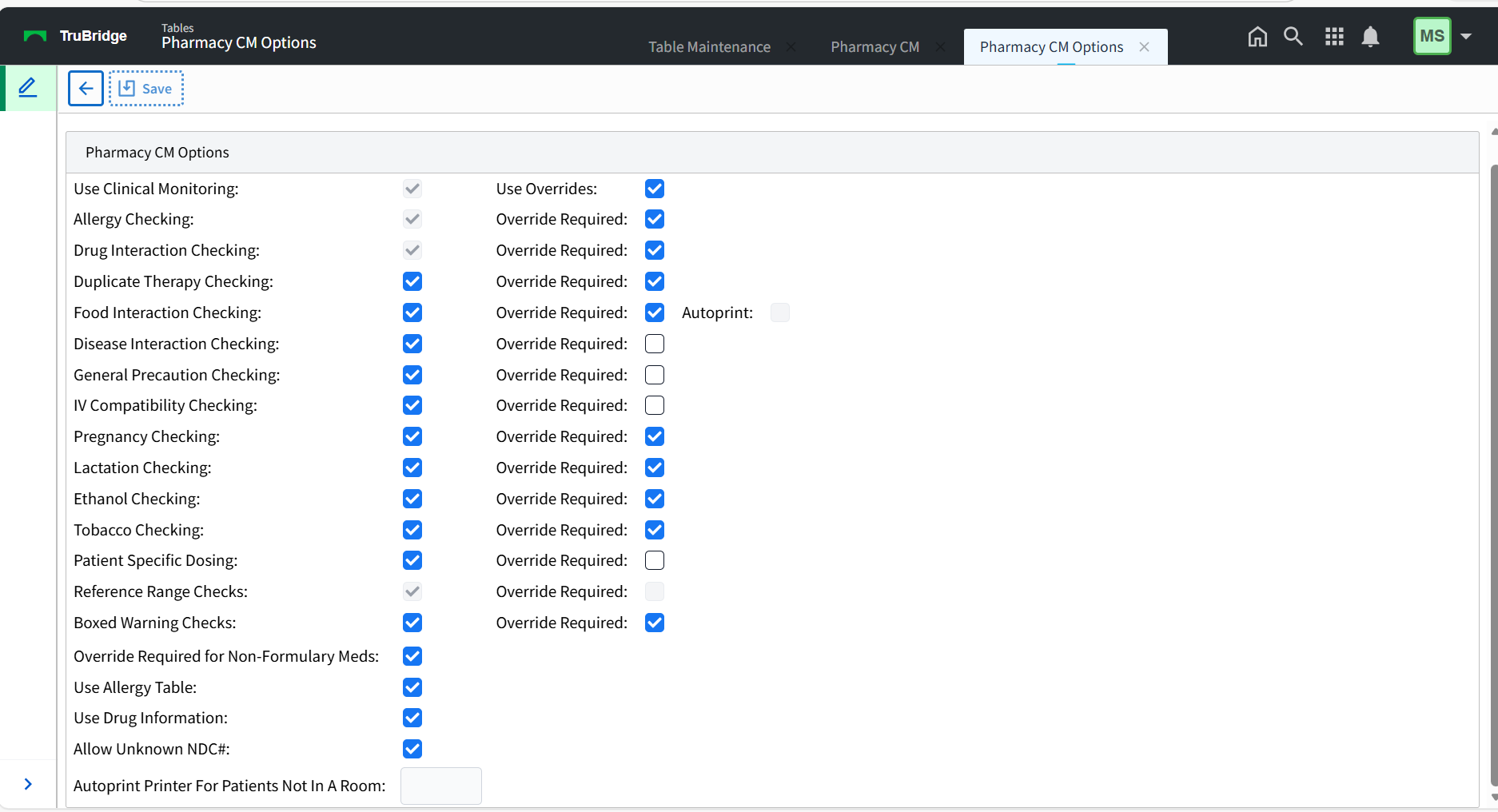
Pharmacy CM Options
•Use Clinical Monitoring: Activates Clinical Monitoring for pharmacy medication order entry. This field is grayed out but always checked "yes," since some Clinical Monitoring checks are required to meet Meaningful Use.
•Allergy Checking: Allows the system to automatically perform allergy checks at the time of order entry. Whenever a drug is entered from the Drug Formulary for a patient, the system compares the new medication to any drug allergy entered on the patient through the TruBridge system. If there are any drug allergies documented that correspond to the medication selected, a menu will display showing the drug selected, the allergy, the drug class and any possible symptoms. This field is grayed out but always checked "yes," since this Clinical Monitoring check is required to meet Meaningful Use. Select Include Inactive Ingredients to perform allergy checking for inactive ingredients.
•Drug Interaction Checking: Allows the TruBridge EHR to automatically perform drug interaction checks at the time of order entry. Whenever a drug is entered from the Drug Formulary for a patient, the software compares the new medication to all medications the patient is currently taking or has taken within the last 24 hours. Any possible interactions will display. The drug interactions are ranked as contraindicated, major, moderate, or minor. This field is "grayed out" but always checked "yes," since this Clinical Monitoring check is required in order to meet Meaningful Use requirements.
•Duplicate Therapy Checking: Select the checkbox to allow the system to automatically perform duplicate therapy checks at the time of order entry. As soon as a medication is selected to be dispensed, the patient’s current orders are reviewed for duplicate therapy. The Clinical Monitoring Screen appears and under Duplicate Therapy the similar medication is listed. Both IV and Non-IV orders are checked for duplicate therapy. Duplicate Therapy Checking is performed using the NDC number that is entered on Pharmacy Information Page 1 for each item.
NOTE: Duplicate Therapy Checking is not performed on discontinued orders.
•Food Interaction Checking: Select the checkbox to allow the system to automatically perform food interaction checks at the time of order entry. If a medication that has an interaction to food is selected from the Drug Formulary, the Clinical Monitoring screen displays.
NOTE: The Autoprint option next to Food Interaction Checking is not used by Pharmacy Clinical Monitoring. This option is available in the Nursing Clinical Monitoring table.
•Disease Interaction Checking: Select the checkbox to allow the TruBridge EHR to automatically perform drug-disease interaction checking at the time of pharmacy order entry. The system will compare medication orders to patient diagnoses and alert the user if the medication has the potential to worsen the disease. Disease Interaction Checking utilizes diagnoses information entered via the Physician Problem List, the TruBridge Medical Records Grouper, and the Pharmacy RX Diagnoses.
•General Precaution Checking: Activates or deactivates General Precaution Checking, which screens a medication's active and inactive ingredients against the patient's age and gender to help determine whether the order should be continued. This checking more specifically provides individual and daily dosing information for pediatric, adult and geriatric age ranges.
•IV Compatibility Checking: Select the checkbox to allow the system to automatically perform IV compatibility checks at the time of order entry. If a medication that is not compatible with an existing medication in the patient's pharmacy profile is ordered, the clinical monitoring screen will display. A monograph may then be printed or displayed. This system uses Trissel's™ 2 IV drug compatibility data set.
•Pregnancy Checking: Select the checkbox to allow the TruBridge EHR to automatically perform pregnancy checking for females (based upon age range) during pharmacy order entry. If a medication that is a risk for pregnant women is entered, the clinical monitoring screen will display the drug name involved in the pregnancy warning and the level of severity.
•Lactation Checking: Select the check box to allow the TruBridge EHR to automatically perform lactation checking for females (based upon age range) during pharmacy order entry. If a medication that is a risk for lactating women is entered, the clinical monitoring screen will display the drug name involved in the lactation warning and the level of severity.
•Ethanol Checking: Select the check box to allow the TruBridge EHR to automatically perform ethanol checking during pharmacy order entry. If a medication that has an interaction with ethanol is entered, the clinical monitoring screen will display the drug name involved in the ethanol warning and the level of severity.
•Tobacco Checking: Select the check box to allow the TruBridge EHR to automatically perform tobacco checking during pharmacy order entry. If a medication that is not compatible with tobacco use is entered, the clinical monitoring screen will display the drug name involved in the tobacco warning and the level of severity.
•Patient Specific Dosing: Select the checkbox to enable the TruBridge EHR to automatically perform patient specific dosing. Patient specific dosing will run once all order entry fields have been OK'd prior to updating the order. Only Overdose and subtherapeutic information will be displayed; the PSD window will not display if neither is triggered. A diagnosis, listed at the top of the PSD window, may be added during order entry. Once added, the PSD window may be reloaded.
•Reference Range Checks: The TruBridge EHR automatically applies reference range checking to medication orders with associated lab tests if these tests have associated reference ranges; this field is by default inaccessible but activated. This functionality relates to setup of individual items in Pharmacy Information Page 2
•Boxed Warning Checks: Select the check box to allow the TruBridge EHR to check for FDA boxed warnings (also known as black box warnings) during pharmacy order entry. If a medication with a boxed warning is entered, the clinical monitoring screen will display the name of the drug that has a boxed warning and the message "A Boxed Warning was identified for this medication." On the Order Edit screen, the Order Detail screen within Verify Orders, and in Prescription Entry, a yellow warning icon will appear below the medication name, with a "Boxed warning" hyperlink that users can click to view the boxed warning.
NOTE: No drug monograph exists for a Boxed Warning.
•Use Overrides: Select the checkbox to allow the user to enter override reasons at the time of order entry for any medication that meets the checks described above. Custom override reasons may be pre-built in the Overrides section below, and can be set for each type of Clinical Monitoring check.
•Override Required: Select the check box adjacent to each type of Clinical Monitoring Check that requires a reason be documented before proceeding with order entry.
•Override Required for Non-Formulary Meds: Allows pharmacy to require an override reason be entered when a non-formulary medication is ordered. These reasons are set under the Override Reasons tab.
•Use Allergy Table: Activates the tabular format of allergy information entry. This affects ALL departments, not just pharmacy. When checked (yes), the allergy table is provided by Micromedex and contains medication, food, and environmental allergies.
NOTE: This field should only be accessed under the direction of TruBridge.
•Use Drug Information: Select the checkbox to activate the Drug Information module, which allows printing of patient education.
NOTE: This field should only be accessed under the direction of TruBridge.
•Allow Unknown NDC#: Allows Pharmacy to use NDC numbers not listed in the Micromedex database on Pharmacy Information Page 1.
NOTE: This feature allows entry of invalid NDC numbers. Clinical monitoring will not be performed during order entry for any medication item that has an invalid NDC number.
•Autoprint Printer For Patients Not In A Room: This field is not used by Pharmacy Clinical Monitoring.
Once any changes are made, be sure to select Save from the action bar.