|
<< Click to Display Table of Contents >> User Authorization Report |
  
|
|
<< Click to Display Table of Contents >> User Authorization Report |
|
The User Authorization Report may be produced for multiple facilities or for a single facility. By entering a specific User Login, it will narrow the report to that Login only.
Select Web Client > Report Dashboard > User Authorization Report
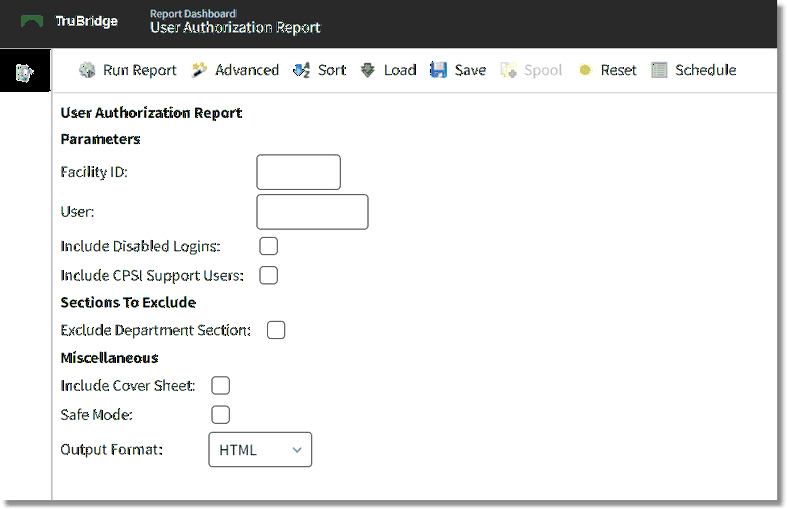
User Authorization Report Parameters
•Facility ID: Enter the Facility ID the report is for. If this field is left blank, the report will run for all facilities.
•User: Enter in a specific user login to see information for that login only. If this field is left blank, the report will run for all user logins.
•Include Disabled Logins: Select this option to include user logins that have been set to inactive in the system.
•Include CPSI Support User: Select this option to include CPSI Logins.
•Exclude Department Section: Select this option to exclude the department permissions information for the user login.
•Include Cover Sheet: Select this option to have a cover sheet pull with the Date and Time the report was run, User, Facility, Date Range of report and Section.
•Safe Mode: Select this option if the report would not build due to bad data being in a field. If the report has bad data, a message will appear stating to run report using the Safe Mode. If selected, Safe Mode will replace all of the bad characters with a ?. This will allow the intended report to generate. The bad data may then be seen and may be corrected from the account level.
•Output Format: Use the drop-down box to select one of the following report Format options:
▪HTML
▪XML
▪CSV
▪MAPLIST
▪TXT
NOTE: When using the CSV option, additional fields may be included in the report that are not available in PDF format. Examples include: E-Mail Address, System Privileges, and Use OTP. To include these fields or view the full list of additional fields, from the parameters screen, select Advanced and then choose Columns.
User Authorization Report
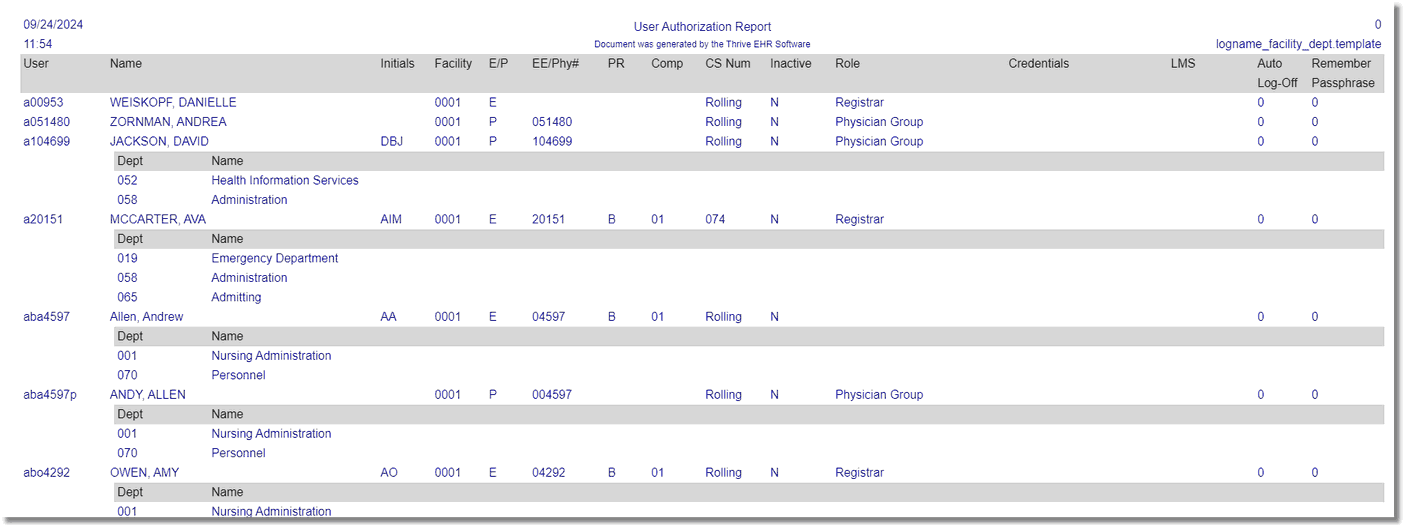
User Authorization Report
Listed below is an explanation of each column
•User: User Login for the employee or physician
•Name: Last and First name for the User Login
•Initials: The initials for the User Login
•Facility: Facility ID the User Login is setup
•E/P: An E will display if the User Login is for an employee. A P will display if the User Login is for a physician.
•EE/Phy#: Employee or physician number tied to the User Login
•PR: Payroll type setup for the User Login
•Comp: Company the user id is setup
•CS Num: CS Number that is tied to the User Login. If no CS Number is tied to the User Login, this column will display "rolling"
•Inactive: Y will display if the User Login is inactive
•Role: The Role the User Login has been assigned
•Credentials: Will display the user's credentials, if applicable. This will pull from the Page 1 of the Payroll Employment Information screen in the Payroll application.
•LMS (Learning Management System): The LMS login assigned to the User Login
•Auto Log-Off: The Automatic Log-Off setting for the User Login
•Remember Passphrase: The Remember Passphrase setting for the User Login
Department Section
•Dept: Department number(s) that have been assigned to the User Login
•Name: Name of the department(s) that have been assigned to the User Login