|
<< Click to Display Table of Contents >> Control Information Page 1 |
  
|
|
<< Click to Display Table of Contents >> Control Information Page 1 |
|
Select Web Client > Tables > Clinical > Control Information
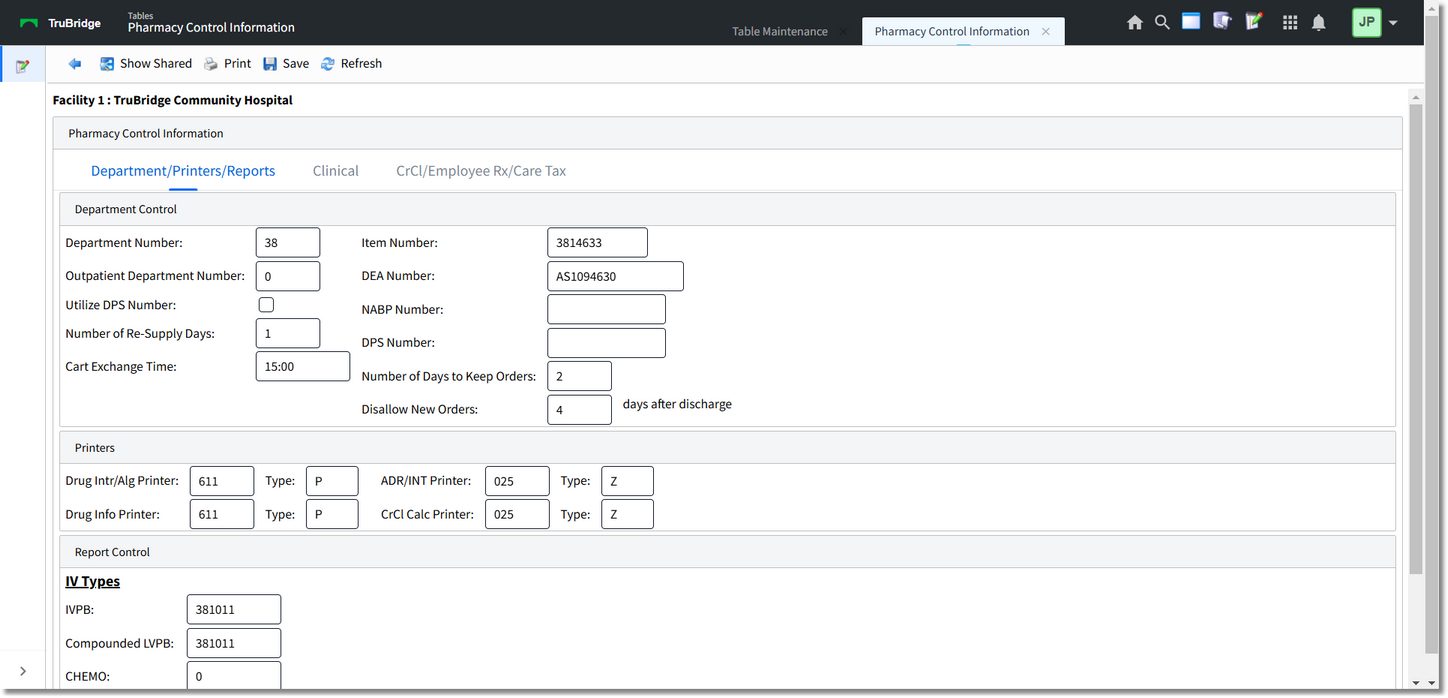

Pharmacy Control Information Department/Printers/Reports
•Department Number
▪Default: Blank
▪Options: 2 or 3-digit Pharmacy department number.
▪Usage: The pharmacy department number is determined at the time of system installation. This switch should never be changed. The number in this field matches the number located in the upper right hand corner of the Hospital Base menu.
•Outpatient Dept. Number
▪Default: Blank
▪Options: 3-digit outpatient pharmacy department number.
▪Usage: Used to enter the 3-digit outpatient pharmacy department number for facilities with an outpatient pharmacy. Although the outpatient pharmacy department is a separate department, both utilize the same pharmacy tables but have separate item masters.
•Utilize DPS Number
▪Default: Blank, or no entry
▪Options: Y (yes), ✓ (check mark), or N (no)
▪Usage: Determines whether the system will prompt for entry of a triplicate serial number for submission to the Texas Department of Public Safety. This prompt will occur during outpatient prescription order entry.
•Number of Re-Supply Days
▪Default: 1
▪Options: This field should always be 1.
▪Usage: This field is an indication of how often medication carts are exchanged. The number entered displays on Resupply Days of the Non-IV Order Entry screen. Indicates that the resupply amount in Resupply Quantity of the Non-IV Order Entry screen is a one day resupply amount.
oWhen the Cart Fill List-Charging is printed, the option of choosing multiples of the resupply days is available.
oWith the number of resupply days set to one, the Cart Fill List can be printed for a two, three, or four-day resupply.
oIf the resupply days are set to two, three, or four, the list can only be printed for multiples of these days (four days, six days, eight days, etc).
oThere is more flexibility if this field is set for one day.
•Cart Exchange Time
▪Default: Blank
▪Options: 4-digit military time.
▪Usage: The Cart Fill List Charging, Catch Up List and Cart Label Charging must be run prior to the time listed in this field. If those reports are run AFTER this time then the charging times are for the FOLLOWING day and the next morning.
EXAMPLE: Cart Exchange Time is set to 1500. Pharmacy normally runs the Cart Fill List June 05 at 1400. If the Cart Fill List is run at 1430, then the Cart Fill List prints for June 05 at 1500 to June 06 at 1459. If pharmacy runs the Cart Fill List after 1500, the Cart Fill List prints for June 06 1500 to June 07 at 1459. It is very important to run both the Cart Fill and Catch Up Lists prior to the Cart Exchange Time.
NOTE: A Cart Fill period consists of the Cart Exchange Time + (the number of days X 24 hours). The number of days are entered when the Cart Fill List is printed. Charges are based on this period. The cart exchange time and the number of days from the Cart Fill List are also used to calculate Catch Up List doses due.
•Item Number
▪Default: Blank
▪Options: Last used pharmacy item number.
▪Usage: The system has the ability to auto-assign the next available number when creating a new item from item maintenance.
•DEA Number
▪Default: Blank
▪Options: Hospital Pharmacy DEA Number.
▪Usage: The pharmacy DEA number is input at the time of the pharmacy install for pharmacy records.
•NABP Number
▪Default: Blank
▪Options: National Association of Boards of Pharmacy number.
▪Usage: This number is required for some Electronic Controlled Substance Reporting.
•DPS Number
▪Default: Blank
▪Options: Department of Public Safety Number.
▪Usage: This number is required for Texas Electronic Controlled Substance Reporting.
•Number of Days to Keep Orders
▪Default: 99
▪Options: 1-999
▪Usage: Allows pharmacy to retain orders for a maximum of 999 days after patient discharge. If the field is left blank, or up to 999 days is entered in this field, pharmacy orders purge 999 days after patient discharge. Purged pharmacy orders can still be accessed via Pharmacy Order History.
oThe purge of pharmacy orders occurs on a weekly basis (usually Wednesday morning before 6 AM, but this can vary by site). Due to the weekly basis of order purging, some orders are kept longer, depending upon the day of patient discharge and order purge.
oFor most hospitals, keeping orders for 99 days past discharge is sufficient.
NOTE: This field relates only to orders. Patient charges are kept in the system for over two years. The TruBridge system will automatically change the Point of Care keep days to one day less than the Pharmacy keep days whether it’s changed via Pharmacy Control Information or the POC Control Record. Please call a TruBridge representative for help with changing the Pharmacy and Point of Care keep days.
•Disallow New Orders
▪Default: 3-5
▪Options: 1-99
▪Usage: Determines the number of days after discharge that new orders can be entered. If the pharmacy is closed when a patient is discharged, new orders are not entered until the next pharmacy business day. Some pharmacies are closed during weekend hours and new orders are not entered until Monday. This field is typically set from three to five days depending upon pharmacy hours of operation.
NOTE: This field only prevents new order entry. Charges can be entered against old orders until the orders are purged from the system (See Number of Days to Keep Orders).
•Drug Interaction/ Allergy Printer
▪Default: Blank
▪Options: 3-digit printer number or S for workstation printer.
▪Usage: Establishes which printer Drug Interaction and Allergy monographs print. The type of printer being use to print monographs must be entered in the TYPE field. This information allows the program to print the monographs with the correct format.
oThe printer types are:
•M - Microline (Okidata 320p or Turbo)
•E - Epsilon (Okidata 395)
•P - Postscript (Lexmark Laser)
oIf a different printer type is needed, please call TruBridge for the appropriate code.
oBefore using a line printer for drug interactions, TruBridge must make some internal system adjustments. Please call TruBridge if you plan to print interactions to a line printer.
oIf printing Ancillary Results or if TruBridge sets up the Temporary Orders/DC's to automatically print to the Pharmacy on a daily basis, these reports will automatically be sent to the printer specified for Drug Interactions in the Pharmacy Control Table. This is entered during TruBridge install.
•Drug Information Printer
▪Default: Blank
▪Options: 3-digit printer number or S for workstation printer.
▪Usage: The Drug Information (Patient Monographs) printer field uses the same criteria as the Drug Interaction printer field. Please see Drug Interaction printer for details. Entered prior to install.
•ADR/Intervention Printer
▪Default: Blank
▪Options: 3-digit printer number or S for workstation printer.
▪Usage: The Adverse Drug Reaction/Intervention printer field uses the same criteria as the Drug Interaction printer field. Please see Drug Interaction printer for details. Entered prior to install.
•CrCl Calculation Printer
▪Default: Blank
▪Options: 3-digit printer number or S for workstation printer.
▪Usage: The Creatinine Clearance Calculation printer field uses the same criteria as the Drug Interaction printer field. Please see Drug Interaction printer for details. Entered prior to install.
NOTE: When the printer type is changed in field 22 of port maintenance in the device control table, fields C, D, E, and F will update accordingly.
•IV Types
▪Default: Blank
▪Options: Accepts item numbers for the various IV Admixture Fees.
▪Usage: These item numbers track charges and credits for the IV Therapy Section of the Pharmacy Statistics Report.
oItem numbers must be created and named for each section to be counted such as IVPB Type, Chemo Type, etc.
oOnce created, the item numbers need to be added into the Pharmacy Control Information Table on IV Types next to the corresponding name. The item numbers are then attached to the IV's as entered, usually in the Procedure Charge field of IV Order Entry or Predefined information.
oWhen the Statistics Report is generated, each field is tabulated and printed on the bottom of the report.
•Print NDC Barcodes
▪Default: Blank, or no entry
▪Options: Y (yes), ✓ (check mark), or N (no)
▪Usage: Allows barcodes to print on IV and Non-IV labels. Barcodes can then be scanned using the Medication Verification application.
•Display Weight
▪Default: Pounds
▪Options: Grams, Kilograms, and Pounds
▪Usage: Determines how the patient's weight will display via Pharmacy screens and reports