|
<< Click to Display Table of Contents >> Control Information Page 2 |
  
|
|
<< Click to Display Table of Contents >> Control Information Page 2 |
|
Select Web Client > Tables > Clinical > Control Information > Clinical
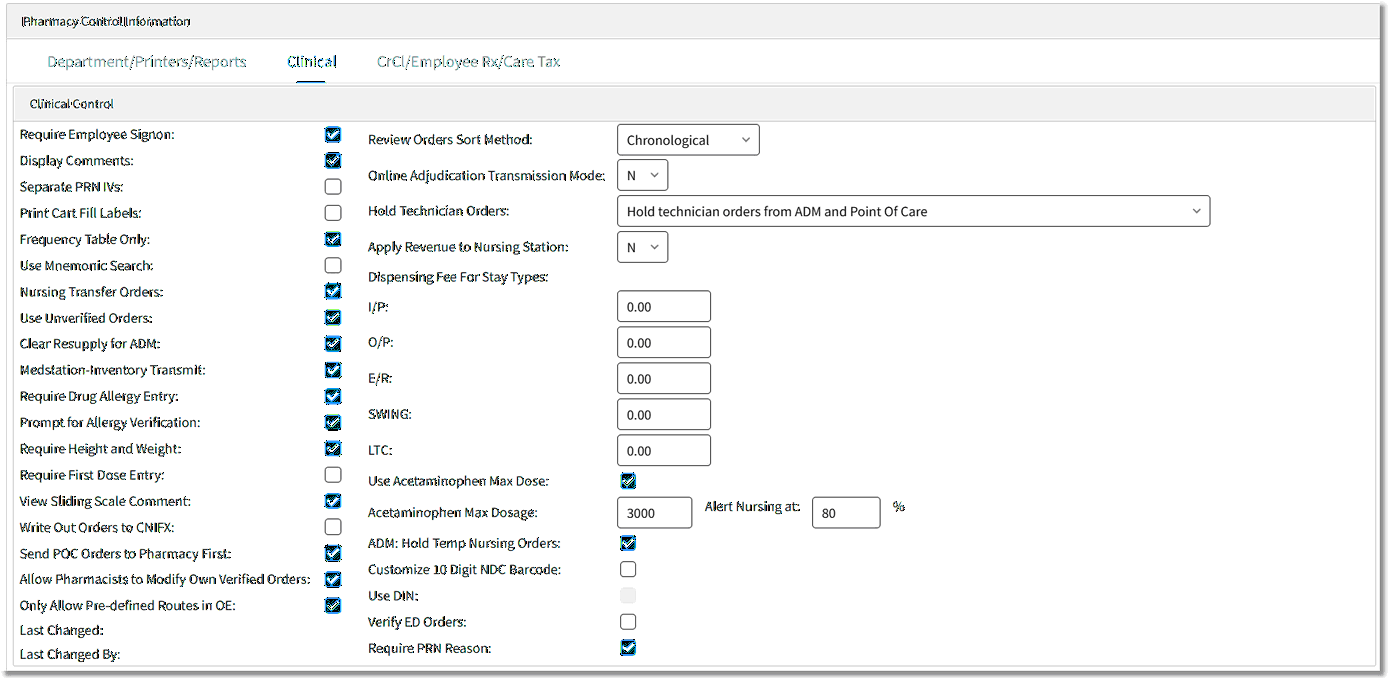
Pharmacy Control Information Clinical
•Require Employee Signon
▪Default: Blank
▪Options: Yes, ✓ (check mark), or No, blank.
▪Usage: The employee sign on option is used to distinguish between orders entered by a registered pharmacist and orders entered by other personnel. Orders entered by non-pharmacists are in a temporary status until a pharmacist OK's the orders.
oActivation of this feature requires that pharmacy employees have their initials and sign on password entered in the Employee Master Record. The Payroll department normally updates the Employee Master Record.
oBe sure that on each Employee Master Record, the Begin Date (Hire Date) is filled in. This is not a required field; however, if it is left blank, the system (after every payroll run) puts a "T" for Terminated into their Master Record. The system will not allow the employee to sign onto the system if there is a "T" in their Master Record.
oThe registered pharmacist switch is indicated in System Management Department Maintenance.
•Display Comments
▪Default: Blank
▪Options: Yes, ✓ (check mark), or No, blank.
▪Usage: Allows comments entered via Pharmacy to auto display when initially accessing order entry for the selected account. Comments will only display when initially accessing order entry. Comments will not display on successive orders. If the Pharmacy Selection screen is exited, and the patient re-accessed, the Comment screen will again display upon selecting order entry.
•Separate PRN IVs
▪Default: Blank
▪Options: Yes, ✓ (check mark), or No, blank.
▪Usage: Controls how PRN IV medications display on the MAR.
oY: Allows IV medications ordered as PRN to display and print in the PRN section of the MAR.
oN: IV medications ordered as PRN will print and display in the IV section of the MAR.
•Print Cart Fill Labels
▪Default: Blank
▪Options: Yes, ✓ (check mark), or No, blank.
▪Usage: Works in conjunction with Print NDC Barcodes to allow barcode medication labels to print when Cart Fill and Catch Up List are generated. Barcode labels are used with the Medication Verification application.
•Frequency Table Only
▪Default: Blank
▪Options: Yes, ✓ (check mark), or No, blank.
▪Usage: Controls whether or not a frequency not listed in the frequency table can be entered during pharmacy order entry. This switch will also affect POC pharmacy order entry.
oYes: A valid frequency from the frequency table must be entered. A (?) question mark can be entered in the frequency field to display table.
oNo: Allows any frequency to be entered in the frequency field.
•Use Mnemonic Search
▪Default: Blank
▪Options: Yes, ✓ (check mark), or No, blank.
▪Usage: Allows mnemonics to be entered during IV and Non-IV Order Entry. A lookup can be displayed by entering a partial mnemonic during order entry.
oYes: Use mnemonics during Order Entry. Press <Alt> +F1 to toggle between mnemonic and description search.
oNo: Use traditional description search for Order Entry.
•Nursing Transfer Orders
▪Default: Blank
▪Options: Yes, ✓ (check mark), or No, blank.
▪Usage: Allows nursing to transfer active medication orders from an old account number to a new account number.
•Use Unverified Order
▪Default: Blank
▪Options: Yes, ✓ (check mark), or No, blank.
▪Usage: Used at sites with Point of Care/Nursing Order Entry. This feature provides a means for nursing to receive notification each time Pharmacy enters an order for a patient and gives the nurse the ability to verify each order. This feature, although required for Point of Care, should not be used without consulting TruBridge for more information and training.
•Clear Resupply for ADM
▪Default: Blank
▪Options: Yes, ✓ (check mark), or No, blank.
▪Usage: Clears the resupply quantity for orders when the medication is in the Automated Dispensing Machine.
•Medstation-Inventory Transmit
▪Default: Blank
▪Options: Yes, ✓ (check mark), or No, blank.
▪Usage: Only for Omnicell inv transfer for Rx to nursing station.
•Require Drug Allergy Entry
▪Default: Blank
▪Options: Yes, ✓ (check mark), or No, blank.
▪Usage: Controls whether or not an allergy must be entered prior to order entry.
oYes: Drug Allergies must be entered prior to a medication order being processed. The system will automatically display the Clinical Information screen if no allergy has been entered and an attempt is made to place a medication order.
oNo: Allows medication orders to be processed without allergies being entered.
•Prompt for Allergy Verification
▪Default: Blank
▪Options: Yes, ✓ (check mark), or No, blank.
▪Usage: Controls whether users are required to verify allergies prior to order entry or medication administration.
oYes: A popup prompt appears when entering Order Entry (OE or CPOE) or Med Administration (EMAR, Verify Orders, and Order Chronology). The prompt appears only if the patient has not had allergies verified. It reads, "This patient has not had allergies verified. Do you wish to verify allergies now?" If user selects Yes, the system launches them to the Allergies application to verify the allergies. If user selects No, they remain in Order Entry/Med Administration and can proceed without verifying.
oNo: The popup prompt for allergy verification will not appear when performing order entry or medication administration.
•Require Height and Weight
▪Default: Blank
▪Options: Yes, ✓ (check mark), or No, blank.
▪Usage: Controls whether or not height and weight must be entered prior to order entry.
oYes: Height and Weight must be entered prior to a medication order being processed. The system will automatically display the Clinical Information screen if height and weight have not been entered, and an attempt is made to place a medication order.
oNo: Allows medication orders to be processed without height and weight being entered.
•Require First Dose Entry
▪Default: Current Date / Time
▪Options: Yes, ✓ (check mark), or No, blank.
▪Usage: If set to Y (Yes), a 1st Dose Date and Time must be entered on non-IV orders before the order can be saved.
•View Sliding Scale Comment
▪Default: Blank
▪Options: Yes, ✓ (check mark), or No, blank.
▪Usage: Allows comments entered in the Diabetic Record Sliding Scale via Point of Care to display in order review. Upon selecting VP-View Protocol on select insulin items, comment entries display along with the sliding scale.
•Send POC Orders to Pharmacy First
▪Default: Blank
▪Options: Yes, ✓ (check mark), or No, blank.
▪Usage: Prevents verification and administration of pharmacy orders prior to pharmacy verification.
oYes: The system will hide unverified pharmacy orders from the Verify Orders list/app until a pharmacist verifies them. This will apply only during pharmacy hours (set up in the CL Table).
oNo: Allows pharmacy orders to show in the Verify Orders list/application prior to pharmacy verification.
•Allow Pharmacist to Modify Own Verified Orders
▪Default: Blank
▪Options: Yes, ✓ (check mark), or No, blank.
▪Usage: Allows a pharmacist to modify medication orders they entered or verified even after these orders have been verified by nursing.
•Only Allow Pre-defined Routes in OE
▪Default: Blank
▪Options: Yes, ✓ (check mark), or No, blank.
▪Usage: When selected, will limit users to choosing only the Prdefined/Default Routes for the item during Order Entry.
oYes: The system will hide the magnifying glass (search/lookup) icon next to the Route field on Pharmacy orders entered via CPOE, OE, and Future Orders and users will therefore only have the options that are set as Default Routes on the item.
oNo: Users will have access to the search/lookup next to the Route field during Order Entry and can select any Route from the Route Table.
•Review Orders Sort Method
▪Default: Chronological.
▪Options:
oAlphabetical
oChronological
oFrequency
▪Usage: Determines the default sort when viewing orders via the Pharmacy Profile.
•OL Adjudication Transmit Mode
▪Default: N (no)
▪Options: A – Auto, H - Hold, N - None
▪Usage: Allows pharmacy to transmit online adjudication automatically after exiting out of order, hold for a batch transmit from Claims log or not process Online Adjudication at all.
•Use Medication Verification
▪Default: Blank, or no entry
▪Options: Y (Yes w/o POC), N (No), or P (Yes with POC)
▪Usage: Allows the Medication Verification Application to be used by nursing.
oY: Use NDC scanning without Point of Care
oN: Do not use this function at all. The option will display in POC but will not be accessible.
oP: Allow the Medication Verification Application to be accessible from Point of Care.
NOTE: Password required. Contact TruBridge support to activate.
•Hold Technician Orders
▪Default: Blank
▪Options:
oHold technician orders from the ADM
oHold technician orders from Point Of Care
oHold technician orders from both the ADM and Point Of Care
oHold technician order from None. Technician orders cross to ADM and POC.
▪Usage: Gives pharmacy control of how Temp Tech orders are sent out to Point of Care and the ADM. Satisfies some state regulations.
•Apply Revenue to Nursing Station
▪Default: N (no)
▪Options: N (no), Y (yes)
▪Usage: When set to Y (yes), this switch will allow revenue for pharmacy items charged via Cart-fill, Catch-up, IV batch, and charging from the profile to be given to the nursing station in which the patient is housed. In order to set the switch to Y, call TruBridge support.
•Dispensing Fees for Stay Types
▪Default: Blank
▪Options: Free text dollar amount for the dispensing fee based on stay type.
▪Usage: If there is a dispensing fee based upon patient stay type, it can be entered in this field.This may be used with online adjudication.
•Use Acetaminophen Max Dose
▪Default: Blank
▪Options: Yes, ✓ (check mark), or No, blank.
▪Usage: Activates the Acetaminophen Dosing feature. Allows the option to add a maximum dose of acetaminophen per 24-hour period and to define at what percentage nursing should be alerted.
•ADM: Hold Temp Nursing Orders
▪Default: N (no)
▪Options: Yes, ✓ (check mark), or No, blank.
▪Usage: Controls when Temporary Nursing orders are sent to Automated Dispensing Machines. If the switch is selected and the Pharmacy department is closed, orders entered by nursing will be held in the Patient Documentation Verify Screen until verified. Pharmacy hours are defined in the ChartLink Control Table.
•Customize 10 Digit NDC Barcode
▪Default: Blank
▪Options: Yes, ✓ (check mark), or No, blank.
▪Usage: Allows McKesson™ repackaging labels to scan correctly for Medication Verification. This switch is password protected. Please contact TruBridge support for information about this feature.
•Verify ED Orders
▪Default: Blank
▪Options: Yes, ✓ (check mark), or No, blank.
▪Usage: If this switch is selected, medication orders placed on patients located in the Emergency Department will be routed to the Pharmacy Order Verification queue. Medication orders will continue to auto-verify for nursing. The unverified medication orders will remain active from Order Chronology to allow ED users to administer, modify, or discontinue the medications.
NOTE: This switch is only accessible if using EDIS and the Emergency Department switch is enabled.
•Require PRN Reason
▪Default: Yes
▪Options: Yes, ✓ (check mark) or No, blank.
▪Usage: Makes the reason required at order entry for PRN frequency medication orders. If checked, the user must populate the "PRN Reason" field before updating or signing the order.