|
<< Click to Display Table of Contents >> Indications |
  
|
|
<< Click to Display Table of Contents >> Indications |
|
The Indications table allows for the entry of an indication (reasons for taking the medication) to be utilized in the Home Medication/Prescription Entry screens. Indications will appear as an optional drop-down field.
Select Web Client > Tables > Clinical > Indications
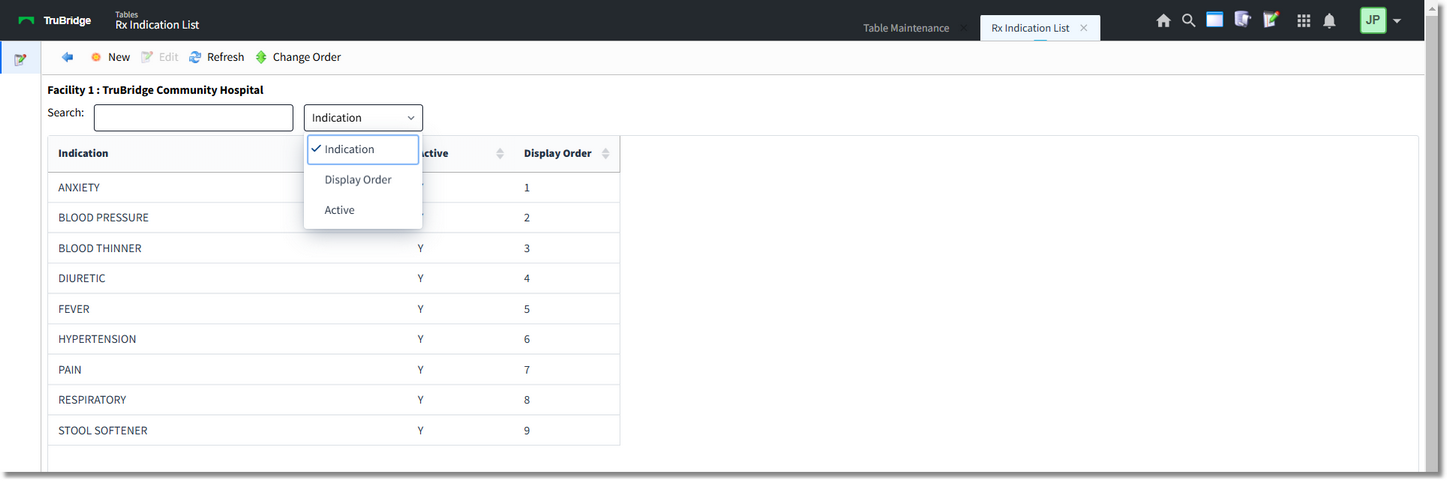
Indications
The Search field may be used to search for an indication by description, display order, or the Active status.
The blue back arrow returns to the main Clinical page.
The New option will allow for the creation of a new indication entry.
The Edit option will allow for the editing existing indication entries.
The Refresh option will refresh the table screen once changes have been made.
The Change Order option will allow the list to be reordered as to how it will populate to the drop-down in the applications. Once a description is selected, it may be moved Up, Down, To Top or To Bottom.
Select Web Client > Tables > Clinical > Indications > New

Indications
The Show Shared option will highlight any fields that are sharing the same profile with another facility (multi-facility).
The Print option generates a PDF copy of the table along with current settings/selections.
Delete will remove the entry from the table.
Save will save any changes made to the table.
Refresh will wipe out any changes made in the field prior to saving.
In the Indication Description field, enter the indication description which will populate to the drop-down in the Home Medication/Prescription Entry screens.
The Indication Active field indicates whether or not the description will actively appear in the drop-down. If set to No, the description will not appear in the drop-down.