|
<< Click to Display Table of Contents >> Problem List Type |
  
|
|
<< Click to Display Table of Contents >> Problem List Type |
|
The Problem List Type is a description of the status of the problem. Any entries set up in the table will display in a drop down on the Physician Detail entry screen as well as the Problem Display screen.
Select Web Client > Tables > Clinical > Problem List Type
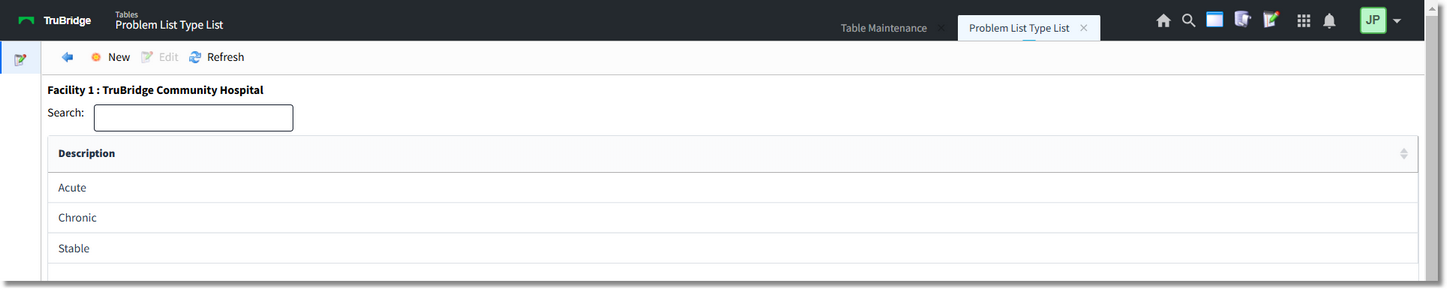
Problem List Type
To return to the previous screen, select the blue back arrow. To add a status to the list (which will appear in the drop-down within the Problem Detail screen within the Physician Problem List), select New. To edit an existing entry, select the description and then choose Edit. To refresh the screen after creating and saving an entry or after deleting an existing entry, select Refresh.
Select Web Client > Tables > Clinical > Problem List Type > New

Problem Status Table
In the Description field, enter the desired status description. The Active checkbox will indicate whether the problem entry should remain on the Active Problem Display screen or, if left unchecked, the problem entry will appear on the Inactive Problem Display screen.
Once entered, select Save to save the entry and then select the blue back arrow to return to the list screen. If an existing entry is selected to edit for removal, select Delete to remove from the table and then Yes to confirm the deletion of the entry.
NOTE: The Resolved and Entered in Error statuses are both hard-coded and do not need to be manually entered into the Problem List Type table as they will automatically appear within the Problem Entry Status drop-down for selection.
There is no limit to the number of entries that may be added to the list.