|
<< Click to Display Table of Contents >> Problem List Source |
  
|
|
<< Click to Display Table of Contents >> Problem List Source |
|
The Problem List Source indicates from where the information regarding the problem has been initiated. For instance, has the diagnosis been made from the Provider, has the patient indicated the problem, or has it come from an existing medical record? Any entries set up in the table will display in a drop down on the Physician Detail entry screen as well as the Problem Display screen.
Select Web Client > Tables > Clinical > Problem List Source
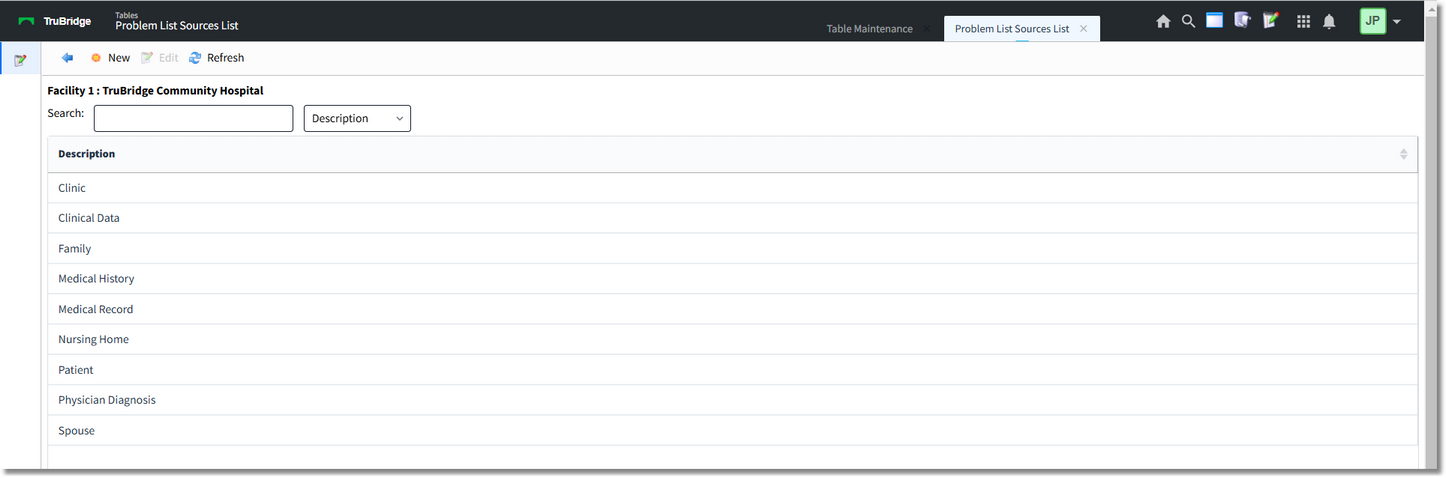
Problem List Source Table
To return to the previous screen, select the blue back arrow. To add a source to the list (which will appear in the drop-down within the Problem Detail screen within the Physician Problem List), select New. To edit an existing entry, select the description and then choose Edit. To refresh the screen after creating and saving an entry or after deleting an existing entry, select Refresh.
Select Web Client > Tables > Clinical > Problem List Source > New

Problem List Source Table
In the Description field, enter the desired status description. Once entered, select Save to save the entry and then select the blue back arrow to return to the list screen. If an existing entry is selected to edit for removal, select Delete to remove from the table and then Yes to confirm the deletion of the entry.
NOTE: Within the Problem Detail screen while creating an entry, there is an option to add a new source. If a user creating a problem entry chooses to add a new source from the Physician Problem List, the new entry will be saved to the Problem List Source Table and may only be edited or removed from within the table.