|
<< Click to Display Table of Contents >> Routes |
  
|
|
<< Click to Display Table of Contents >> Routes |
|
The Routes table allows for the setup of routes that are selected when utilizing the Home Medication Entry and New Prescription options. These routes display in a drop-down in both the Medication Reconciliation and Prescription Entry applications. Since the information on the patient's discharge medications will pull to the patient's Discharge Instructions report, these routes are typically entered in layman's terms. During setup, routes are linked with the pharmacy hospital frequency table to allow for an easy transition between Admission Reconciliation and Prescription Entry.
Select Web Client > Tables > Clinical > Routes
Routes
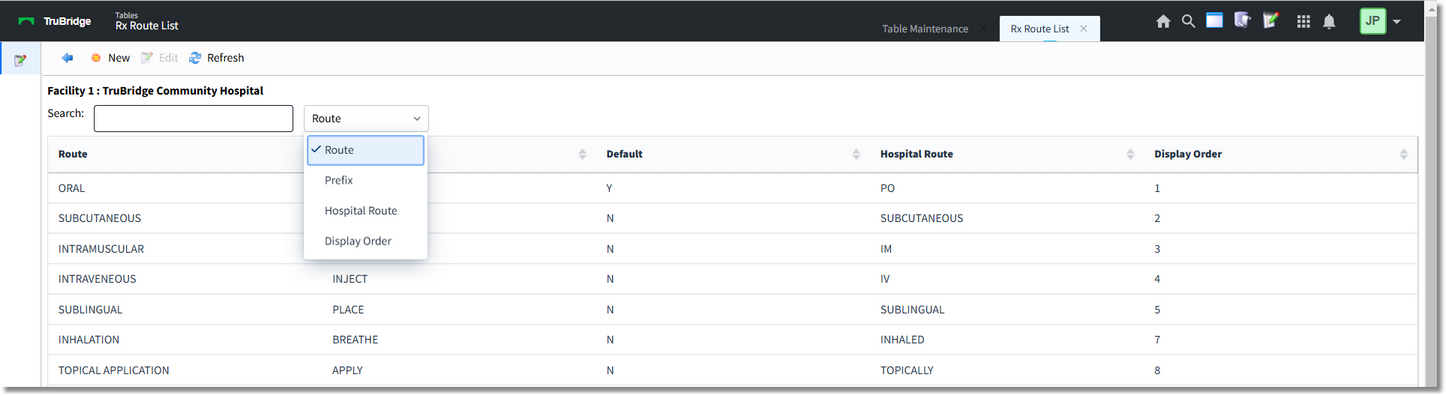
The Search field may be used to locate a specific route in the list by route description, route prefix, hospital route or display order.
The Routes list headers display the route description, the route prefix, default, the hospital route, and the display order..
The blue back arrow returns to the main Clinical page.
The New option will allow for the creation of a new route entry.
The Edit option will allow for the editing existing route entries.
The Refresh option will refresh the table screen once changes have been made.
Select Web Client > Tables > Clinical > Routes > New
Routes
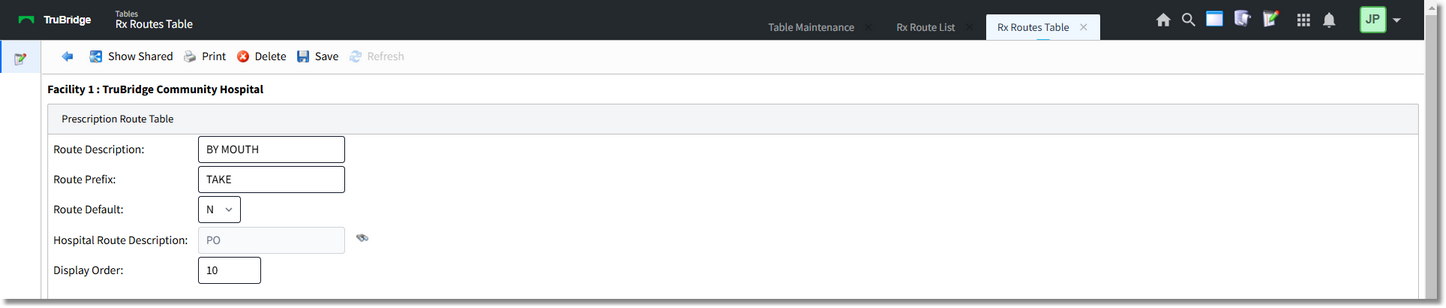
The Show Shared option will highlight any fields that are sharing the same profile with another facility (multi-facility).
The Print option generates a PDF copy of the table along with current settings/selections.
Delete will remove the entry from the table.
Save will save any changes made to the table.
Refresh will wipe out any changes made in the field prior to saving.
In the Route Description field, enter the layman's term description which will populate to the Home Medication/Prescription Entry screens.
The Route Prefix will display in the Sig line in prescription entry. E.g. Take By Mouth.
The Route Default indicates the default route for Home Medication entry.
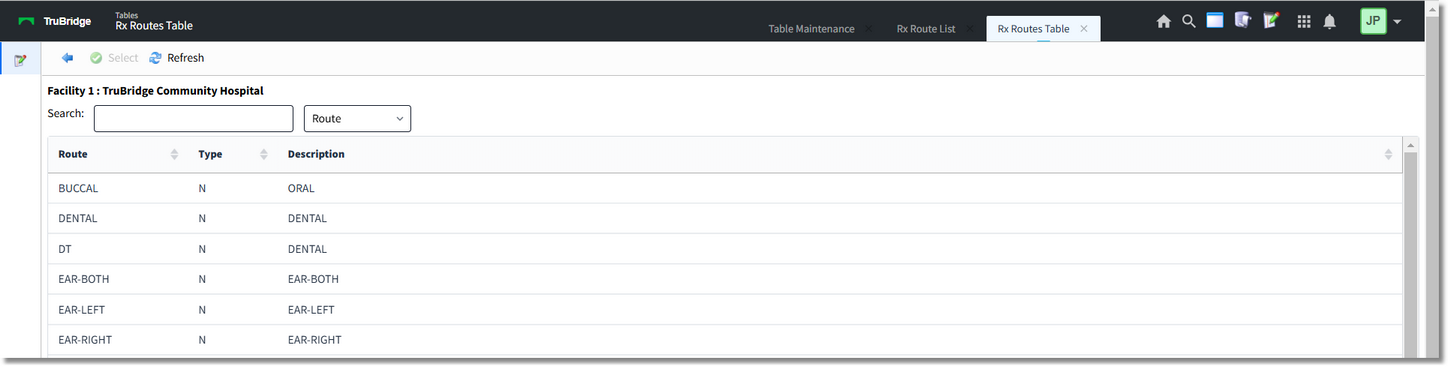
The Hospital Route displays the associated hospital route. Selecting the binocular icon will populate the hospital pharmacy route table.
The Display Order field controls the order the routes will display in the route drop-down within the Home Medication/Prescription Entry screens.
NOTE: If the route "BY MOUTH" is in the route table, then the Truven data will prompt the route field to use that route title. If "BY MOUTH" is not present, but "ORAL" is, then the Truven data will prompt the route field to use ORAL instead. If neither "BY MOUTH" or "ORAL" are in the route table, then the TruBridge EHR will pull the default route.
Select Web Client > Tables > Clinical > Routes > New
Routes
Once the table is accessed, the appropriate description may be selected by double-clicking or by selecting and then choosing Select. Once the selection is made, the previous screen will appear. Select Save to save the new route entry to the table.