|
<< Click to Display Table of Contents >> Point of Care Control Maintenance - Page 1 |
  
|
|
<< Click to Display Table of Contents >> Point of Care Control Maintenance - Page 1 |
|
Select Web Client > Tables > Clinical > Nursing category > POC Control Maintenance > Page 1
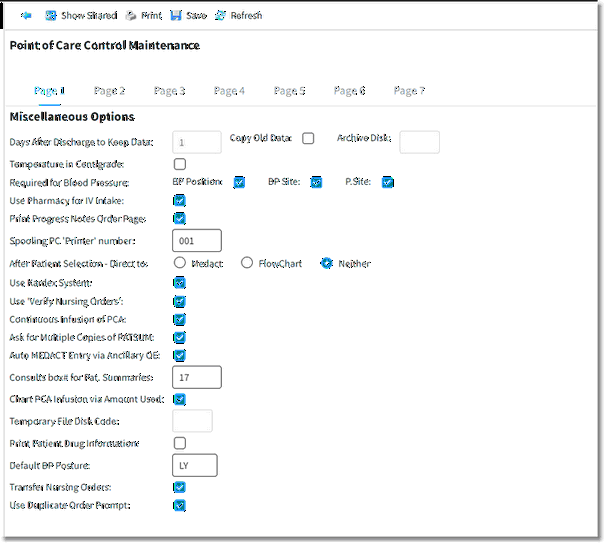
Point of Care Control Maintenance - Page 1
•Days After Discharge to Keep Data: Defines the number of days that all Point of Care data is stored after the discharge date before being moved to the Archive Data Repository (ADR). ADR is a permanent data storage system. 30 days is recommended as the minimum. A longer span of time requires analysis of server space.
NOTE: The TruBridge system will automatically change the Pharmacy keep days to one day greater than the Point of Care keep days whether it is changed via the Pharmacy control record, POC control record, or the Financial AHIS table. Please call a TruBridge representative for help with changing the Pharmacy and Point of Care keep days.
•Copy Old Data: Select this option to copy all data in the ns1 directory to the nsa directory. Once ns1 files move to ADR, they are no longer available for POC Ad Hoc Reporting. The nsa directory must be used to obtain data from accounts that have purged.
•Archive Disk: If data is to be copied to the nsa directory, TruBridge will determine which archive disk will be used to house the directory (Blank, 1-4).
•Temperature in Centigrade: Select this option to record, display, and print temperature in Centigrade instead of Fahrenheit.
•Required for Blood Pressure:
▪BP Position: If selected, the user is required to chart the patient's position when the blood pressure was taken.
▪BP Site: If selected, the user is required to chart the blood pressure site.
▪P. Site: If selected, the user is required to chart the pulse site.
•Use Pharmacy for IV Intake: If selected, the patient's IV medications will be listed in the New Intake Selection drop-down, allowing the user to document each IV intake separately. If not selected, the New Intake Selection drop-down will instead list IV Fluids as an option, and the IV intake is documented collectively.
•Print Progress Notes Order Page: Select this option to include a list of the patient's ancillary orders each time the Patient Progress Notes are generated. The ancillary items display at the end of the report.
•Spooling PC “Printer” number: This field designates the computer to be used for PC Backup. The three-digit TTY Number for the device must be entered in this field.
•After Patient Selection - Direct to:
▪Medact: Select this option to bypass the Virtual Chart and display the Medact after patient selection.
▪FlowChart: Select this option to bypass the Virtual Chart and display the Flow Chart Menu after patient selection.
▪Neither: Select this option to not bypass the Virtual Chart after patient selection.
•Using Kardex System: If selected, the patient's Diet Order and Special Instructions Order will automatically display on the Medact.
•Use Verify Nursing Orders: Select this option if Unverified Nursing Orders require verification. The status (Verified/Unverified) of a Nursing Order is determined by Employee Security for the ordering user.
•Continuous Infusion of PCA: Select this option to include a field for Continuous Infusion Rate in PCA Protocol Setup.
•Ask for Multiple Copies of PATSUM: If selected, the system will prompt for the number of copies of the Patient Summary to print.
•Auto MEDACT Entry via Ancillary OE: Select this option to enable the ability to automatically create Nursing Orders based on ancillary items at the time of order entry.
•Consults box # for Pat. Summaries: Enter the Box Number for the Consult Category in Nursing Order Setup if Consult Orders placed via the Medact are set to pull to the "Consults" category on Format B of the 24hr Summary and Patient Summary reports.
•Chart PCA Infusion via Amount Used: Select to allow PCA medications to be charted by amount of medication used as opposed to the amount of medication left in the syringe. The word “Amount Used” will appear above “Amount Left” on the infusion input menu. The appropriate wording will appear also on the PCA infusion form.
•Temporary File Disk Code: (Blank, 1-5) Determines the disk code that will house POC Setup. This field is maintained by TruBridge.
•Print Patient Drug Information: Select this option to automatically generate Drug Monographs for medications continued at discharge along with the Discharge Instructions Report.
•Default BP Posture: Enter one of the following options to designate a default Blood Pressure Posture:
▪Blank: No default posture set
▪LY: Lying
▪SI: Sitting
▪ST: Standing
▪DR: Doppler
•Transfer Nursing Orders: Select this option to enable the ability to transfer Nursing Orders from one account to another.
•Use Duplicate Order Prompt: Select this option to prompt users when placing a duplicate ancillary order from Order Entry. The prompt reads, "Duplicate Order Warning. This item was previously ordered on [date/time]. Do you still want to order this item?" Users will need to select Yes or No to close the prompt and proceed.
•After setup is complete, the following options are available:
▪Blue Back Arrow: Select this option to return to the previous screen.
▪Show Shared: Select this option to view setup being shared by multiple facilities.
▪Print: Select this option to print setup.
▪Save: Select this option to save modifications.
▪Refresh: Select this option to refresh the page.