|
<< Click to Display Table of Contents >> Point of Care Control Maintenance - Page 2 |
  
|
|
<< Click to Display Table of Contents >> Point of Care Control Maintenance - Page 2 |
|
Select Web Client > Tables > Clinical > Nursing > POC Control Maintenance > Page 2
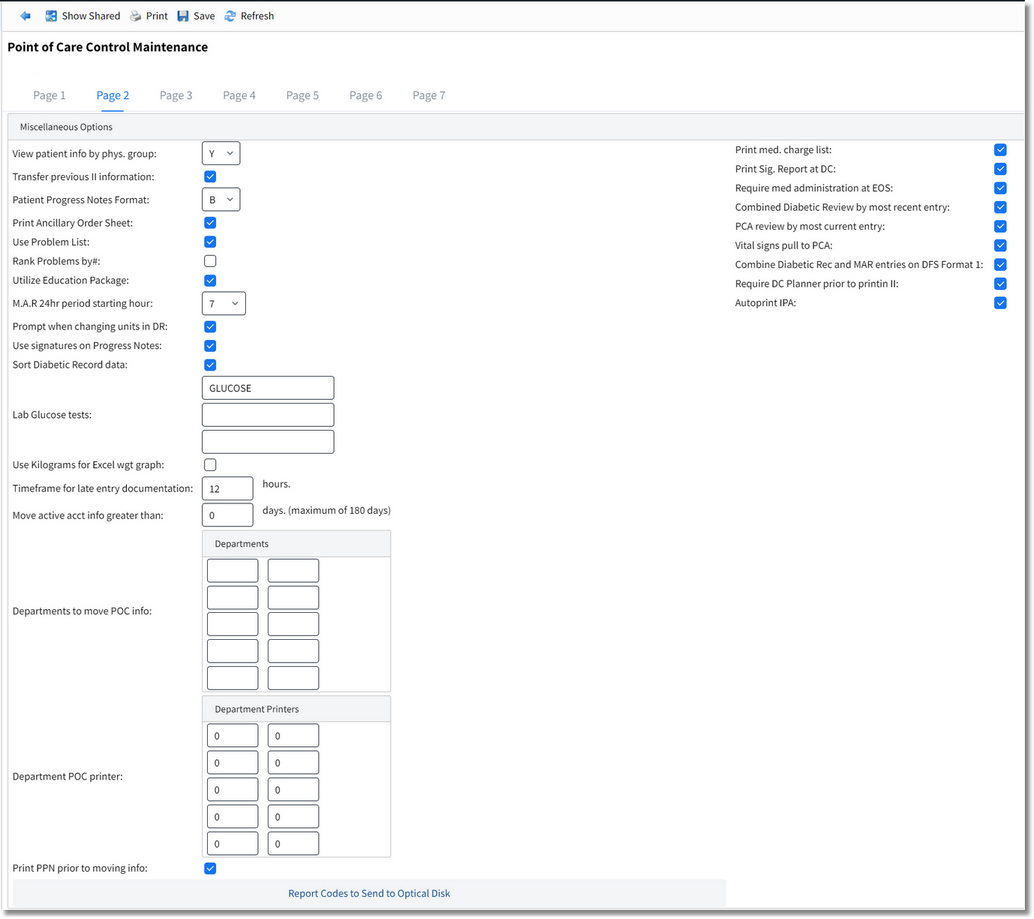
Point of Care Control Maintenance - Page 2
•View patient info by phys. group: **Inactive** (This option controlled how physicians viewed information on patients who were not admitted to their service. This is no longer determined via Point of Care. Please refer to the ChartLink User Guide for additional information.)
•Transfer previous II information: Select this option to enable Copy Previous Pertinent History.
•Patient Progress Notes Format: Select one of the three formats for Patient Progress Notes listed below:
▪A: Information is documented chronologically and prints vertically on the Patient Progress Notes.
▪B: Information is grouped chronologically in categories and the information may be prioritized and combined. Documented information prints vertically.
▪C: Information is grouped chronologically in categories and the information may be prioritized and combined. Documented information prints horizontally and in two columns.
•Print Ancillary Order Sheet: Select this option to automatically print an Ancillary Order Sheet to the default printer if the order is placed via Point of Care.
•Use Problem List: Select this option if the Problem List will be utilized. If not selected, Box Numbers cannot be designated as Problem List Categories in Nursing Order/Problem List Setup.
•Rank Problems by #: **Inactive** (If selected, Problems displayed by Problem Number on the Problem List. Problem Number is no longer used in Problem List Setup.)
•Utilize Education Package: Select this option to enable the Traditional Education Option. If documenting Education via Flow Charts, this option must be selected to utilize the Education Report.
•M.A.R. 24hr period starting hour: Determines the timeframe parameters that must be met to generate a final MAR (24 Hour and 5 Day):
▪07: 0700 hrs back to 0659 hrs the previous day.
▪15: 1500 hrs back to 1459 hrs the previous day.
▪23: 2300 hrs back to 2259 hrs the previous day.
•Prompt when changing units in DR (Diabetic Record): Select to receive the prompt, “Are you sure? Y/N,” when changing the dose of insulin in the Diabetic Record.
•Use signatures on Progress Notes: Select to include a signature line on the Patient Progress Notes. Nursing displays as Nurse's Signature. Multidisciplinary displays as Signature.
•Sort Diabetic Record data: Select this option to view documentation per sliding scale type (SubQ, IV, etc.) on the Patient Progress Notes. If not selected, the documentation will be combined and in chronological order.
•Lab Glucose tests: Controls whether a blood glucose test resulted via the facility’s lab will generate on the Diabetic Flowsheet (Routine/ICU).The description of the test(s) listed must be set up in the lab’s reference range tables. Consult the facility’s lab manager or a TruBridge Point of Care support representative for assistance
•Use Kilograms for Excel wgt graph: Select this option to display weight in kilograms when using the Graph Review option via traditional Vital Signs.
•Move active acct info greater than:___days. (maximum of 180 days): The system may be set up to move documentation (ns1) to an alternate directory (ad1) for departments with large volumes of documentation, such as Long Term Care Units. Documentation may be set to move 1 to 180 days after admission. The system restarts the countdown of days each time the set number of days expires until the patient is discharged. Documentation housed in ad1 purges to ADR using the same parameters as ns1.
•Timeframe for late entry documentation ___ hours: Enter the time (in hours) that flow chart documentation should be labeled as a "Late Entry."
•Departments to move POC info: Up to 10 Point of Care Departments may be designated to use ad1. Enter the applicable departments in fields 1-10.
•Department POC printer: Patient Progress Notes may be set to automatically print when account documentation moves to ad1. Enter the printer number for each department in the corresponding fields 1-10.
•Print PPN prior to moving info: Select this option to automatically print Patient Progress Notes when account documentation moves to ad1.
•Report Codes to Send to Optical Disk: Select this option to display a list of POC Reports available to move to ADR. The reports will purge based on the number of days entered for Days after discharge to keep data, after which they must be accessed via Clinical History.The reports available are listed below:
▪24 Hour Summary - 24HS |
▪Pain Assessment Flowsheet - PAF |
▪Activities - NA |
▪Patient Census - PC |
▪Critical Care Flowsheet - CCF |
▪Patient Drug Information - DM |
▪Diabetic Flowsheet - DFS |
▪Patient Education Documents - PED |
▪Discharge Instructions - DI |
▪Patient Progress Notes - NN |
▪Discharge Planner - DP |
▪Patient Summary - PS |
▪Discharge Summary - DS |
▪PCA Flowsheet - PCA |
▪Education Report - EDUC |
▪Problem Activity Report - PAR |
▪Graphic I&O - GR3 |
▪Problem List - PL |
▪Initial Interview - II |
▪Shift Summary Report - SS |
▪Initial Physical Assessment - PA |
▪Signature Report - SIG |
▪Medical Order Report - MOR |
▪Swan Ganz - SG |
▪Medication Administration Record - MAR |
▪Transfer Form - TF |
▪Medication Report - MR |
▪Vital Signs Bar Graph - GR2 |
▪O2 Sat Bar Graph - GR4 |
|
•Print med. charge list: Select this option to include a list of the patient's medication charges each time the Patient Progress Notes are generated. The charges display at the end of the report.
•Print Sig. Report at DC: Select this option to automatically print the Signature Report when Discharge Reports is selected.
•Require med administration at EOS: If selected, the system will review the patient's MAR for non-administered scheduled medications when End of Shift is performed on an account. If all medications have not been administered for the current shift, the user will receive a prompt to review the account but may proceed with End of Shift.
•Combined Diabetic Review by most recent entry: When selected, the Subcutaneous and IV Sliding Scale review will display in reverse chronological order.
•PCA review by most current entry: Select this option to review PCA documentation in reverse chronological order.
•Vital signs pull to PCA: Select this option to include Respiration, Blood Pressure, and Pulse values documented outside of the PCA application on the PCA Infusion Form.
•Combine Diabetic Rec and MAR entries on DFS Format 1: Select this option to display Insulin Administrations documented via POC Pharmacy or Med-Verify on the Diabetic Flow Sheet. MAR will display in the BG Level column on all three versions of the Diabetic Flow Sheet. Deselect the option to display documentation for orders entered and documented against via the Diabetic Record.
•Require DC Planner prior to printing II (Initial Interview): This option requires the Discharge Planner be addressed prior to generating the Initial Interview.
•Autoprint IPA (Initial Physical Assessment): If selected, the user will receive a prompt to print the Initial Physical Assessment each time flow chart documentation is saved as initial versus shift data.
•After setup is complete, the following options are available:
▪Blue Back Arrow: Select this option to return to the previous screen.
▪Show Shared: Select this option to view setup being shared by multiple facilities.
▪Print: Select this option to print setup.
▪Save: Select this option to save modifications.
▪Refresh: Select this option to refresh the page.