|
<< Click to Display Table of Contents >> Monitor Interface Departments |
  
|
|
<< Click to Display Table of Contents >> Monitor Interface Departments |
|
The Monitor Interface Departments table displays a list of departments that have been set up to receive vital signs from an interface. The setup allows the department to specify if the vital signs from the interface will be automatically imported, manually imported, or not imported into the Vitals application. An interface must be purchased.
Select Web Client > Tables > Clinical > Vital Signs category > Monitor Interface Departments
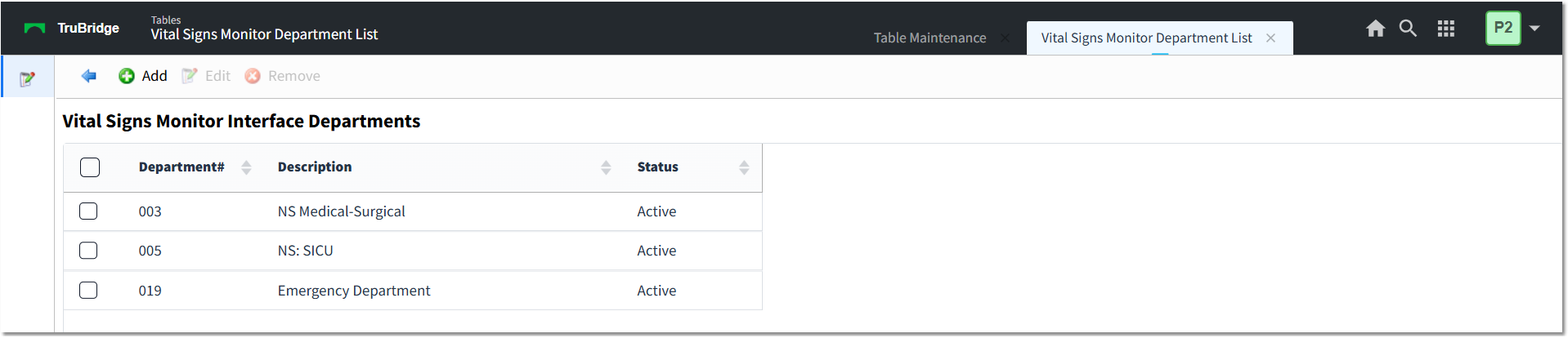
Vital Signs Monitor Interface Departments Table
The table displays the following information:
•Department #: Displays the interface department number.
•Description: Displays the interface department name.
•Status: Displays the status of the interface department (Active or Inactive).
Action Bar Options
•Blue back arrow: Select to return to the previous screen.
•Add: Select to set up a new interface department.
•Edit: Select to edit an interface department.
•Remove: Select to remove an interface department.
To Add New Interface Settings for a Department
1.Select Add.
2.On the Department List screen, double-click on the department the interface settings are being set up for. The Vital Signs Monitor Interface Settings screen displays.
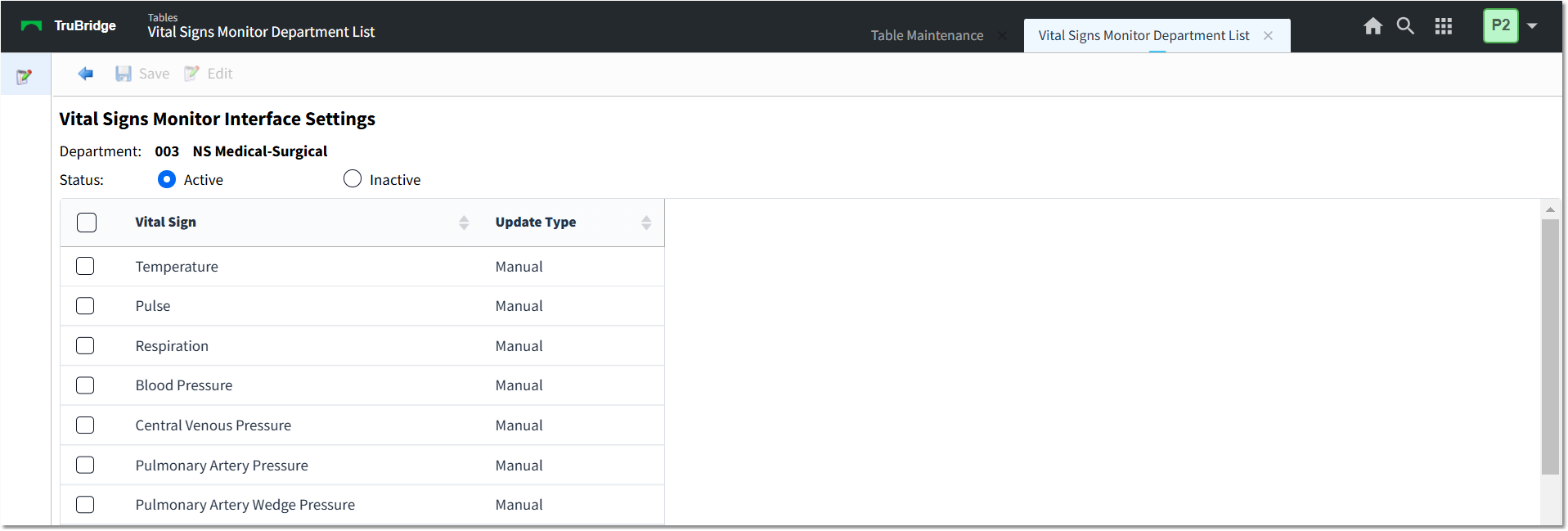
Vital Signs Monitor Interface Settings
3.The status of Inactive is selected by default. This selection will not import the department vital signs from the interface. Select Active if the department vital signs should be imported from the interface.
4.The table displays a Vital Sign and Update Type column. Select a vital sign entry and select Edit or double-click on the entry. The Department Vital Signs Monitor Interface Settings screen displays for the selected vital sign.

Department Vital Signs Monitor Interface Settings - Temperature
5.In the Update Type field, select the update type for the vital sign from the interface. Options are:
▪Manual: (default) Select to manually import the vital sign from the interface.
▪Auto: Select to automatically import the vital sign from the interface.
▪None: Select if the vital sign should not be imported from the interface.
6.Select Save.
7.Repeat Steps 4, 5, and 6 for the necessary vital sign entries in the table.
To Edit Interface Settings for a Department
1.On the Vital Signs Monitor Interface Departments screen, select the department entry.
2.Select Edit.
3.Make the necessary changes and select Save.
To Remove Interface Settings for a Department
1.On the Vital Signs Monitor Interface Departments screen, select the department entry.
2.Select Remove.