|
<< Click to Display Table of Contents >> Vital Sign Ranges |
  
|
|
<< Click to Display Table of Contents >> Vital Sign Ranges |
|
The Vital Sign Ranges table allows vital sign ranges to be set for one or more departments by gender and an age range. Once a range is set up, vital sign entries that fall outside the range for a patient registered in the department(s) who meet the gender and age criteria will be highlighted in red. Vital sign ranges may be added, edited, and removed in this table.
Select Web Client > Tables > Clinical > Vital Signs category > Vital Sign Ranges

Vital Signs Ranges Table
The table displays the following information:
•Description: Displays the description of the vital sign range.
•Department: Displays the departments associated with the vital sign range.
Action Bar Options
•Blue back arrow: Select to return to the previous screen.
•Add: Select to create a new vital sign range.
•Edit: Select to edit a vital sign range.
•Remove: Select to remove a vital sign range.
To Add a Vital Sign Range
1.Select Add.
2.On the Department List screen, select the department(s) the vital sign range is being created for.
3.Select Continue. The Vital Sign Range Department Settings screen is displayed.
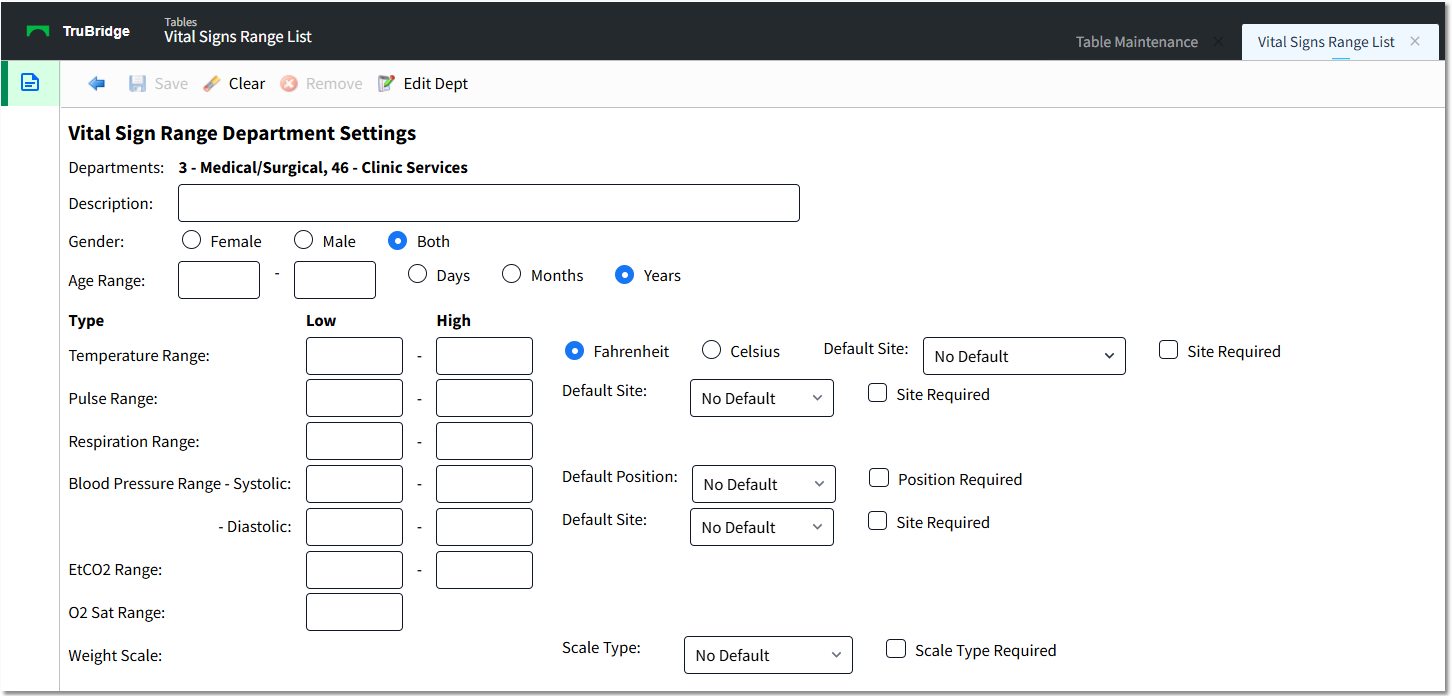
Vital Sign Range Department Settings
4.In the Description field, enter a description for the new vital sign range. This field accepts up to 75 characters.
5.In the Gender field, select whether this vital sign range applies to Female patients, Male patients, or Both.
6.In the Age Range field, specify the ages this vital sign range applies to. First select Days, Months, or Years; then enter the appropriate numbers in the two text fields.
NOTE: Age ranges may not overlap in the same department, and if an age range is set up as Days, it may not exceed 28 days.
7.Set up the vital sign Type as follows.
•Temperature Range: Enter the low and high values in the appropriate text boxes. Up to 5 characters may be entered including a decimal point.
oSelect whether the temperature range you entered is in Fahrenheit or Celsius degrees.
oIf desired, select a Default Site. Options include the following:
▪No Default
▪Oral
▪Rectal
▪Axillary
▪Tympanic
▪Bladder
▪Swan Ganz
▪Temporal Scanning
▪Temporal
▪Temporal Artery
oSelect the Site Required check box to require that a site be selected when charting temperature in the Vitals application.
•Pulse Range: Enter the low and high values in the appropriate text boxes.
oIf desired, select a Default Site. Options include the following:
▪No Default
▪Pulse Ox
▪Radial
▪Brachial
▪Femoral
▪Carotid
▪Apical
▪Monitor
oSelect the Site Required check box to require that a site be selected when charting pulse in the Vitals application.
•Respiration Range: Enter the low and high values in the appropriate text boxes.
•Blood Pressure Range: Enter the low and high values for both Systolic and Diastolic in the appropriate text boxes.
oIf desired, select a Default Position. Options include the following:
▪No Default
▪Lying
▪Sitting
▪Standing
▪Doppler
oSelect the Position Required check box to require that a position be selected when charting blood pressure in the Vitals application.
oIf desired, select a Default Site. Options include the following:
▪No Default
▪Right Arm
▪Left Arm
▪Right Leg
▪Left Leg
oSelect the Site Required check box to require that a site be selected when charting blood pressure in the Vitals application.
•EtCO2 Range: Enter the low and high values in the appropriate text boxes.
•O2 Sat Range: Enter the low value in the text box. O2 Sat levels may not exceed 100.
•Weight Scale: If desired, select a default Scale Type from the drop-down. Options include the following:
oNo Default
oStated
oBed Scale
oFloor Scale
oSling Scale
oChair Scale
oNewborn Scale
oEstimated
8.Select Save to save the vital sign range entry.
9.Select the blue back arrow to return to the Vital Sign Ranges table.
To Edit a Vital Sign Range
1.Select the vital sign range you want to edit.
2.Select Edit.
3.Make the desired changes to the vital sign range.
4.Select Save.
5.Select the blue back arrow to return to the Vital Sign Ranges table.
To Remove a Vital Sign Range
1.Select the vital sign range you want to remove.
2.Select Remove.