|
<< Click to Display Table of Contents >> Med Verify Compliance |
  
|
|
<< Click to Display Table of Contents >> Med Verify Compliance |
|
The Med Verify Compliance Dashboard presents comprehensive data on medication verification compliance, including total metrics and trends broken down by month, week, and day. Additionally, total medication administrations can be analyzed by nurse, department, stay type, sub type, service code, and item description, promoting medication safety across the facility.
Select Select Web Client > Report Dashboard > Interactive Reports & Dashboards > Med Verify Compliance
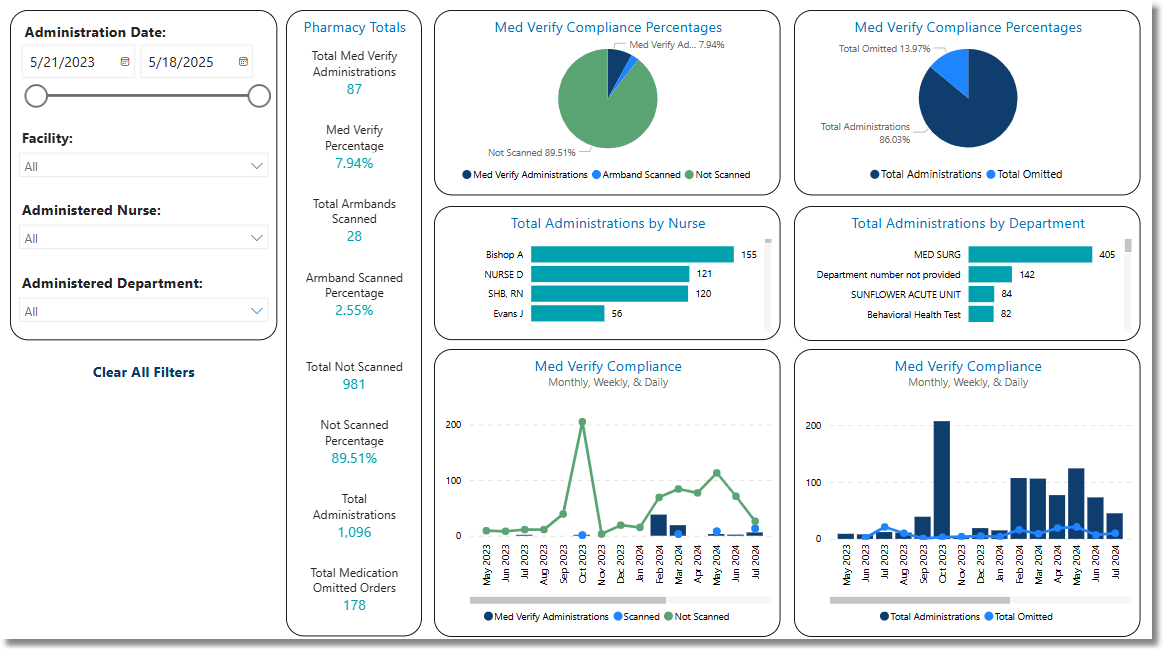
Pharmacy Med Verify Compliance
Metrics
•Total Med Verify Administrations: The number of entries in which the user scanned the armband, the medication, and the medication was administered.
•Med Verify Percentage: The percentage of Med Verify Administrations from the Total Administrations.
•Total Armbands Scanned: The number of entries in which the user only scanned the armband and the medication was administered.
•Armband Scanned Percentage: The percentage of Armbands Scanned from the Total Administrations.
•Total Not Scanned: The number of entries in which neither the armband nor the medication were scanned, and the medication was administered.
•Not Scanned Percentage: The percentage of Not Scanned from the Total Administrations.
•Total Administrations: The sum of Total Med Verify Administrations, Total Armbands Scanned, and Total Not Scanned.
•Total Medication Omitted Orders: The number of entries that were recorded as omitted.
Filters
Filters can be applied to refine the dashlet totals. Each filter features a drop-down menu with a built-in search field, allowing for efficient selection of specific criteria.
•Administration Date: Use the calendar or slider to specify an Administration Date range to be used.
•Facility: Use the drop-down menu to select a specific facility.
•Nurse: Use the drop-down menu to select a specific nurse.
•Department: Use the drop-down menu to select a specific department.
•Stay Type: Use the drop-down menu to select a specific Stay Type.
•Sub Type: Use the drop-down menu to select a specific Sub Type.
•Service Code: Use the drop-down menu to select a specific Service Code.
•Item Description: Use the drop-down menu to select a specific Item Description.
•Clear All Filters: Select this option to clear all previously applied filters.
NOTE: If no filters are selected, the data will populate using the default setting of All.
Slicers
The following slicers are available to further refine the corresponding dashlets:
Medication Administrations Trends By:
•Monthly
•Weekly
•Daily
Medication Administrations By:
•Nurse
•Department
•Stay Type
•Sub Type
•Service Code
•Item Description