|
<< Click to Display Table of Contents >> Allergy Reactions |
  
|
|
<< Click to Display Table of Contents >> Allergy Reactions |
|
The Allergy Reaction Table lists the reactions that display when charting a patient's allergies. Reactions may be added, edited, and inactivated in this table.
Select Web Client > Tables > Clinical > Nursing category > Allergy Reactions
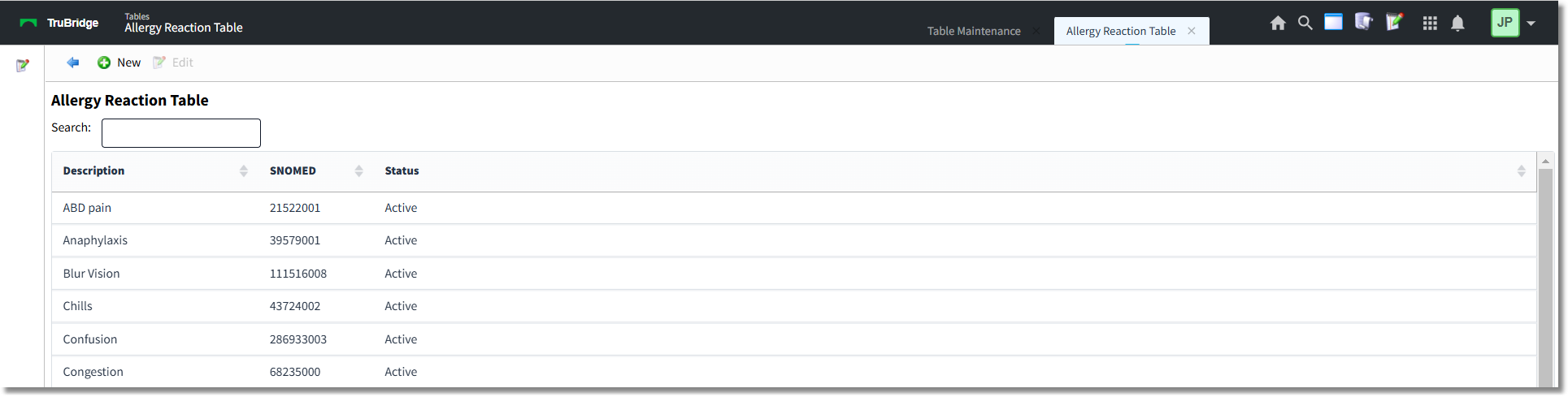
Allergy Reaction Table
The table displays the following information:
•Description: Displays the description of the allergy reaction.
•SNOMED: Displays the SNOMED code associated with the allergy reaction.
•Status: Displays the status of the allergy reaction (Active or Inactive).
Action Bar Options
•Blue back arrow: Select to return to the previous screen.
•New: Select to create a new allergy reaction.
•Edit: Select to edit the selected allergy reaction.
To Add a New Allergy Reaction
1.Select New. The Allergy Reaction screen displays.

Allergy Reaction - New
2.In the Description field, enter a description for the allergy reaction.
3.In the SNOMED Code field, use the lookup icon to search for and select the appropriate SNOMED code.
4.The Inactive check box defaults to unchecked, indicating the reaction is active and available for use in the system. If you do not want the reaction available, select the check box.
5.Select Save.
6.Select the blue back arrow to return to the Allergy Reaction Table.
To Edit an Allergy Reaction
1.On the Allergy Reaction Table, select the reaction entry you want to edit.
2.Select Edit.
3.Make the necessary edits.
4.Select Save.
5.Select the blue back arrow to return to the Allergy Reaction Table.
NOTE: Existing allergy reactions cannot be deleted. Selecting the Inactive check box will remove the reaction from the drop-down list in the Allergy application.