|
<< Click to Display Table of Contents >> Control Information Page 3 |
  
|
|
<< Click to Display Table of Contents >> Control Information Page 3 |
|
Select Web Client > Tables > Clinical > Control Information > CrCl/Employee Rx/Care Tax
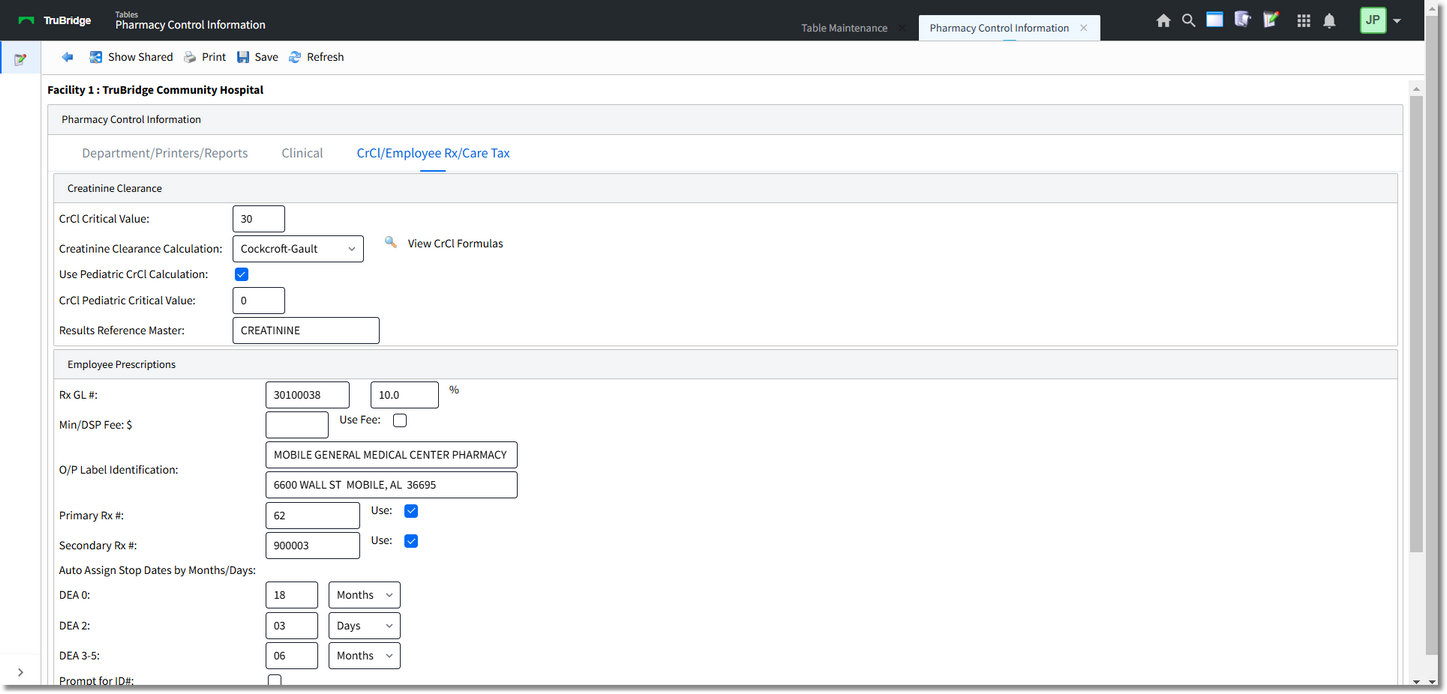

Pharmacy Control Information CrCl/Employee Rx/ Care Tax
•Creatinine Clearance Critical Value
▪Default: Blank
▪Options: 01 - 99
▪Usage: Indicates the value that has been determined to be a critically low Creatinine Clearance Level. The flashing number on the patients Pharmacy Selection Screen indicates the potential critical Creatinine Level.
•Creatinine Clearance Calculation
▪Default: Blank
▪Options: 1 – Cockcroft-Gault, 2-Jelliffe, 3-Hull, 4-Mawer, 5-Schwartz
▪Usage: There are five formulas for pharmacy to use to calculate creatinine clearance. Enter the number that corresponds to the formula needed. At the bottom of Page 2, type "X" to display the Creatinine Clearance Formulas.
•Use Pediatric CrCl calculation
▪Default: Blank
▪Options: Yes, ✓ (check mark), or No, blank.
▪Usage: Enables use of the Schwartz Creatinine Clearance Formula for pediatric patients
•CrCl Pediatric Critical Value
▪Default: Blank
▪Options: 01-99
▪Usage: Indicates the Pediatric value that has been determined to be a critically low Creatinine Clearance Level.
•View CrCl Formulas
▪Default: Blank
▪Options: 1-Cockcroft-Gault, 2-Jelliffe, 3-Hull, 4-Mawer, 5-Schwartz
▪Usage: Select the View CrCl Formulas option to view the available CrCl formulas.
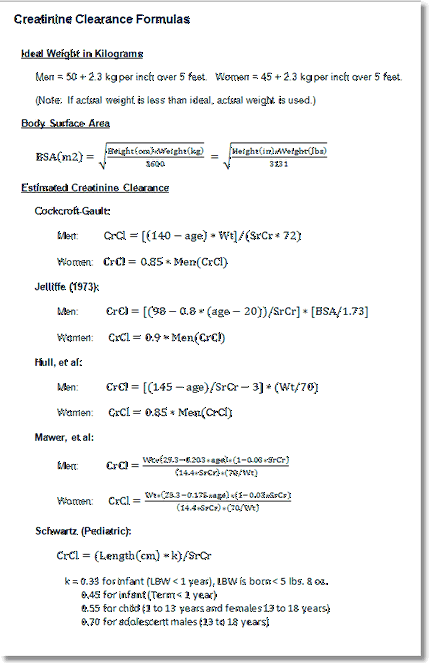
View CrCl Formulas
•Results Reference Master
▪Default: CREATININE
▪Options: 20-character free text field.
▪Usage: Enter into this field the result code (Reference Range) for reporting the Serum Creatinine per established laboratory guidelines.
Employee Prescriptions
The following information is only valid for accounts which have a $ or + in the Service Code of the Patient Maintenance screen.
•Rx GL #
▪Default: Blank
▪Options: For Employee prescription or LTC general ledger number.
▪Usage: Contains a General Ledger number and a cost plus percentage for charging employee prescriptions. The COST or AWP pulls from page 2 of the item master and adds or subtracts a percentage per unit. If no percentage is added in the table, only the COST or AWP of the item is charged to the patient account. Patient must have a <+> AWP or <$> cost service code for formulary to pull as patient charge.
oMin/DSP Fee - used to set a minimum charge for employee prescriptions. If the calculated charge is less than the set minimum charge amount, then a default dollar amount minimum can be set.
oEXAMPLE: if the calculated cost of the prescription is 80 cents (including the percentage if one is set), but the amount in the Min/DSP Fee field is $1.00, the charge is $1.00 for the RX not $.80.
oThe Min/DSP Fee field can also be used as a Fee field.
•If pharmacy charges a fee per prescription in addition to or instead of a percentage, the minimum charge field can serve as a fee if Use Fee: is set to Y (yes).
•The charge will consist of adding the amount in the fee field to the calculated cost of the RX. In the above example, the employee is charged $1.80 if the Fee was set to Y. This overrides the minimum as discussed above.
•O/P Label Identification
▪Default: Blank
▪Options: Maximum of 40 characters per line - 2 lines.
▪Usage: The outpatient label is formatted differently from the inpatient hospital label. The information prints at the top of the outpatient label. Added during TruBridge install.
oEXAMPLE:
TRUBRIDGE COMMUNITY HEALTH SYSTEM
6600 WALL STREET MOBILE, AL 36695
•Primary and Secondary RX #
▪Default: Zeros
▪Options: Modify to match existing Rx numbers used by facility or begin new set of treatment numbers.
▪Usage: Part of the RX number generator. The next Outpatient/Employee prescription number can be entered into line 9. Both a Primary and a Secondary beginning prescription number may be entered.
oThe Automatic RX counters have an activation switch. The activation switches can be set to "Y" or "N." Note that if the switch is left blank, then "Y" is assumed. The prescription counters are active only when an order is entered through selection X-EMPLOYEE/LTC.
oBased on the settings of the prescription counter switches, prescription numbers can be automatically assigned based on the schedule classification upon the completion of a new order.
•If both counters are set to "Y," then the Primary Counter assigns numbers for all medications excepting Schedule II's. The Secondary Counter assigns numbers for Schedule II medications only.
•If the Primary Counter is set to "Y," and the Secondary Counter is set to "N", then the Primary Counter assigns numbers for all medications including Schedule II's.
•If the Primary Counter is set to "N," and the Secondary Counter is set to "Y," then the Secondary Counter will assign numbers for Schedule II medications only.
•If both the Primary and Secondary Counters are set to "N" then no prescription numbers will be automatically assigned.
•Auto Assign Stop Dates by “M”onth/”D”ays
▪Default: 12 Months-Non controlled / 6 Months-DEA class 3-5 / 1 Day-DEA class 2
▪Options: 0-99 numeric field for number of months or days. M–Months or D-Days
▪Usage: Allows the system to assign an autostop date for prescriptions. Autostop dates can be defined for non-controlled medications, DEA class 3-5 and DEA class 2 prescriptions. Autostops can be defined for 1 day.
•Prompt for ID#
▪If checked, a box will appear for the pharmacy employee to enter the person's ID information (driver license or other state issued ID) if they are picking up a prescription. Required for the state of Ohio.
•Pharmacy Contact
▪This is a 30-character free text field. The contact name will be added to the file when the Electronic Controlled Substances Report is generated for the state of Alabama.
•Care Tax Structures
▪The state of Minnesota allows a 2% vendor fee to be added to the charge for outpatient prescriptions.
•Care Tax
▪Default: Blank
▪Options: 1-99 Percent
▪Usage: Allows a percentage of awp, cost, or patient price to be calculated for patients of a certain Stay Type.
•Non Formulary Item Information
▪Allows the calculation of a non formulary item patient price.
•Price
▪Default: Blank
▪Options: 1-999 Percent
▪Usage: Allows a percentage to be added to or subtracted from awp to calculate a patient charge for non formulary medication items.
•Rx GL #
▪Default: Blank
▪Options: General Ledger number
▪Usage: General Ledger number for employee or LTC non formulary medication.
The following options are available on the action bar:
•Show Shared: If the site is sharing tables, when this option is selected, the fields that are shared between facilities will be highlighted in yellow.
•Print: Displays the table settings in Adobe
•Save: Saves changes made to the table settings
•Refresh: Allows changes to display immediately
Select  Back Arrow to return to the previous screen.