|
<< Click to Display Table of Contents >> Control Table |
  
|
|
<< Click to Display Table of Contents >> Control Table |
|
The Control Table in Table Maintenance allows for E-Scribe to be turned on for a facility or multi-facility with a shared profile. By selecting the checkbox to the right of Use E-Scribe
Select Web Client > Tables > Clinical > Prescription Entry > Control Table
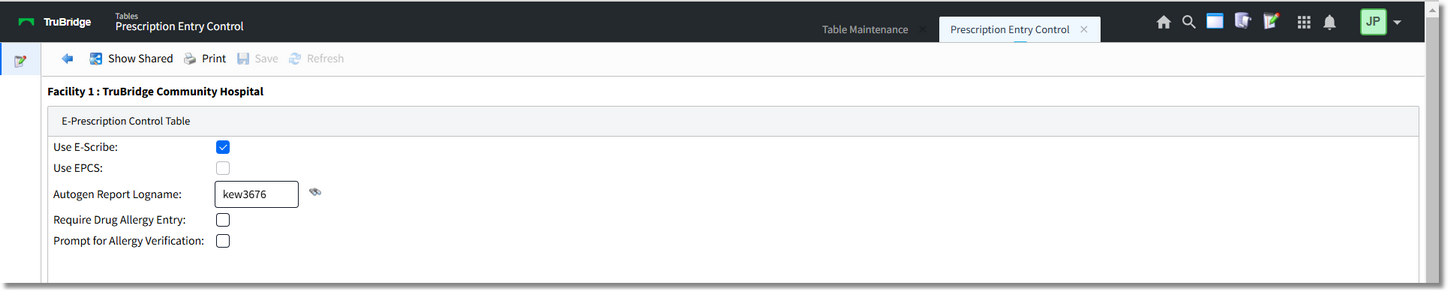
Prescription Entry Control
•The blue back arrow will return to the main Clinical screen.
•The Show Shared option will highlight any fields that are sharing the same profile with another facility (multi-facility).
•The Print option generates a PDF copy of the table along with current settings/selections.
•Save will save any changes made to the table.
•Refresh will refresh the screen to reflect recent changes.
•Use E-Scribe: The check box will enable the ability to use the Electronic Prescription functionality via Prescription Entry. The date that the switch is selected will pull to the MU II Stats report.
•Use EPCS: The check box will allow the activation of EPCS along with a port number field. Since EPCS is a purchased TruBridge application, the check box is only active for TruBridge lognames.
•Autogen Report Logname: This field controls who can view the auto gen reports via the Report Image System > ADR option. It will only be used for one user per site and only house one record that will be the logged PHI printer of the reports: Unauthorized Access, System Access Report, E-Scribe Service Level, and Prescription Detail Audit.
•Require Drug Allergy Entry: The check box default value is unchecked. When selected, drug allergies must be addressed before new prescriptions may be entered.
•Prompt for Allergy Verification: The check box default value is unchecked. When selected, the user will be prompted to verify the allergies of a patient, but may bypass and place a new prescription for a patient without being required to address allergies.