|
<< Click to Display Table of Contents >> State Specific CS |
  
|
|
<< Click to Display Table of Contents >> State Specific CS |
|
The State Specific CS table may be used to manually add and maintain State Specific Controlled Substances in Table Maintenance. The Search field utilizes Smart Search functionality and will populate results alphabetically based on the entered text.
Select Web Client > Tables > Clinical > State Specific CS
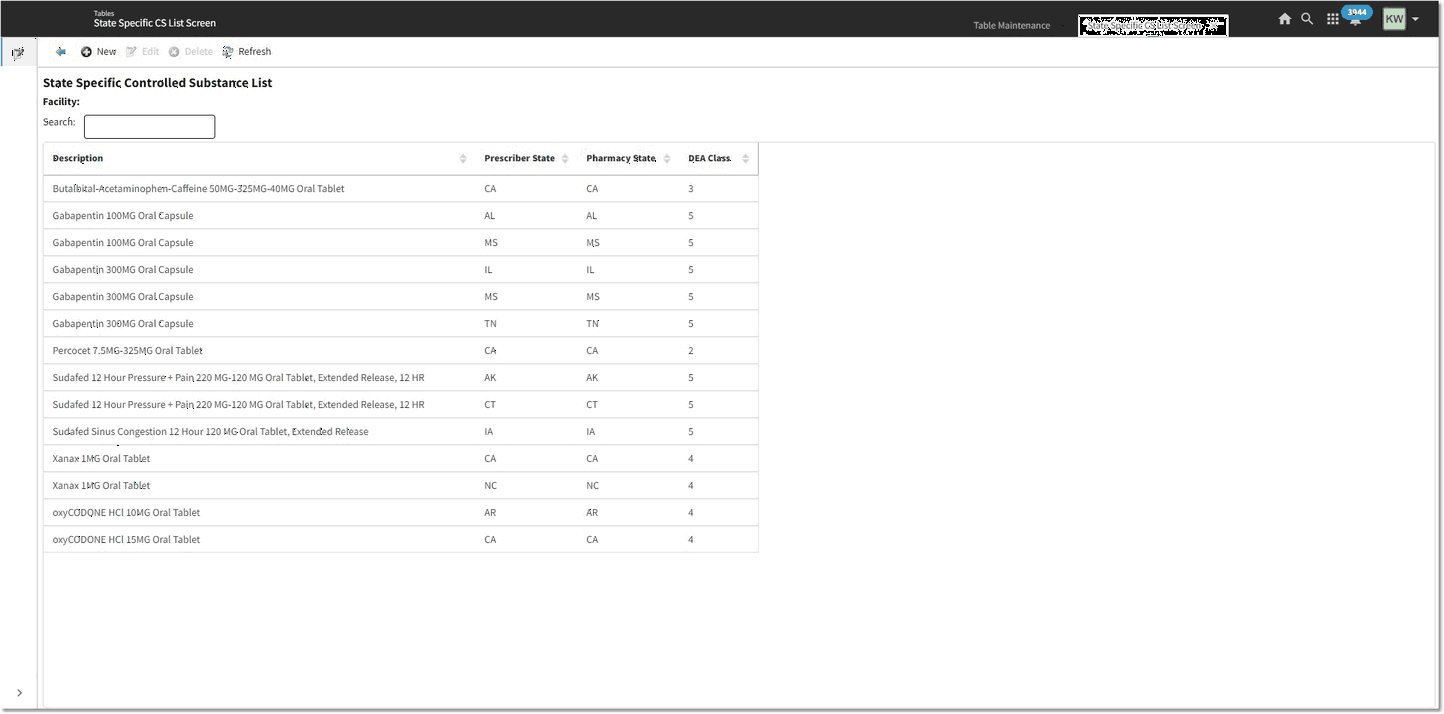
State Specific Controlled Substance List
The screen contains four columns that may be sorted by selecting the header. The header options are: Medication Description, Prescriber State, Pharmacy State, and DEA Class.
The Action bar options are as follows:
1.The Back Arrow returns the user to Table Maintenance.
2.The New option directs the user to the Smart Search screen to search MicroMedex for the desired medication. When this option is selected, the Action bar options for Custom and Delete will disappear. The Original Med div, checkbox_formulary_only, and search div will be hidden.
3.The Edit option will become available when an existing entry is selected. Selecting Edit or double-clicking the entry will direct the user to the State Specific Controlled Substance Edit screen.
4.The Delete option will become available when an existing entry is selected. Selecting Delete will remove the selected entry from the table. Duplicates are not allowed in the State Specific CS table. This table will be shared across facilities. The additions and deletions from the table are logged for auditing purposes.
5.The Refresh option will reflect any recent changes to the table.
Select Web Client > Tables > Clinical > State Specific CS > New
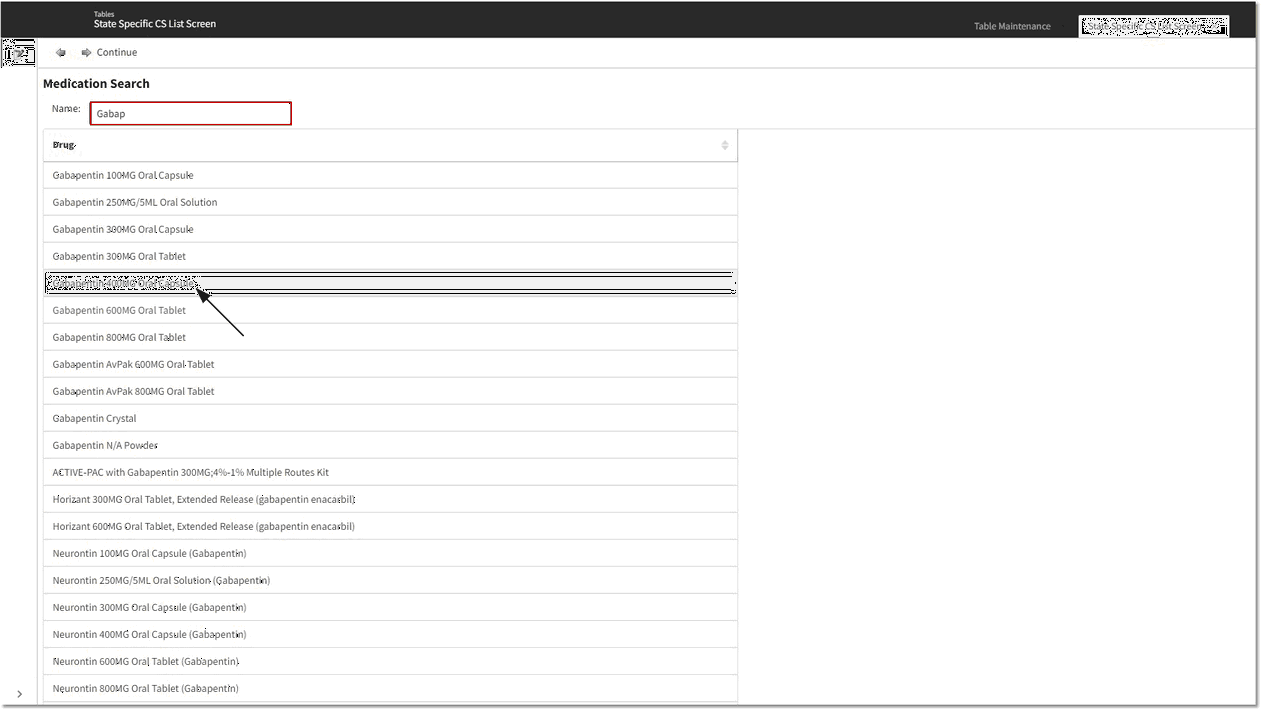
Medication Search
To add a new medication to the list, select New and use the Medication Search screen to locate the desired medication. Double-click the medication or select the medication and then select Continue.
The Edit screen may be accessed once a medication has been selected. This screen contains the following Action bar options:
1.The Back Arrow will return the user to the main State Specific CS screen.
2.The Save option saves the new entry and adds it to the existing table.
3.The Delete option deletes the selected entry from the table.
The Prescriber State and Pharmacy State will default to the state listed in the Physicians table for the 999999 physician. The drop-down list will contain the states that populate by the zip codes loaded in the Zip Codes table under the Prescription Entry header. The magnifying glass icon may be selected to locate the state if it is not listed in the drop-down.
The DEA Class field is a drop-down with the options 2, 3, 4, and 5.
Select Save to save the new entry once all fields have been addressed.
Select Web Client > Tables > Clinical > State Specific CS > New > Select Med > Continue
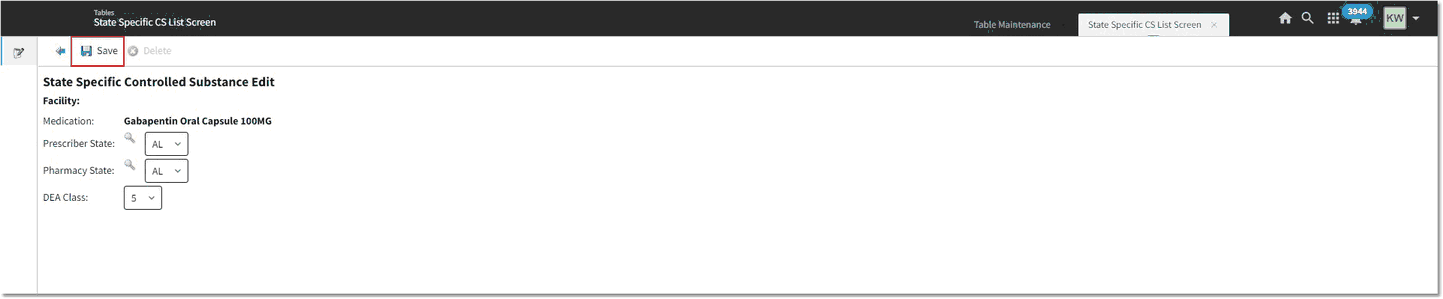
State Specific Controlled Substance Edit