|
<< Click to Display Table of Contents >> Database Codes |
  
|
|
<< Click to Display Table of Contents >> Database Codes |
|
The Database Codes table stores database codes created for Multi-Application functionality and Ad Hoc Reporting in Flow Charts and Electronic Forms. Database codes are attached to the flow chart and electronic form question if the question should query information for Ad Hoc Reporting and/or to enable Multi-Application functionality.
Select Web Client > Tables > Clinical > Nursing category > Database Codes
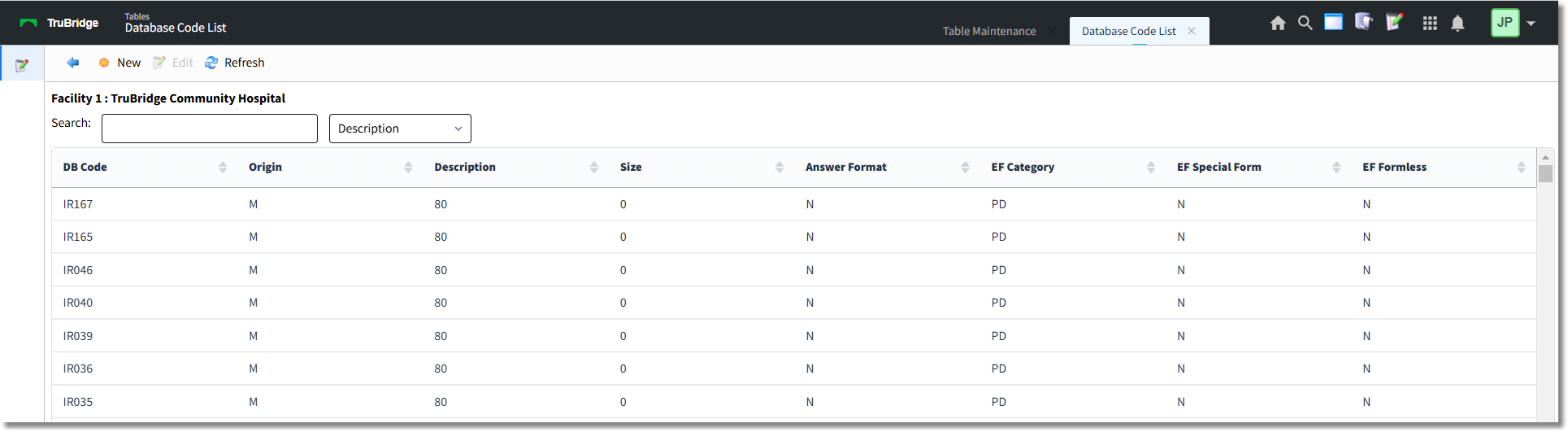
Database Codes
The display columns may be sorted by selecting the header. The table displays the following information:
•DB Code: Displays the database code.
•Origin: The Version 18 release combined multiple tables. This column displays the table from which the code originated before the merge. Codes created after that release was loaded do not display an Origin.
oE: Electronic Forms Database Codes
oL: Electronic Form Loadable Database Codes
oM: Multi-Application Codes
oMP: MPM Database Codes
oP: POC Database Codes
•Description: Displays the description of the database code.
•Size: Displays the text box size (Electronic Forms only).
•Answer Format: DT displays if Date/Time is selected as the answer format (Electronic Forms only).
•EF Category: The Version 18 release combined multiple tables. This field displays the Electronic Form Category from which the code originated before the merge. Codes created after that release default to the PD category (Electronic Forms only).
oHR: Human Resources
oMP: MPM Patient Data
oPD: Patient Data
•EF Special Form: Used by TruBridge only (Electronic Forms only).
•EF Formless: Y displays if the code is a formless code. N displays if the code is a form code. (Electronic Forms only.)
A search may be performed using any of the eight column headings. Enter the search term in the Search field and select the search type from the drop-down.
To Create a New Database Code
1.Select New. The Database Code screen displays.
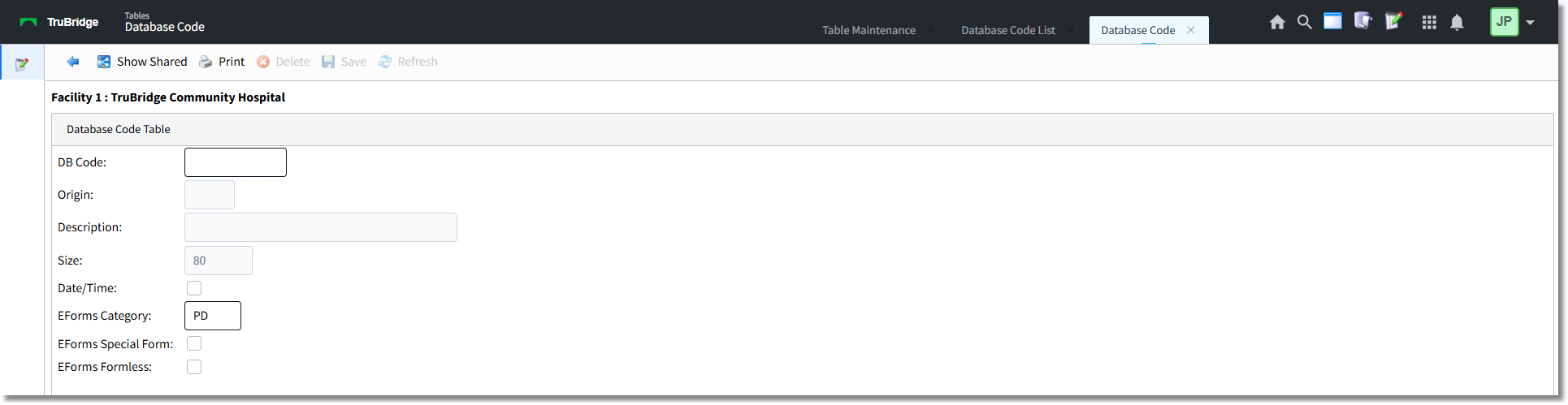
Database Code Screen
2.In the DB Code field, enter the database code. The code can be up to 10 alpha/numeric characters long.
3.In the Description field, enter the description of the database code. The description can be up to 40 alpha/numeric characters long.
4.In the Size field, enter a default box width. The default size is 80. (Electronic Forms only.)
5.Select (check) the Date/Time check box if the code will be used to capture a date and time. (Electronic Forms only.)
6.The Eforms Category field defaults to PD and should not be adjusted.
7.The EForms Special Form field is to be used by TruBridge only.
8.Select (check) the EForms Formless check box if the documentation associated with the code should populate multiple forms on the same patient account.
9.Select Save to save the database code.
To Edit a Database Code
1.Select the database code entry and select Edit.
2.Make the appropriate changes.
3.Select Save.
To Delete a Database Code
Double-click on the database code entry and select Delete.