|
<< Click to Display Table of Contents >> Editing an Existing Document |
  
|
|
<< Click to Display Table of Contents >> Editing an Existing Document |
|
To view Patient Education Document Maintenance, select the topic then Edit.
Select Web Client > Tables > Clinical > Patient Education Maintenance > Document Maintenance > Topic
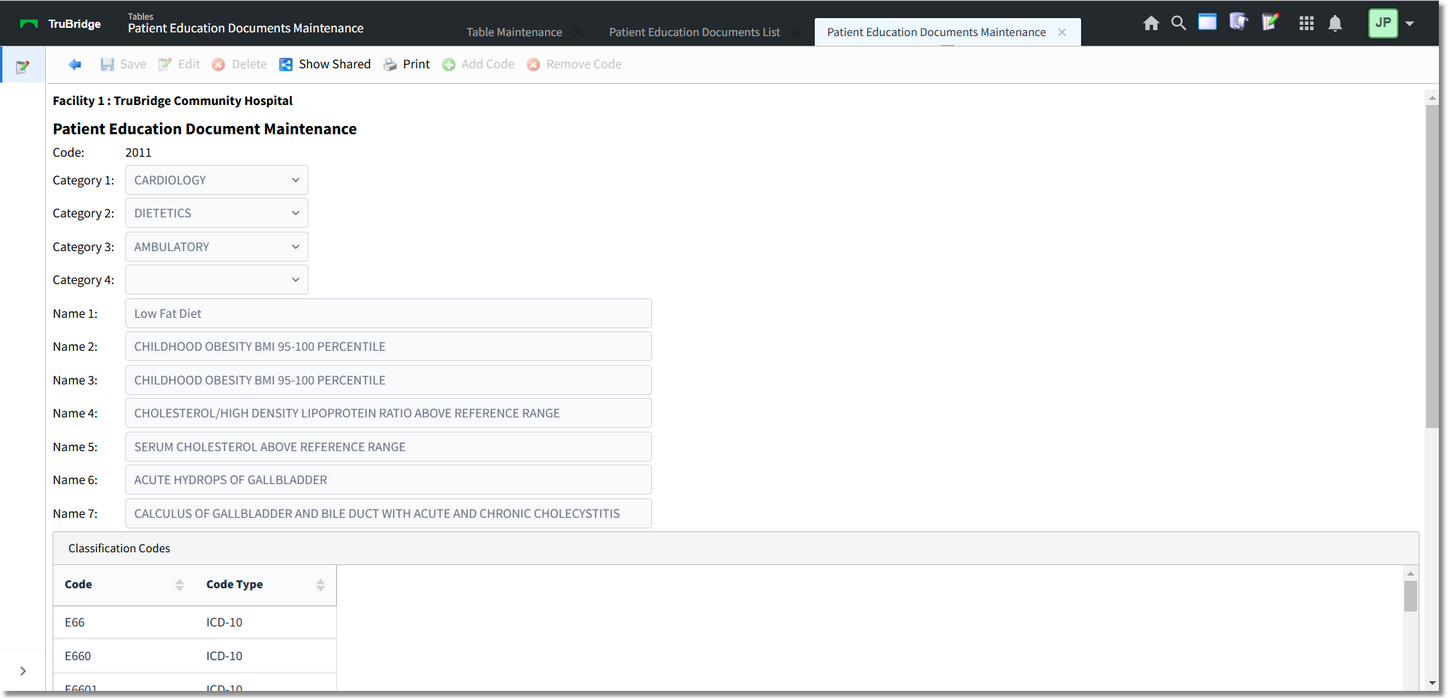
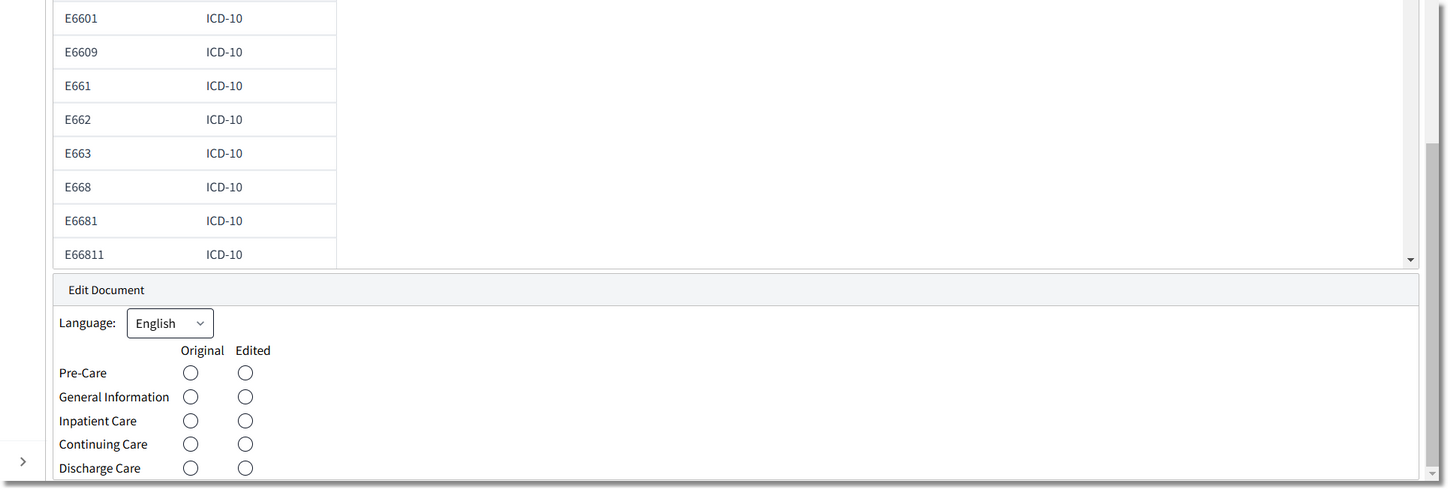
Patient Education Document Maintenance
•Code: Topics are assigned a unique code up to six digits long.
•Category 1 - 4: Topics may be assigned to up to four categories for search purposes. If a custom document has been selected, the Category fields may be modified. Select Save on the action bar to save changes. Categories may not be edited for documents provided by Micromedex.
•Name 1 - 7: The topic description is displayed in field one. Fields two through seven are utilized for alternate search terms. If a custom document has been selected, the Name fields may be modified. Select Save on the action bar to save changes. Names may not be edited for documents provided by Micromedex.
•Classification Codes: The Codes and Code Types, including ICD-9, ICD-10, LOINC and/or SNOMED codes, associated with the topic display in this field (if applicable). If a custom document has been selected, codes may be added or removed using the Add Code and Remove Code options on the action bar. See Create a New Document for additional information. Classification Codes may not be edited for documents provided by Micromedex.
•Edit Document: Select English or Spanish to determine the version of the document to be viewed/edited. To view the original version of a Micromedex document, select the radio button in the 'Original' column for the document type then Edit on the action bar. To view the edited version of a Micromedex or custom document, select the radio button in the 'Edited' column for the document type then Edit on the action bar. To delete a custom document, select the radio button in the 'Edited' column for the document type then Delete on the action bar. Original documents provided by Micromedex may not be deleted. See Create a New Document for additional information on custom documents. At this time, Original Micromedex documents must be modified via Patient Education Maintenance. See Document Maintenance in the Patient Education Documents User Guide.
•Additional options available via the action bar:
▪Back Arrow: Select this option to return to the previous screen.
▪Show Shared: This option will display setup being shared by multiple facilities.
▪Print: Select this option to print setup.