|
<< Click to Display Table of Contents >> Nursing Orders |
  
|
|
<< Click to Display Table of Contents >> Nursing Orders |
|
•The New Nursing option will populate a list of nursing orders and categories.
Select Web Client > Tables > Clinical > Order Set/List/Protocol Maintenance > New > New Nursing
Order Set Nursing Edit
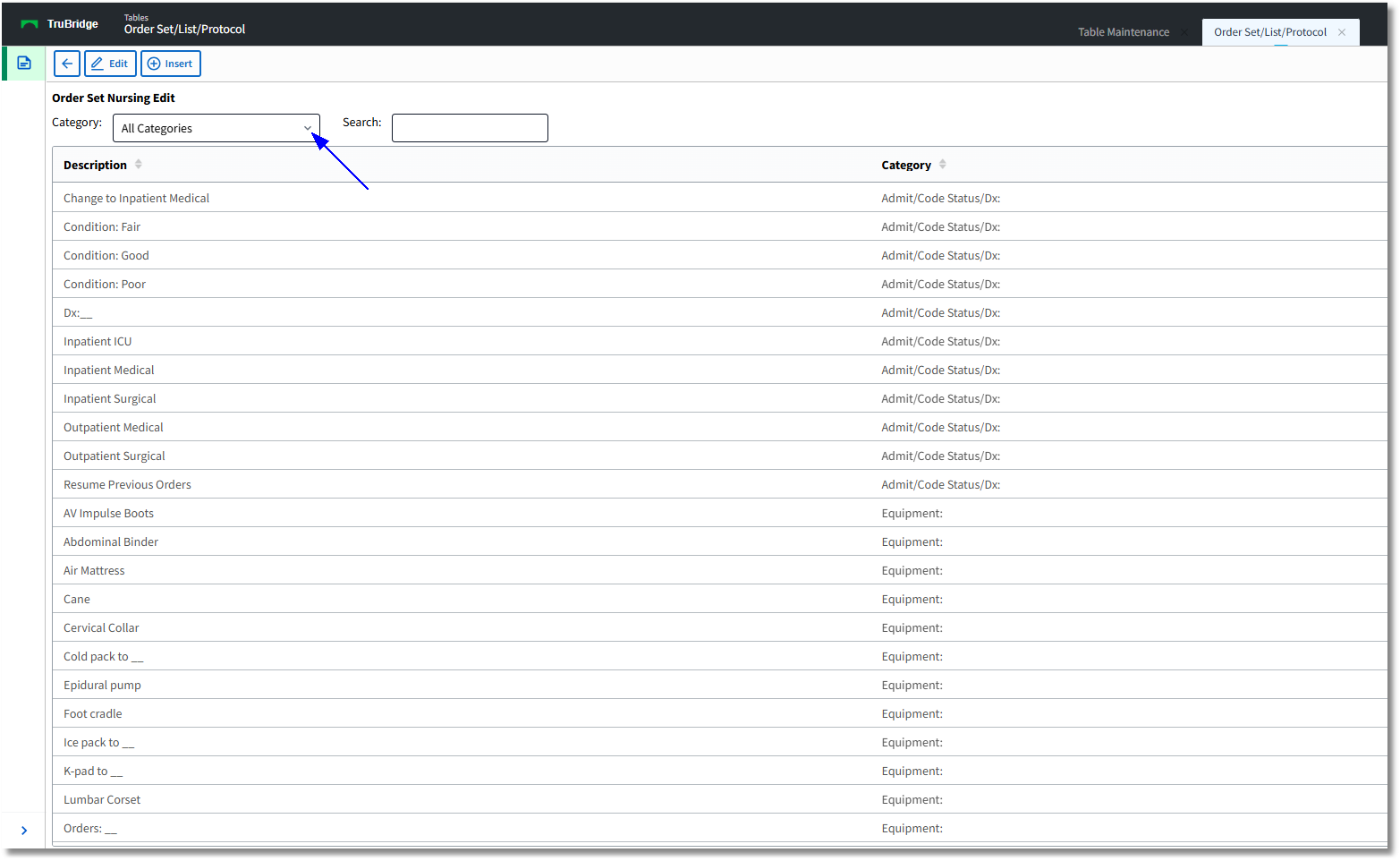
•The Order Set Nursing Edit screen will open with options to search by All Categories as the default. To search for a specific Nursing Orders category, select the drop-down list and choose the desired category. The Search field will utilize a keyword search by description and results will begin to populate as the text is entered.
•Select a Description and then select Insert to add to the Order Set/List. After the order is inserted, the screen will automatically return to the order set setup screen. An order may also be added to the Order Set/List if it is double-clicked, but this will open the order editing screen. A description may also be edited by selecting the description and then selecting Edit.
Order Set Nursing Edit
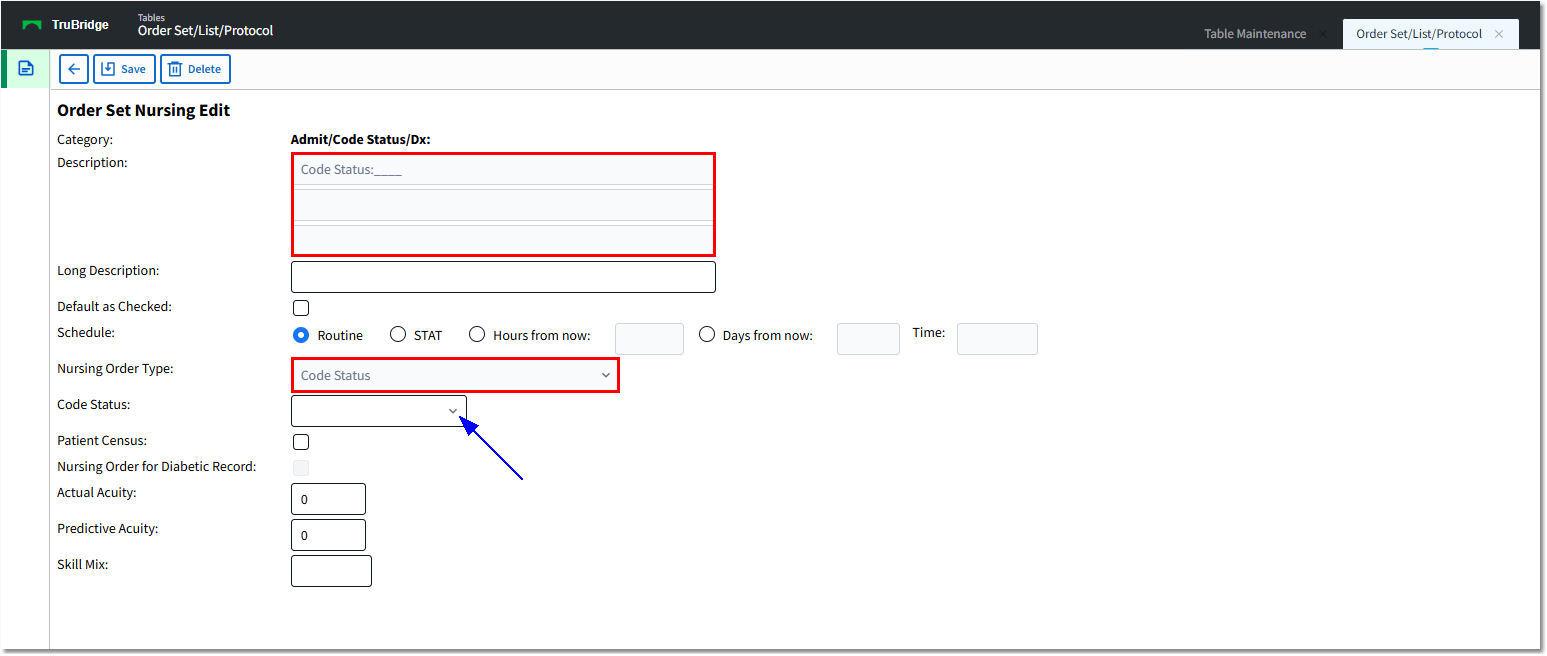
•Once the editing screen is open, the Description field text may be changed. Three fields of up to 75 characters each may be used to enter the description. The item being edited should be selected by the correct Category (as this may not be changed) so that it will populate correctly to the nursing category. Save may be selected after any changes are made. Note that if a Nursing Order Type is attached to a Nursing Order via Nursing Order Category setup, the Description and Nursing Order Type are grayed out and cannot be changed during Order Entry. The user will have to select a Code Status from a drop-down in Order Entry to address the order, unless it has been pre-selected from the drop-down in the Order Set Nursing Edit screen.
•Default as Checked will determine whether or not the item is pre-checked once the set/list is accessed in OE.
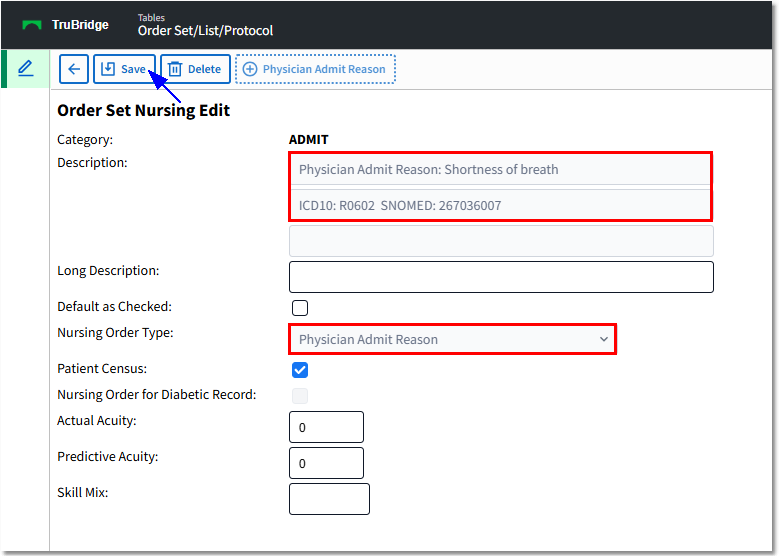
Note that a Physician Admit Reason order may have a default reason from a look-up screen within the order set nursing edit screen. This selected option will appear by default in Order Entry. Only one default reason may be added to a nursing order in an order set. The Physician Admit Reason button will be disabled if a reason has already been selected. Any additional Physician Admit Reasons will need to be placed as an individual order.
Order Set Nursing Edit