|
<< Click to Display Table of Contents >> Ancillary Orders |
  
|
|
<< Click to Display Table of Contents >> Ancillary Orders |
|
The New Ancillary option will populate a list of ancillary items within the hospital item master.
Select Web Client > Tables > Clinical > Order Set/List/Protocol Maintenance > New > New Ancillary
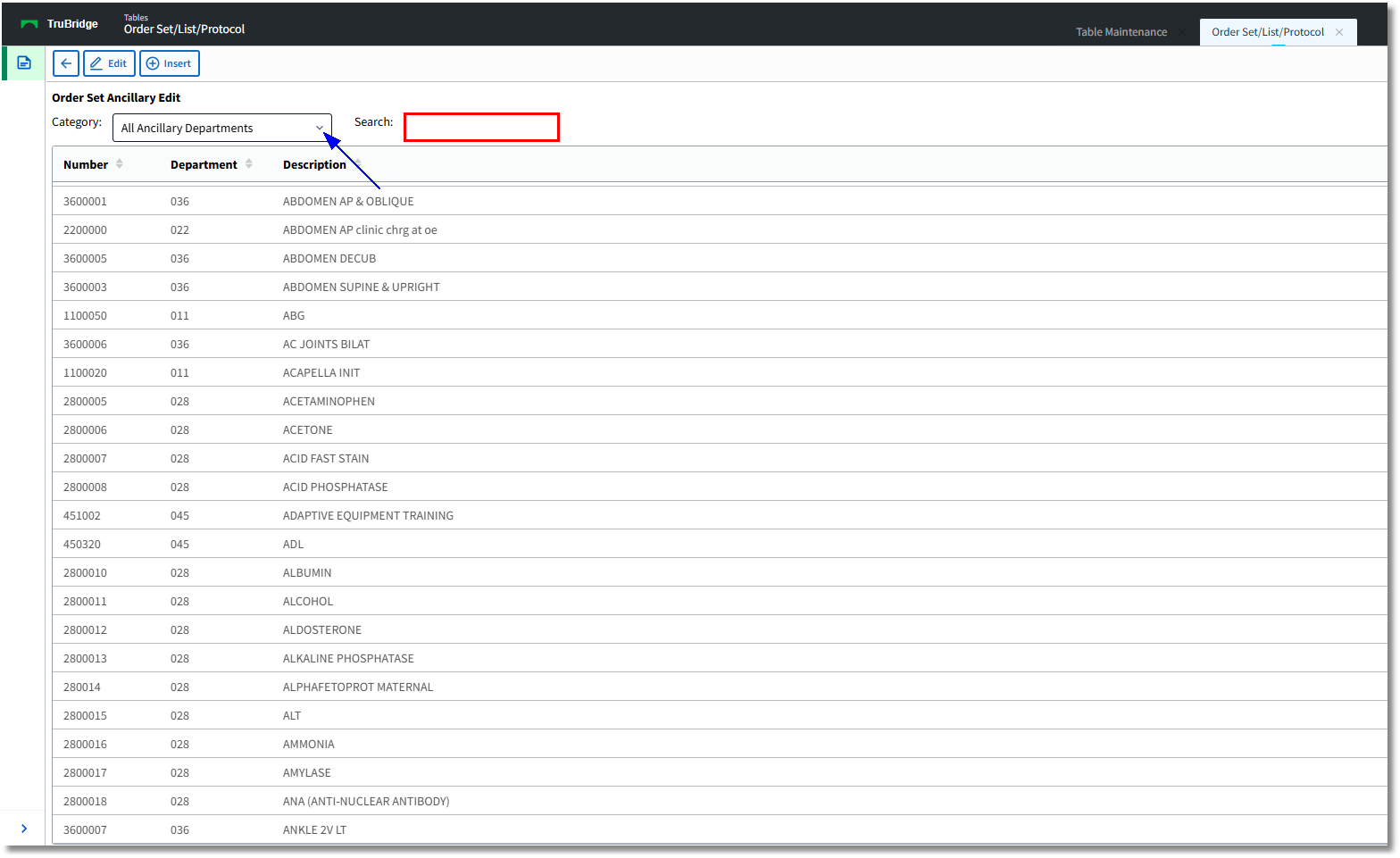
Order Set Ancillary Edit
•The Order Set Ancillary Edit screen will open with options to search by All Ancillary Departments as the default. The search may be narrowed down by selecting a specific ancillary department from the drop-down. The item number will display in the left column and the item description will display in the following column.
•The Search field will utilize a keyword search by description and results will begin populate as the text is entered.
•The Number, Department number, and Item Description columns may be selected to sort items. The listing will default numerically by item number.
•Select a Description and then select Insert to add to the order set/list. After the order is inserted, the screen will automatically return to the order set setup screen. An order may also be added to the set/list if it is double-clicked, but this will open the order editing screen. A description may also be edited by selecting the description and then selecting Edit.
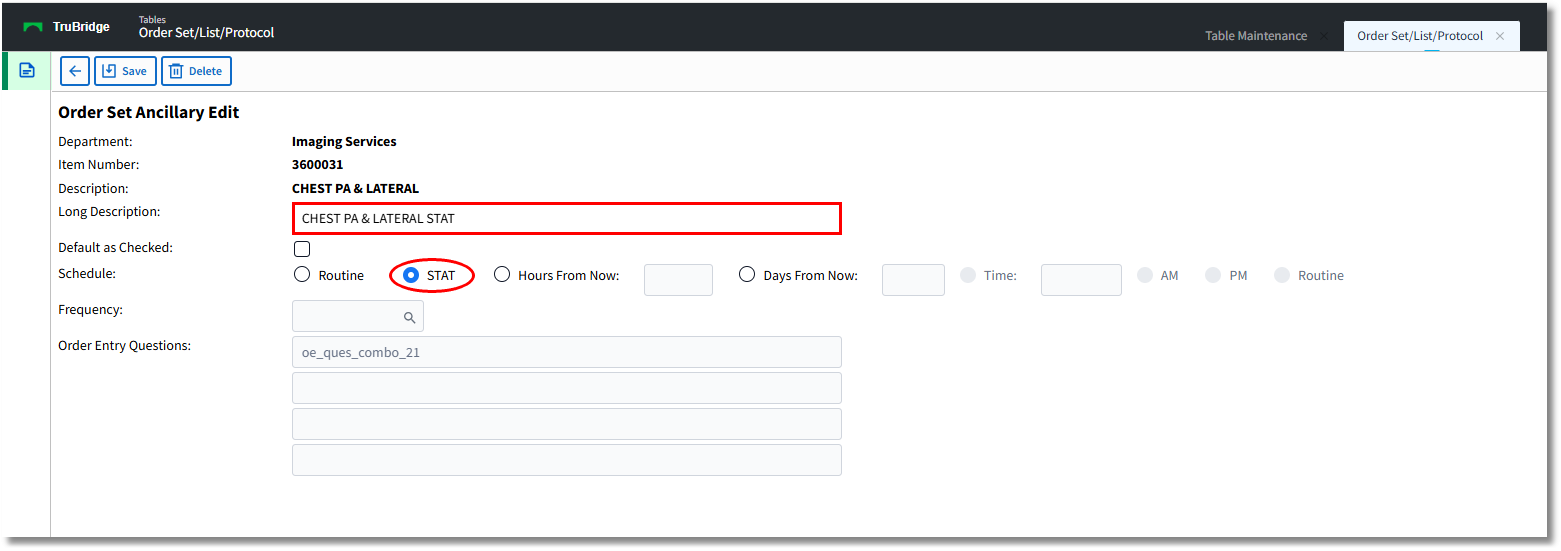
Order Set Ancillary Edit
•Once the item is selected for editing, the Order Set Ancillary Edit screen will open. The department number, the item number and the item description will display and may not be changed. The Long Description field may be added to display additional information, but is not required. If a Long Description is entered, it will pull to the Search Orders box within OE and display instead of the item description. e.g. STAT order indicated in description
•Default as Checked will determine whether or not the item is pre-checked once the set/list is accessed in OE.
•Schedule allows the item to be set as a Routine order or a STAT order within the set/list. Hours from now allows the item to be ordered within a defined number of hours from the time the order is being placed. Days from now allows the item to be ordered within a defined number of days from the time the order is being placed. Time may be entered if the order should be take place at a specific time of the day. For instance, one might schedule a CHEST PA & LATERAL 1 Days From Now at a Time of 0600 (6am).
•Frequency will allow an item to be set to generate multiple orders on a scheduled timeline. To change the frequency, select the magnifying glass icon and it will populate a table of all of the hospital frequencies.
•Order Entry Questions will reflect any questions that have been built on the item from System Menu > Charge Tables and Inventory > Search for Item and edit the Order Entry Questions and Physician Chartlink Questions.
•Once all editing on the item has been completed, select Save to save the item and return to the Order Set Setup screen. Hovering over an item description that is too long to fully display in the description field will display the full description in a wrapped-text.
NOTE: If AM is selected for the Scheduled Date/Time when an item is added to a list via CPOE, the item will save to the list as "Days from Now - 1" and "AM."