|
<< Click to Display Table of Contents >> Order Set/List/Protocol Maintenance |
  
|
|
<< Click to Display Table of Contents >> Order Set/List/Protocol Maintenance |
|
The Order Set/List/Protocol Maintenance table allows the creation of new Order Sets, Order Lists, and Protocols. Existing Sets, Lists, and Protocols may also be edited in this table. Order Sets may be utilized by providers and other hospital ordering departments. Physician Lists will be provider (UBL) specific and may be edited to meet the specifications and preference of that provider. Physician lists will also be selectable from nursing order entry. Facility Lists will be available in the drop-down to the assigned nursing department(s). Protocol orders will be accessible from nursing order entry to the assigned nursing department(s).
If a user wishes to review or audit the usage and setup of Order Sets/Lists/Protocols, there are multiple reports on Report Dashboard that will allow them to do so, including the Order Set/List/Protocol Report, Order Set/List/Protocol Screen (for detailed information), or the Order Set/List/Protocol Usage Report
Select Web Client > Tables > Clinical > Order Set/List/Protocol Maintenance
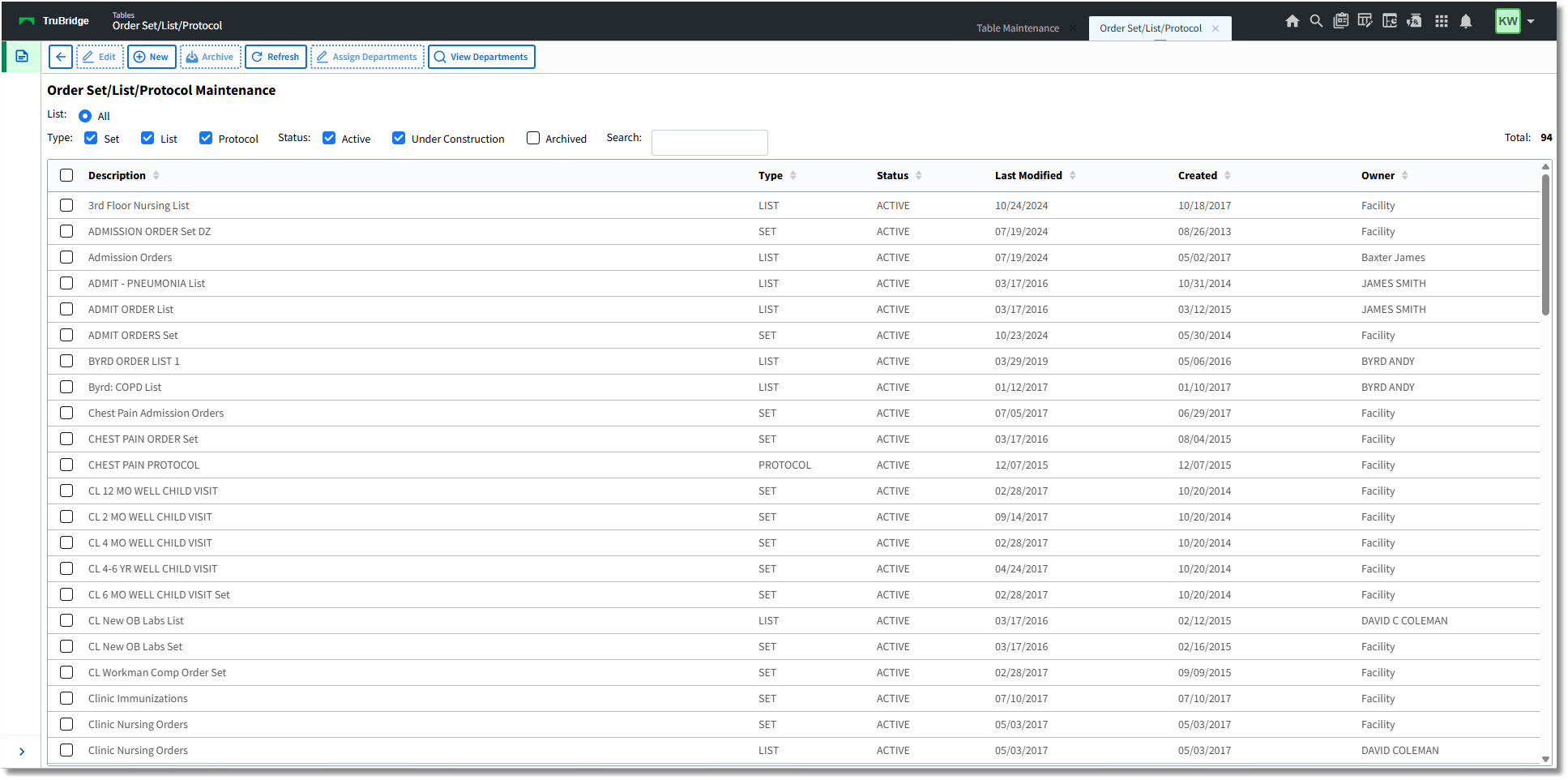
Order Set/List/Protocol Maintenance
Display layout:
•Any existing order sets, order lists and protocols will display. The Type options consists of check boxes titled Set, List, and Protocol. All check boxes will default as checked but may be selected/deselected to expand or narrow the search.
•The Status field options consists of check boxes titled Active, Under Construction, and Archived. The check boxes will default as checked, but may be selected/deselected to show only active lists (the lists that are currently available), lists that are Under Construction (not available for use in Order Entry), or archived lists (lists that are marked as archived that are not available for use in Order Entry). Archived lists may be restored to an Active status.
•The Search field may be used to find a set/list/protocol by keyword.
•The Description column will display the title of each order set, list, and protocol.
•The Type column indicates whether the item is a Set, Protocol, or List (Physician or Facility - see Owner Column).
•The Status column indicates whether the item is Active or Inactive.
•The Last Modified column will display the date of the last time the order set, list, or protocol was accessed and edited.
•The Created column will display the date of the creation of the order set, list or protocol.
•The Owner column will display the name of the provider who owns the order list or it will display Facility if it is an order set or facility list.
•The blue back arrow will return to the previous page.
Action Bar options:
•The New option will prompt for the creation of a new order list, order set or protocol.
•The Archive option will prompt for the archiving of a selected item in the set/list/protocol. The Archived check box may be selected to view any lists set to Archived.
•The Assign Departments option is for the Protocol and Facility List options and will determine which nursing departments will be able to access the Protocol or Facility List from the Description drop-down on the Order Entry page.
▪Select the desired description to highlight it and then select Assign Departments to choose the available nursing departments from the list.
▪The department look-up table will display, a Search field will be available and will default to Search by Number. To search by the department title, select Description from the Search drop-down.
▪Locate the desired department and select to highlight the description, then choose Select from the action bar.
NOTE: Protocols and Facility Lists may be assigned to more than one department.
•The View Departments option may be used to view the assigned departments for Protocols and Order Lists.
▪Select a Protocol or Facility List description and then select View Departments to view the departments to which that Protocol or Facility List has been assigned.
▪To remove an assigned department, select the department, and then select Remove from the action bar.
•To create a new order set, list, or protocol select New.

Order Set Setup
Display layout:
•Description is the title of the order list or set and is user-defined.
•Type will indicate if it is an Order Set, Physicians List, Facility List or Protocol. The default is Set, but may be changed to List or Protocol.
•Status indicates whether the set or list will be available for ordering via Order Entry. Active will be available through Order Entry. Under Construction will not be available for Order Entry and may be set to this if the Set or List is still being constructed. Archived will not appear in Order Entry.
•Departments indicates what hospital departments will have access to the Order Set or List in their default drop-down. The Departments may be assigned to the Order Set/List/Protocol from the primary screen's Assign Departments option (see above).
•Archived is a label that will appear only if a Set, List, or Protocol has been Archived. The Date/Time and the user name will appear to the side. This label will only appear if a set has been archived. Note that Archived lists will display an action bar option for Restore. If an archived list is restored, the Archived label will disappear from the setup screen and the action bar will display as it does above.
Columns:
•Type: Header, Nursing (order), Ancillary (order), or Pharmacy (order).
•Description: The Header description, Nursing Order description, or the Pharmacy or Ancillary Item Master description associated with the order item.
•Frequency: The frequency of the pharmacy item or ancillary item (if indicated).
•Comments: The Special Instructions attached to a pharmacy item.
•Default as Checked?: Displays whether the item is defaulted as checked when the Order Set/List/Protocol is utilized in Order Entry.
Action Bar options:
•The blue back arrow will return to the previous page.
•The Save option will save any progress or recent changes to the order set. This should be selected prior to exiting the table.
•The Save As option will allow the order set to be saved under a new name and all setup will be copied to the new order set. Once saved, the new order set may be selected and edited.
NOTE: This will not replace the original order set.
•The Save As Physician option will allow the order set or order list to be saved as an order list for a specific provider. Once saved, the assigned provider will be able to find the order list description in their custom order lists within OE.
•The Move Up and Move Down options will allow a selected item in the order set to be moved up or down to rearrange the order of the list.
•The Edit option will allow for the editing of an existing set or list.
•The Delete option will allow for the deletion of a selected item in order set or list.
•The New Header option will allow for the creation of a new header within the order set or list. A header will appear as bold text within Order Entry and gives the set/list a more organized appearance. Enter a header description and select Save.
NOTE: Headers are not selectable within OE and have no functionality in the Order Entry process.
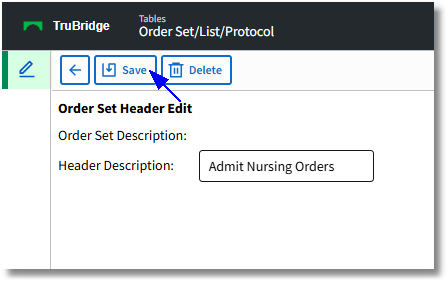
Order Set Header Edit
Please see the sub-chapters for how to add each order type: Nursing Orders, Ancillary Orders, and Pharmacy Orders.
•The View Departments option allows for Facility Lists to be assigned to any Nursing Station department so that nursing staff will see the Facility List in their Order List drop-down in Order Entry.
•The History option will display all of the previous versions of the Order Set/List/Protocol with the Last Updated by: Date/Time they were saved and the Updated by name of the user that made changes to and saved the list. Selecting from the listing will display the previous version, including all of the items and descriptions from that version. The option to Restore will restore the selected set/list/protocol to replace the current version.
Once all items have been edited select Save to save all changes prior to exiting the Order Set Setup. Select the Blue Back Arrow to return to the Order Set/List/Protocol Maintenance screen.
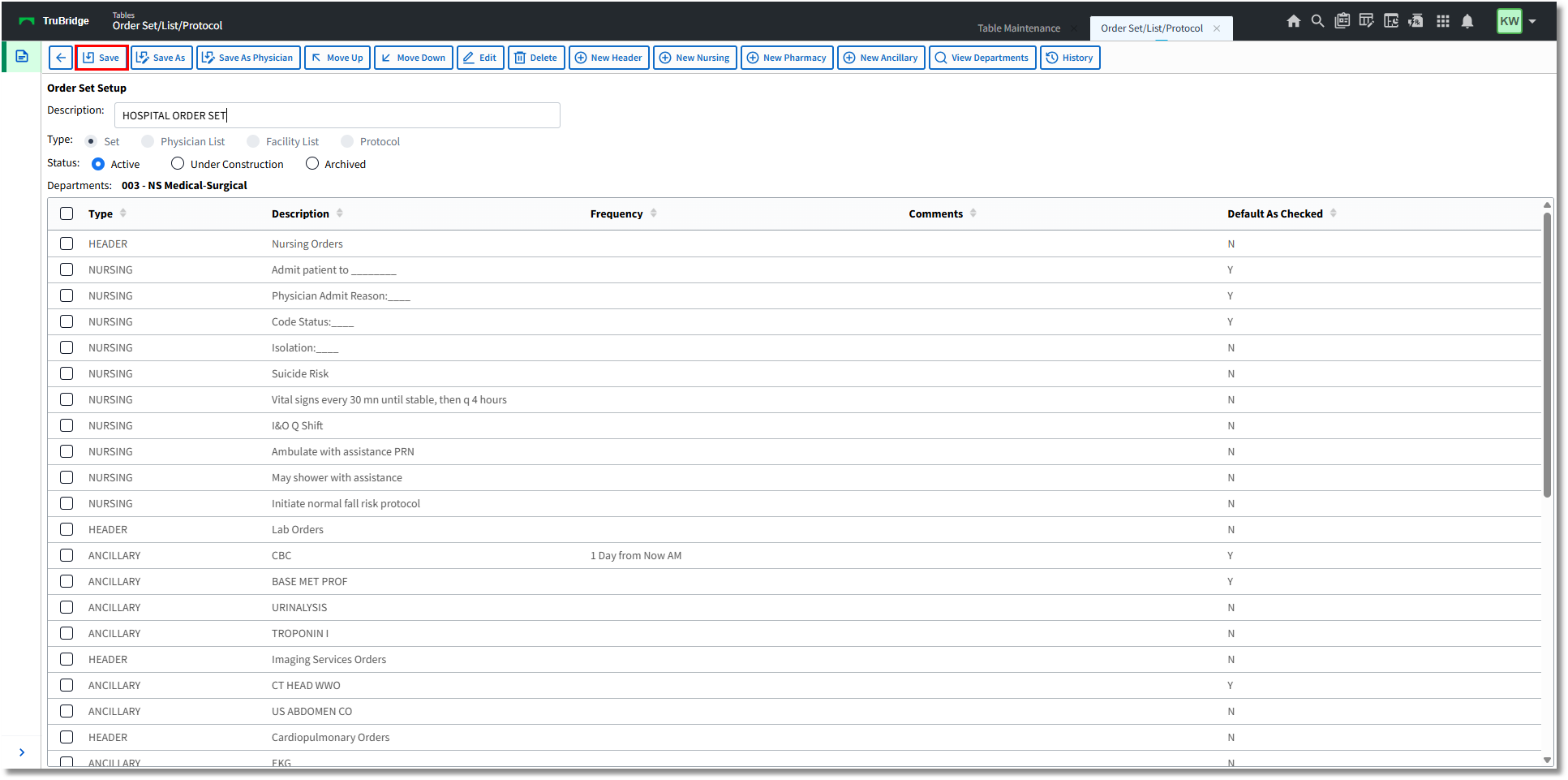
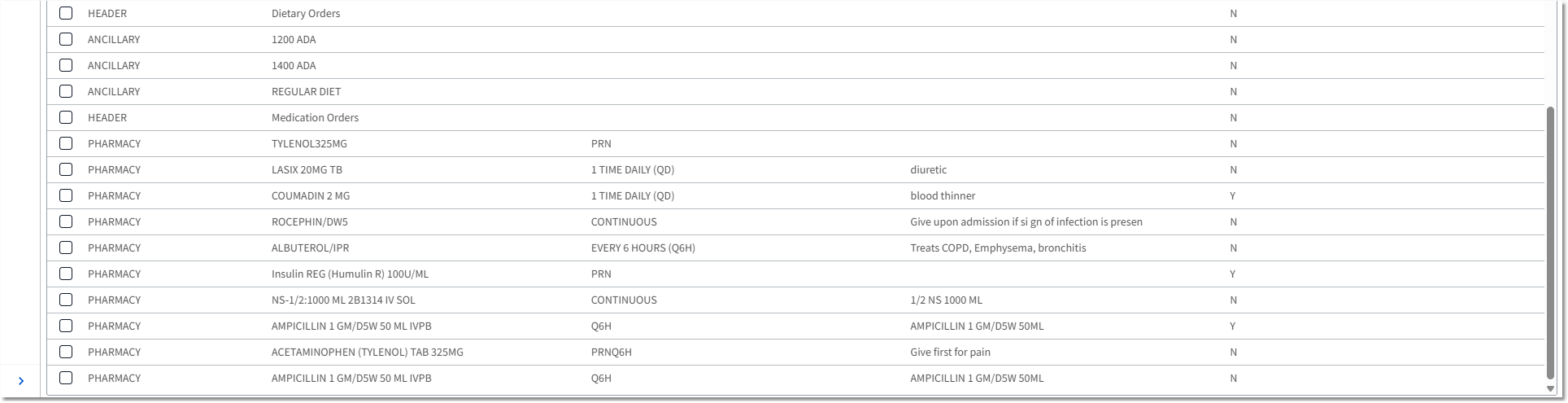
Order Set Setup