|
<< Click to Display Table of Contents >> Nursing Order/Categories |
  
|
|
<< Click to Display Table of Contents >> Nursing Order/Categories |
|
To access Nursing Order Categories setup, go to Web Client > Tables > Clinical > Nursing > Nursing Orders/Categories.
The Nursing Order Categories screen is displayed, listing all of the existing categories that have been created.
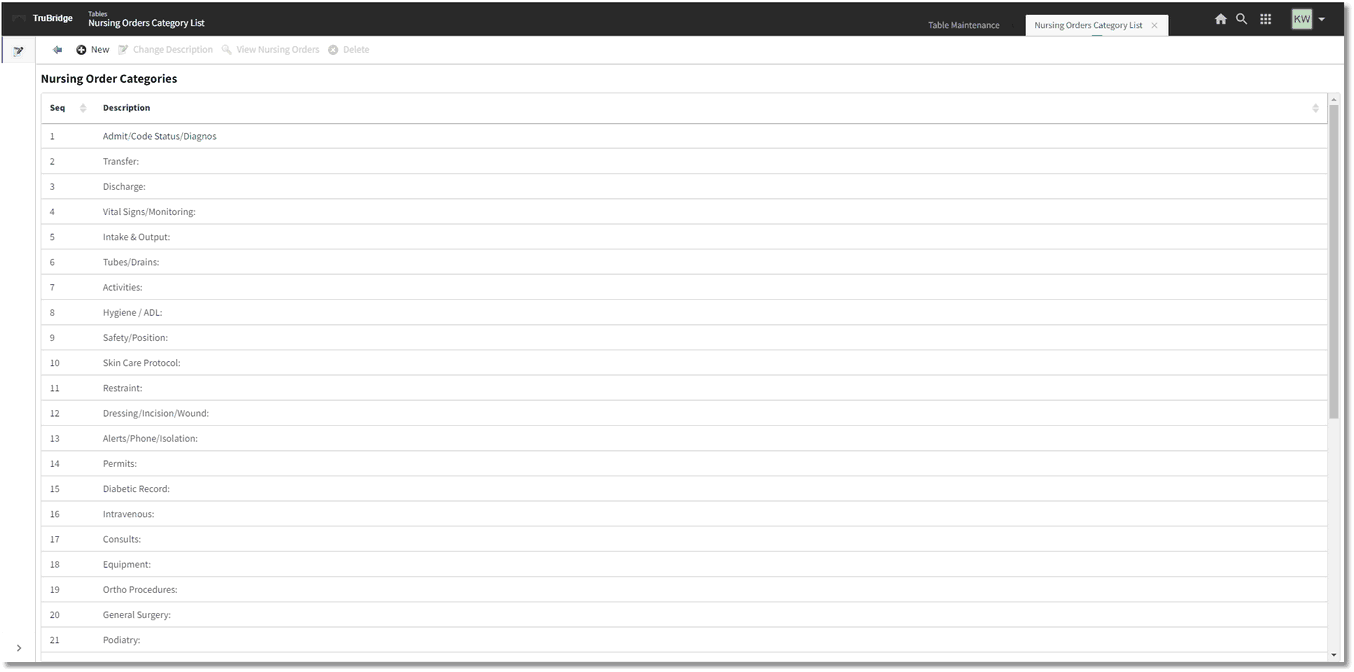
Nursing Order Categories
•The screen displays two columns of information:
oSeq: Displays the sequence number assigned to each category. By default, the categories are listed by sequence number in numerical order. You can select the column header to reverse the sort order.
o Description: Displays the description of each category. To sort the list by description rather than sequence number, select this column header. Select it again to reverse the sort.
•If the option Auto MEDACT entry via Ancillary OE is selected on Page 1 of the POC Control Record, Categories 31-37 are reserved for Nursing Order Categories that correspond to Ancillary Departments determined in the AHIS Table.
•The following categories correspond to the Department Numbers entered in the Order Entry Department fields in the AHIS Control Record, Page 3 (see the Business Office Tables User Guide):
oCategory Number 31: Lab
oCategory Number 32: Xray
oCategory Number 33: PT
oCategory Number 34: RT
oCategory Number 35: EKG
oCategory Number 36: CS
oCategory Number 37: Dietary
To Create a New Nursing Order Category
1.From the Nursing Order Categories screen, select New. The Nursing Order Category screen is displayed.
NOTE: The system holds up to 90 categories. If there are 90 categories already set up, the New option will be grayed out (unavailable).

New Nursing Order Category
2.In the Change Description field, enter a description for the new nursing order category.
3.Select OK to save the category and return to the list.
NOTE: To change the description of an existing category, select it from the list, select Change Description, edit the description as necessary, and select OK.
To View and Edit Nursing Orders
To view the nursing orders set up for a particular category, select the category from the Nursing Order Categories list; then select View Nursing Orders.
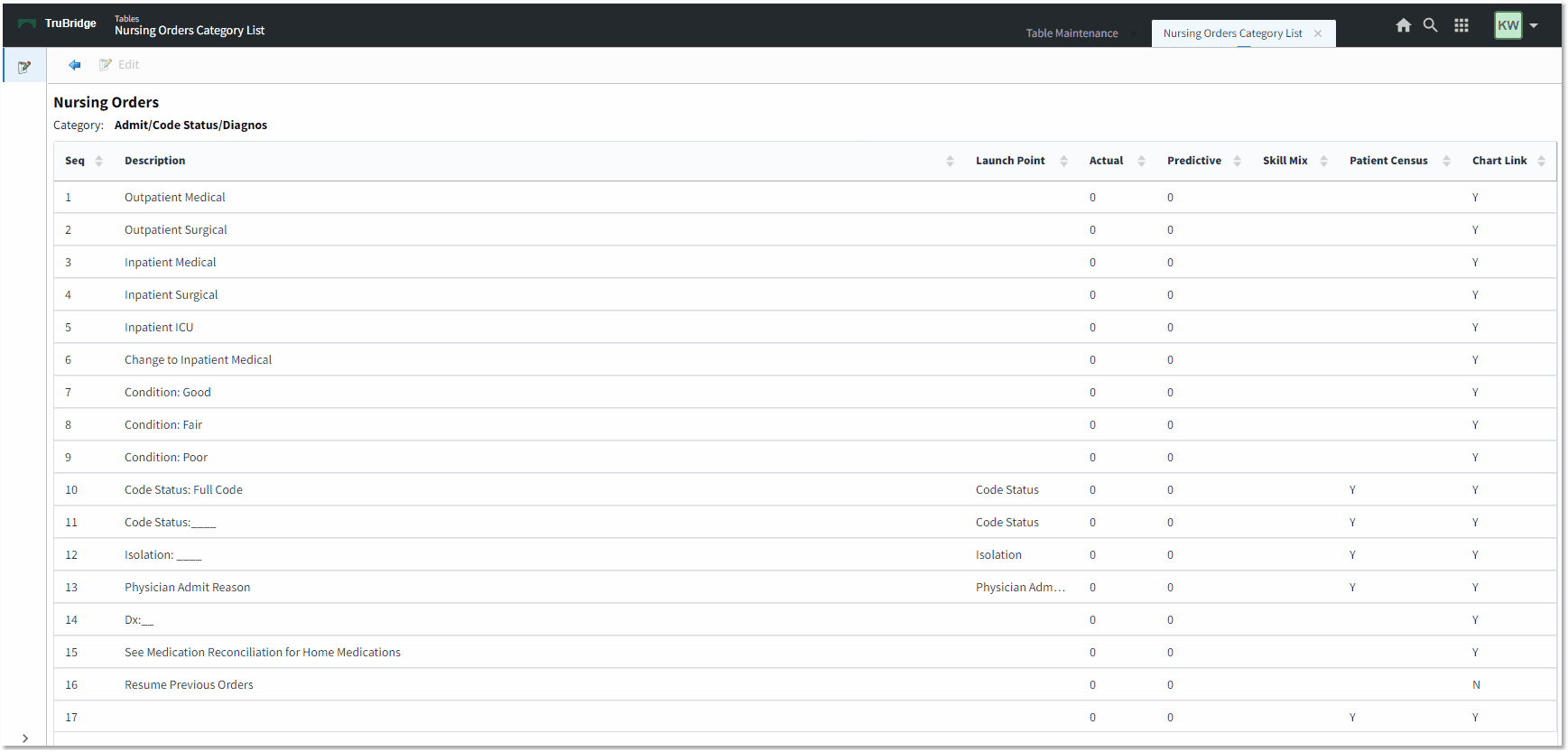
View Nursing Orders
To edit a nursing order in the list, select it and select Edit. Then complete or edit the fields as described below.
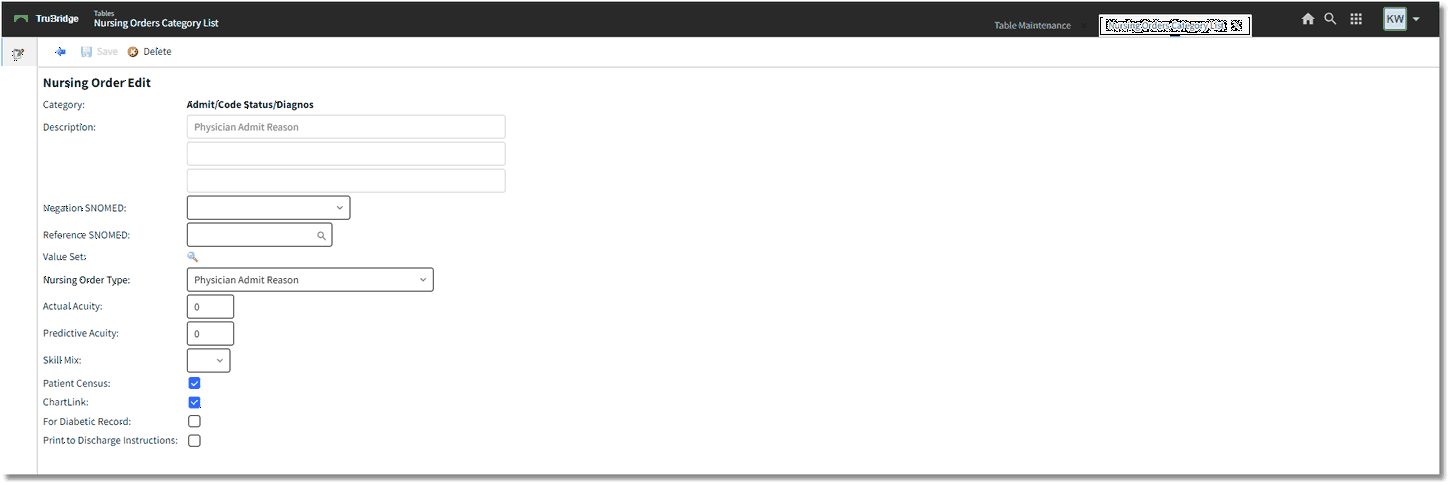
Nursing Order Edit
•Category: Automatically populates based on the selected category.
•Description: Use this field to enter the description of the intervention. There are three fields with a 75-character limit in each field.
•Negation SNOMED: Negation SNOMED codes are available to select in the drop-down of the setup. These codes include Contraindicated, Treatment not indicated, Refused, and Not indicated. These Negation codes may apply to Nursing Orders where "Patient Refused" is selected during documentation.
•Reference SNOMED: Reference SNOMED allows the user to enter a SNOMED for a VTE Prophylaxis device.
•Value Set: Allows for a Value Set to be attached or removed from a Nursing Order.
NOTE: Nursing order descriptions that contain underscores cannot have these codes attached. When placing a nursing order that has a SNOMED or Value Set attached, users will not be able to change the nursing order description during the Order Entry process. See the section Nursing Order SNOMEDs and Value Set for more information.
•Nursing Order Type: Select an option from the drop-down to have this intervention direct the user to another area in the TruBridge EHR. For functionality related to CCDA and other Launch Point options, see section on Nursing Order Type.
•Actual Acuity: Enter the number of Acuity points. See the POC Acuity User Guide for additional information.
•Predictive Acuity: Enter the number of Acuity points. See the POC Acuity User Guide for additional information.
•Skill Mix: Select the applicable Skill Mix from the job codes listed in the drop-down. See the POC Acuity User Guide for additional information.
•Patient Census: Select this option to include the documentation for this Nursing Order on the Patient Census Report.
•ChartLink: Select this option if the current order should be available for selection by providers via CPOE.
•For Diabetic Record: This option is only available on orders in the Diabetic Record Category. More information on this is included in the Diabetic Record Table.
•Print to Discharge Instructions: Selecting this option prints this nursing order to the Discharge Instructions.