|
<< Click to Display Table of Contents >> Physician Documentation Sections |
  
|
|
<< Click to Display Table of Contents >> Physician Documentation Sections |
|
Physician Documentation Sections allows the set up of a section header. Sections may be set up to pull to individual titles as the title is selected from Physician Documentation. Sections may also be added into the title scripting setup. The section header will pull to the note in bold font and underlined.
Select Web Client > Tables > Clinical > Physician Application > Physician Documentation Sections
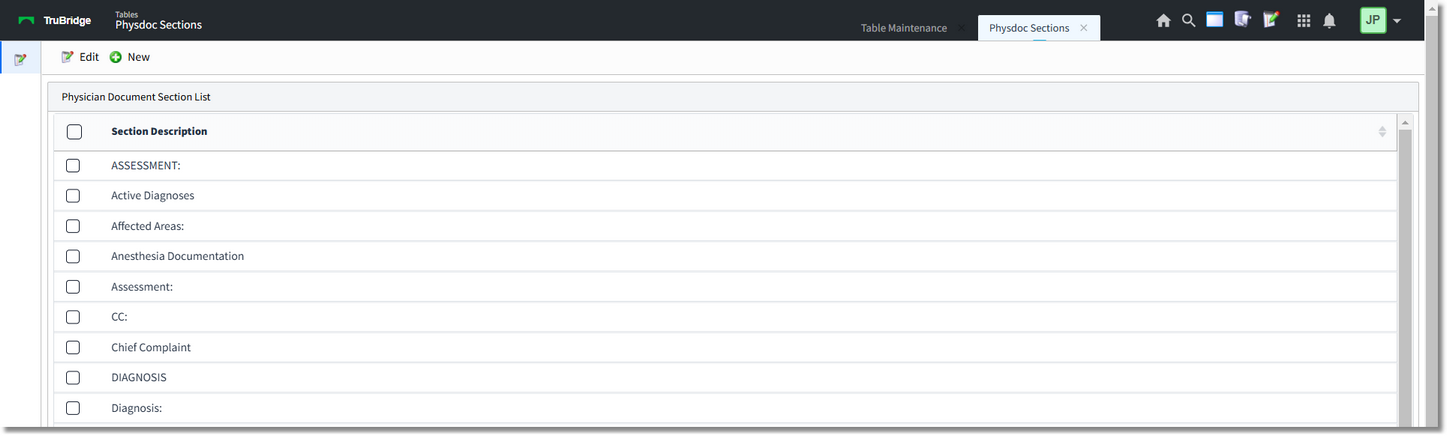
Physician Documentation Section List
The section list will show all previously created section descriptions. If an existing description is selected, the Edit button will become available or the user may double-click the description to edit. For a new section description, the user may select New.
The user will enter the Section Description as it should appear in the note.
The Action option will allow the section to function as a link that will pull documented information on the patient. For instance, the Problems action will pull to the Problem List screen for the user to select and insert problem entries. This field is not required and may be left blank.
The Pull to option will allow the user to also pull the section information to the CDA Instructions. This field is not required and may be left blank.
The Quality Measures Section has been programmed to allow the user to use a Title Script as a launch point into the Documentation application to answer necessary Quality Measure questions. All information documented will pull back into the Phys Doc final note.
Select Save to save the information or Delete to delete the entry.