|
<< Click to Display Table of Contents >> Physician Documentation Templates |
  
|
|
<< Click to Display Table of Contents >> Physician Documentation Templates |
|
This chapter will explain the process for creating a new template.
Select Web Client > Tables > Clinical > Physician Application > Physician Documentation Templates
or
Select Web Client > Charts > Inpatient Test Account > Documentation > Templates
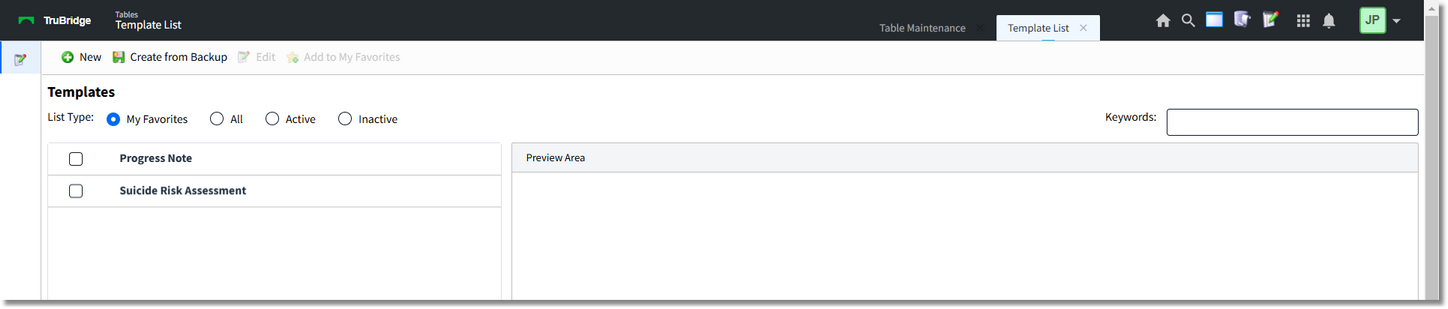
Templates
List Type
•My Favorites: Select this radio button to view the templates that the signed-on UBL has saved to favorites.
•All: Select this radio button to view a list of all library templates.
•Active: Select this radio button to see all Active templates.
•Inactive: Select this radio button to see all Inactive templates.
NOTE: The Active and Inactive radio buttons are only available in Table Maintenance.
•To preview an existing template, select the checkbox next to the template title or select the template title. The template will then appear in the preview window on the screen.
•Keywords: Enter in the desired template name to lookup the template.
•New: Select this option to create a new template.
•Create from Backup: This option is used by conversion.
•Edit: After selecting the desired template, select Edit to make changes to that template.
•Add to my Favorites: After selecting the desired template, select this option to add the template to My Favorites.
NOTE: The Insert and Cancel options are only available in Chartlink.