|
<< Click to Display Table of Contents >> Template View |
  
|
|
<< Click to Display Table of Contents >> Template View |
|
The Template View screen is where new templates are built and existing templates are edited. If selecting to create a New template, the screen will initially appear blank with only the grid on the page.
To build a new template, select New.
Select Web Client > Tables > Clinical > Physician Application > Physician Documentation Templates > New
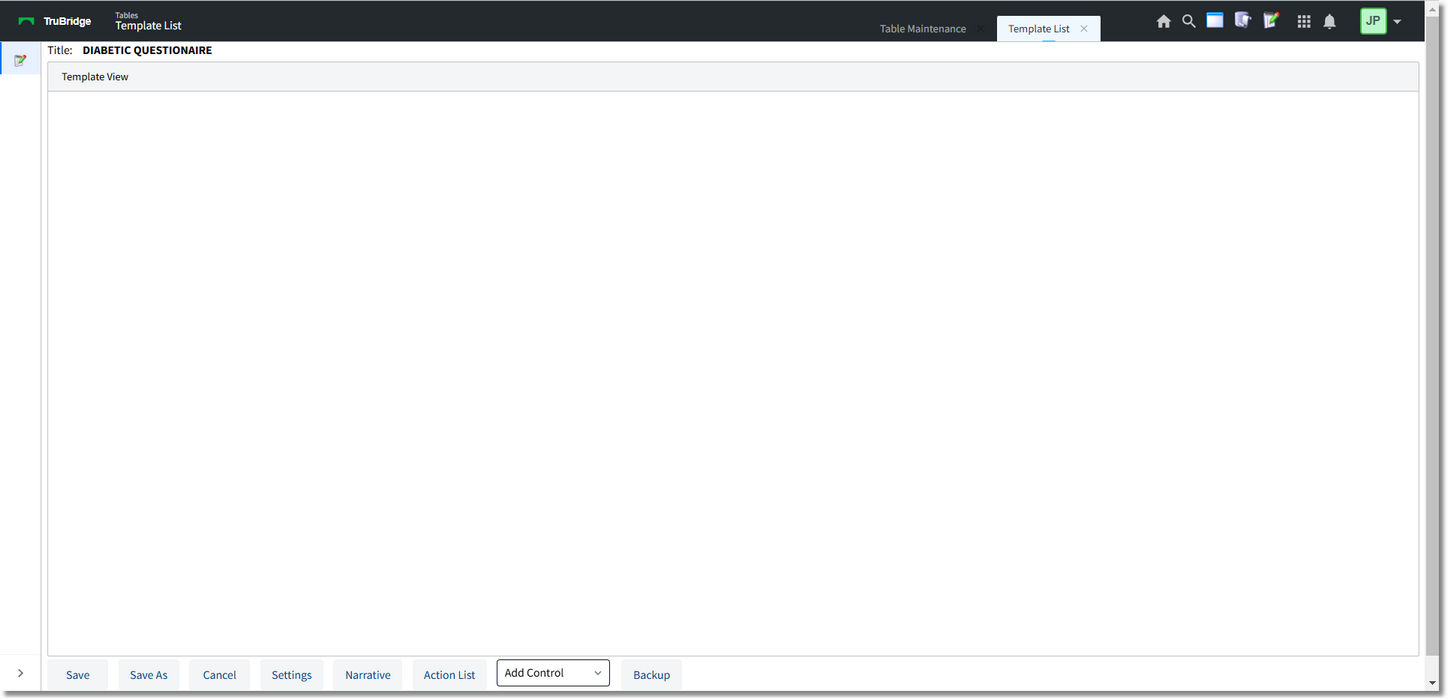
Template View
The Template View window is in a dot grid layout to allow the template builder to be able to align the controls.
•Save: Select this option to save any changes made to the template.
•Save As: Select this option to copy the existing template to create a new template. The system will prompt for the new template name to be entered..
•Cancel: Select this option to cancel any changes made to the template.
•Settings: Select this option to make any changes to the Template Master Maintenance.
Select Web Client > Tables > Clinical > Physician Application > Physician Documentation Templates > New > enter template title > Settings
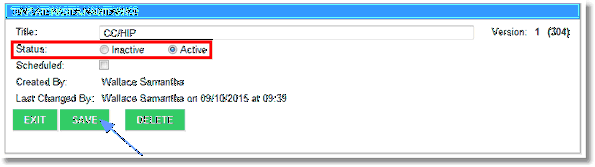
Template Master Maintenance
•Title: This is the title of the template.
•Status: This allows a template to be active or inactive.
NOTE: Inactive templates are only viewable in Table Maintenance.
•Created By: Shows the name associated with the UBL that created this template.
•Last Changed By: Shows the name of the last user that edited the template along with the date and time the editing occurred.
•Exit: Select this option to exit Settings.
•Save: Select this option to save any changes made to the Title or Status.
•Delete: Select this option to delete this template. The system will prompt, "Are you sure you want to delete this template?" Select Yes to delete the template. Select No to keep this template.
•Narrative: See Narrative.
•Action List: Select this option to see information that has been set up in the Action field of any text boxes, radio buttons, drop-down menus or checkboxes.
•Add Control: See following chapters for control functionality.
•Backup: This option is used by the TruBridge conversion department.
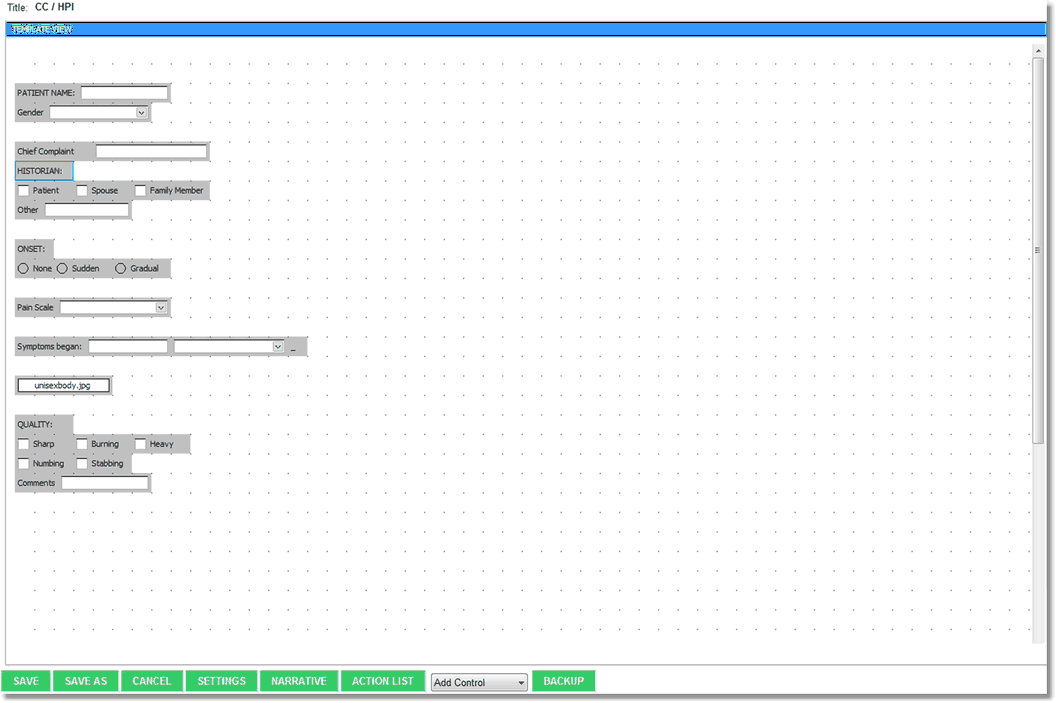
Template View