|
<< Click to Display Table of Contents >> Physician Documentation Titles |
  
|
|
<< Click to Display Table of Contents >> Physician Documentation Titles |
|
The physician documentation titles table will allow multiple titles to be set up for physician use. The type may be designated as standard or progress note.
Select Web Client > Tables > Clinical > Physician Documentation Titles
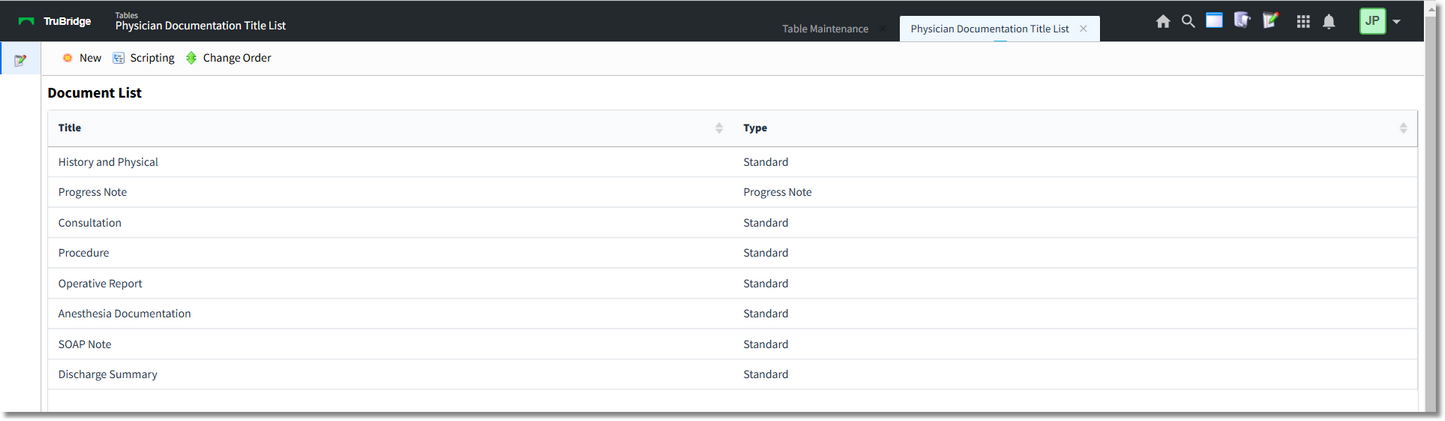
Document List
•Title: The table allows an unlimited number of titles to be created. Titles will display in physician documentation in the same order as in the table.
•Type: The note titles may be saved as a type of Standard or Progress Note. The Progress Note type is a core objective for Stage 2 of Meaningful Use. When a provider selects a note title with a type of Progress Note and completes and signs the note, this will be recorded on the MU Stage 2 Report.
To create a new Title, the user may select the New button and enter a title and select a note type.
Select Web Client > Tables > Clinical > Physician Documentation Titles > Select Title > Edit

Document Maintenance
Select Save  to save any changes.
The Add Section  button will allow sections to pull to the documentation area in Physician Documentation when the title is selected.
NOTE: Please see the Physician Documentation Sections chapter for further information.
The blue back arrow will return the user to the Document List screen.
Scripting  allows the set up of a note to pull to Physician Documentation.
NOTE: Please see the Scripting chapter for further information.
The Change Order  button allows the user to change the order in which the titles appear in the list. When selected, new buttons will appear on the action bar at the bottom. Once a title has been selected from the list, the user may then move it to the top of the list, the bottom of the list or move it up/down an entry in the list.