|
<< Click to Display Table of Contents >> Physician Reorder Report Table |
  
|
|
<< Click to Display Table of Contents >> Physician Reorder Report Table |
|
This table allows facilities to change the sort criteria for the Physician Reorder Report. The default sort is by nursing station, then within the nursing station by physicians. If no sort parameters are entered, the report continues to print in the default format.
Select Tables > Clinical > Pharmacy Report Control category > Physician Reorder Report Table
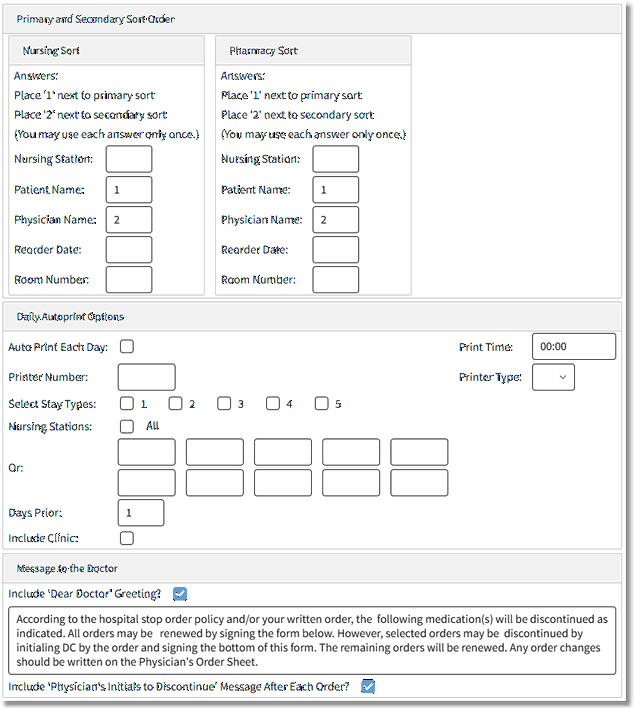
Physician Reorder Report Table
Primary and Secondary Sort Order
The Nursing and Pharmacy copies can be sorted using different sort criteria. You can designate any of the following as the Primary and the Secondary sort criteria:
•Nursing Station
•Patient Name
•Physician Name
•Reorder Date
•Room Number
Nursing Sort:
Enter a 1 next to the criteria to use as the primary sort and a 2 next to the criteria to use as the secondary sort. The primary sort is listed on the top of each page of the Physician Reorder Report. Each page sorts according to the secondary sort criteria specified in the table. The Nursing copy page breaks by the primary sort, regardless of whether it is custom or the default.
Pharmacy Sort:
Enter a 1 next to the criteria to use as the primary sort and a 2 next to the criteria to use as the secondary sort. The report sorts according to the choices in one continuous report. The Pharmacy copy will NOT page break by primary sort. The Pharmacy copy only relies on the table to determine the order in which information is displayed.
Both Pharmacy And Nursing:
Both a primary and secondary sort option must be entered for Pharmacy and Nursing. If a primary sort option is entered, a corresponding secondary sort option must also be entered. If a secondary sort option is entered, a corresponding primary sort option must also be entered.
If no sort parameters are entered, the report prints using a default format of Nursing Station as primary and Physician Name as secondary sort parameter.
NOTE: If only one report (Nursing or Pharmacy copy) is needed or desired, contact your TruBridge Pharmacy Support Representative for further assistance.
Daily Autoprint Options
•Auto Print Each Day / Print Time
▪Default: Blank, or no entry
▪Options: Yes, ✓ (check mark), or blank (no)
▪Usage: Selecting the check box sets the report to automatically print. After selecting the check box, enter the desired time for the report to print in the Print Time field, using military format.
NOTE: Reports can only be set to print at the top of the hour.
•Printer Number / Printer Type
▪Default: Blank, or no entry
▪Options: 3-digit printer number and printer type code
▪Usage: Used to enter the printer number and type of printer to which the report will be sent. Selecting the printer type ensures the report is sent in the correct format. Printer types are as follows:
oM - Okidata 320p or Turbo
oE - Okidata 395
oP - Lexmark Laser
•Select Stay Types
▪Default: Blank, or no entry
▪Options: Yes, ✓ (check mark), or blank (no)
▪Usage: Designates the stay types for which the report will print. One or more stay types can be selected.
•Nursing Stations
▪Default: Blank, or no entry
▪Options: Yes, ✓ (check mark), or blank (no) or entry of select nursing departments.
▪Usage: Select the All check box to print the report for ALL nursing stations, or leave the check box deselected and select up to ten nursing stations.
•Days Prior
▪Default: 1
▪Options: 1- 9
▪Usage: Determines the number of days prior to the reorder date that medications with reorder days will print to the report.
•Include Clinic
▪Default: Blank, or no entry
▪Options: Yes, ✓ (check mark), or blank (no)
▪Usage: If selected, Clinic patients will present on the report.
Message to the Doctor
•Include “Dear Doctor” Greeting
▪Default: Blank, or no check mark
▪Options: Yes, ✓ (check mark), or blank (no)
▪Usage: If selected, the specified greeting text will be included on the Physician Reorder Report. Use the text box below this check box to customize the greeting.
•Include "Physician's Initials to Discontinue' Message After Each Order
▪Default: Blank, or no check mark
▪Options: Yes, ✓ (check mark), or blank (no)
▪Usage: If selected, the report will include the message 'Physician's Initials to Discontinue' followed by a blank line for initials after each order.