|
<< Click to Display Table of Contents >> Plan of Care Table |
  
|
|
<< Click to Display Table of Contents >> Plan of Care Table |
|
The Plan of Care Table allows for the set up of Problems, Goals, Interventions, and Documentation that may be associated with the Plan of Care.
Select Web Client > Tables > Clinical > Nursing category > Plan of Care Table
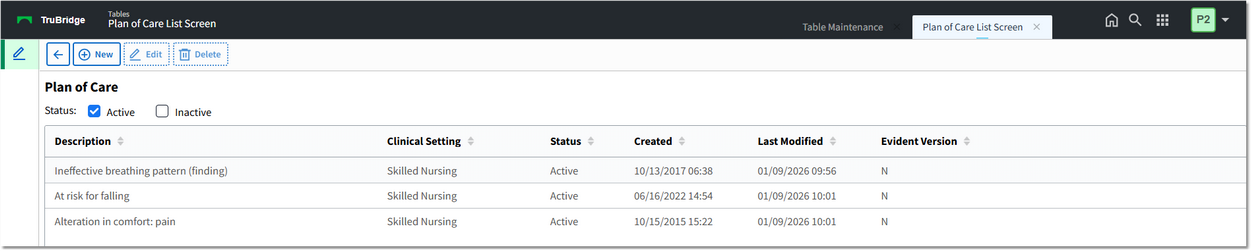
Plan of CareTable
In the Status field, select the status of the plan of care to display in the table. Options are: Active and Inactive.
The Plan of Care Table displays the following information:
•Description: The plan of care description.
•Clinical Setting: The clinical setting the plan of care was set up for.
•Status: The status of the plan of care.
•Created: The date and time the plan of care was created.
•Last Modified: The date and time the plan of care was last modified.
•Evident Version: A Y displays if the plan of care was provided by TruBridge and an N if it was not provided by TruBridge.
Action Bar Options
•Back Arrow: Select to return to the previous screen.
•New: Select to create a new plan of care.
•Edit: Select the plan of care in the list and select Edit to edit the plan of care.
•Delete: Select the plan of care in the list and select Delete to delete the plan of care.
To Create a New Care Plan
1.Select New. The New Problem screen displays.
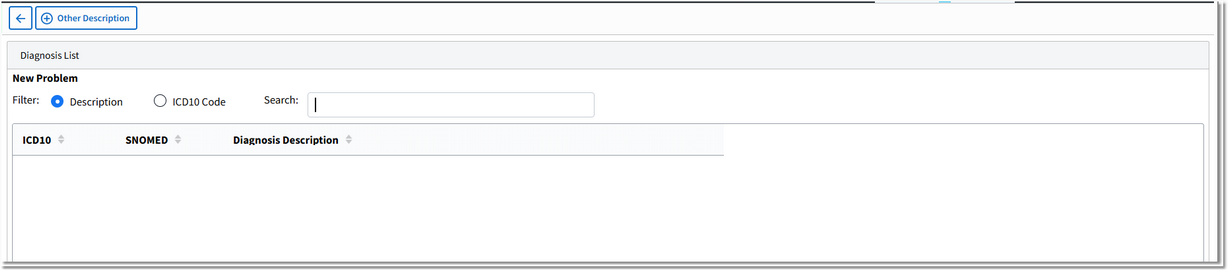
New Problem Search
2.In the Filter section, select Description or ICD10 Code. Then search for and select the problem. NOTE: To add a free-text problem, enter the problem description in the Search field and select Other Description.

New Problem
3.The POC Problem Maintenance screen displays. Verify the selected problem displays in the Description field.
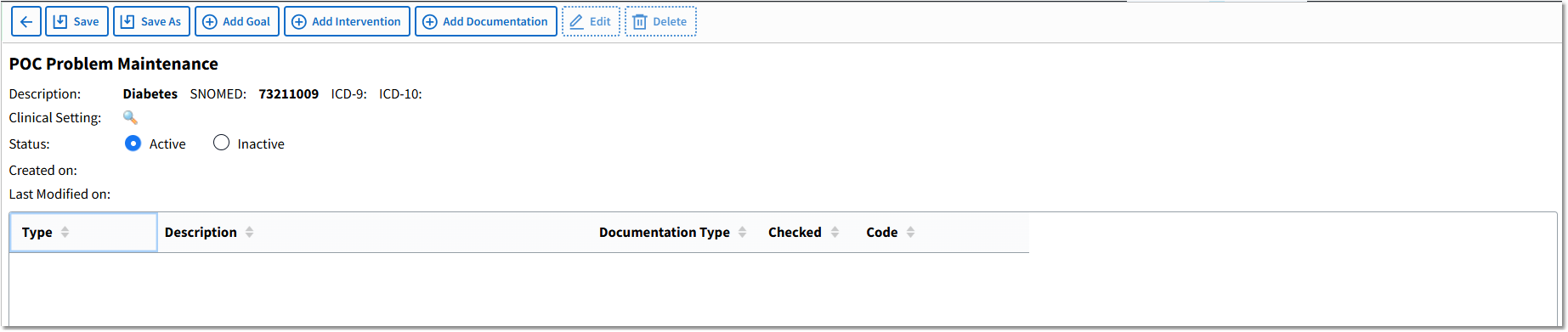
POC Problem Maintenance
4.In the Clinical Setting field, use the lookup icon and select the appropriate clinical setting for the problem. Then select Update.
5.The problem status default is Inactive. Select Active to make the problem active.
6.Select Save to save the problem.
Action Bar Options
•Back Arrow: Select to return to the previous screen.
•Save: Select to save the information.
•Save As: Select to copy and save the plan of care.
•Add Goal: Select to add a goal.
•Add Intervention: Select to add an intervention.
•Add Documentation: Select to add documentation.
•Edit: Select the Goal, Intervention, or Documentation entry in the list and then select Edit to edit the entry.
•Delete: Select the Goal, Intervention, or Documentation entry in the list and then select Delete to delete the entry.
To Add a Goal
1.Select Add Goal. The POC Problem Goal Maintenance screen displays.
2. In the Goal field, use the lookup to search for and select a goal. NOTE: A free-text goal may be entered in box to the right of the Goal lookup icon.

POC Problem Goal Maintenance
3.Select the Default as checked check box to preselect the goal in the Plan of Care application.
| NOTE: The Snomed Code field will display the SNOMED code associated with the goal. |
4.Select Update to save the goal.
To Add an Intervention
1.Select Add Intervention. The POC Problem Intervention Selection screen displays.
2. Use the Category drop-down to filter the intervention list by a Nursing Order Category or select All Categories from the drop-down to search for and select an intervention.

POC Problem Intervention Selection
3.The POC Problem Intervention Maintenance screen displays. The Description box displays the nursing order description, which may be edited if necessary.
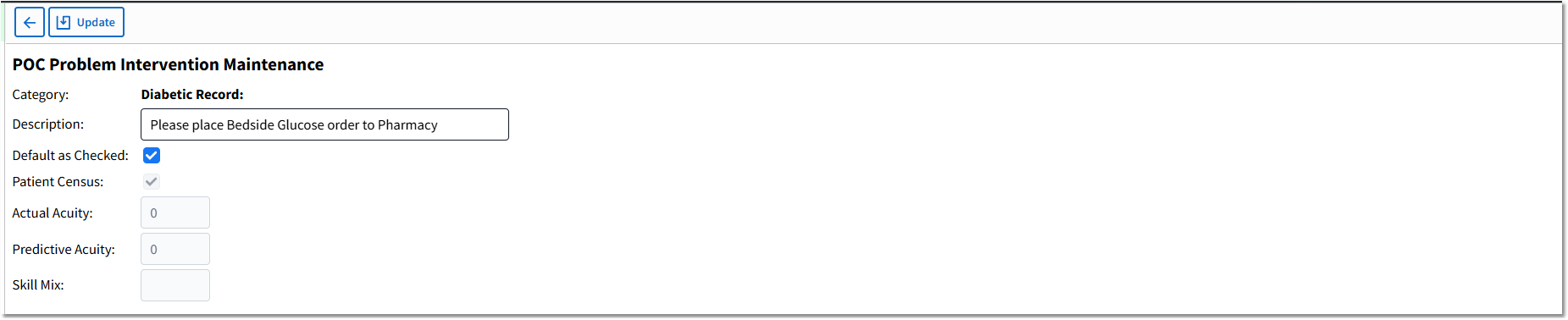
POC Problem Intervention Maintenance
4.The Default as Checked check box defaults to checked, indicating the intervention will be preselected in the Plan of Care application. Deselect the check box, if the intervention should not be preselected in the Plan of Care application.
5.The Patient Census, Actual Acuity, Predictive Acuity, and Skill Mix fields display the set up selections in the Nursing Order setup.
6.Select Update to save the intervention.
To Add Documentation
1.Select Add Documentation. The Section/Question List screen displays.
2.Documentation may include sections and questions. Select Section or Question and use the Title Search field to search for and select a section or question. NOTE: Only Active sections and questions will be displayed.
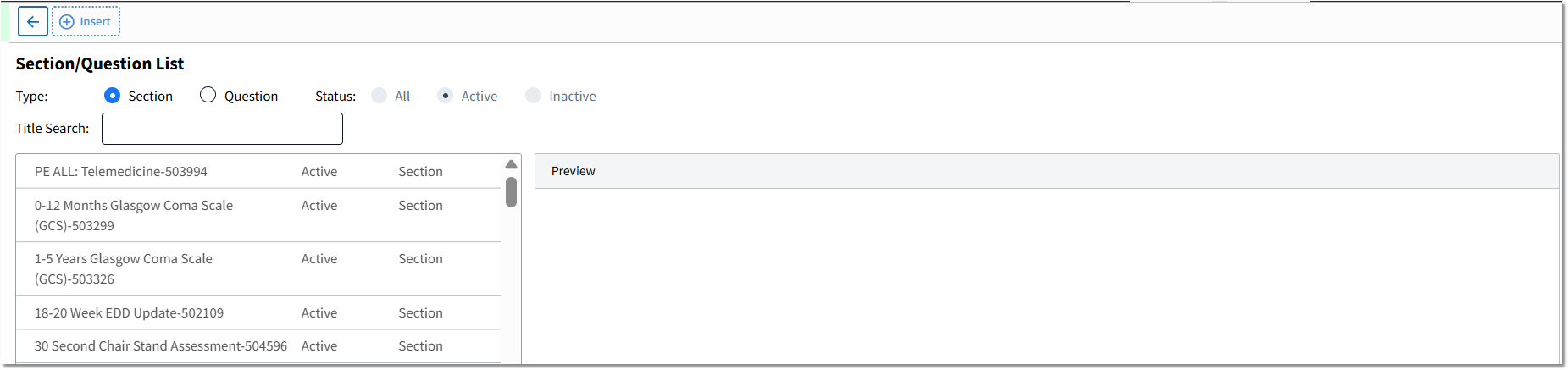
Section/Question List screen
3.The selected section or question displays in the Preview section.
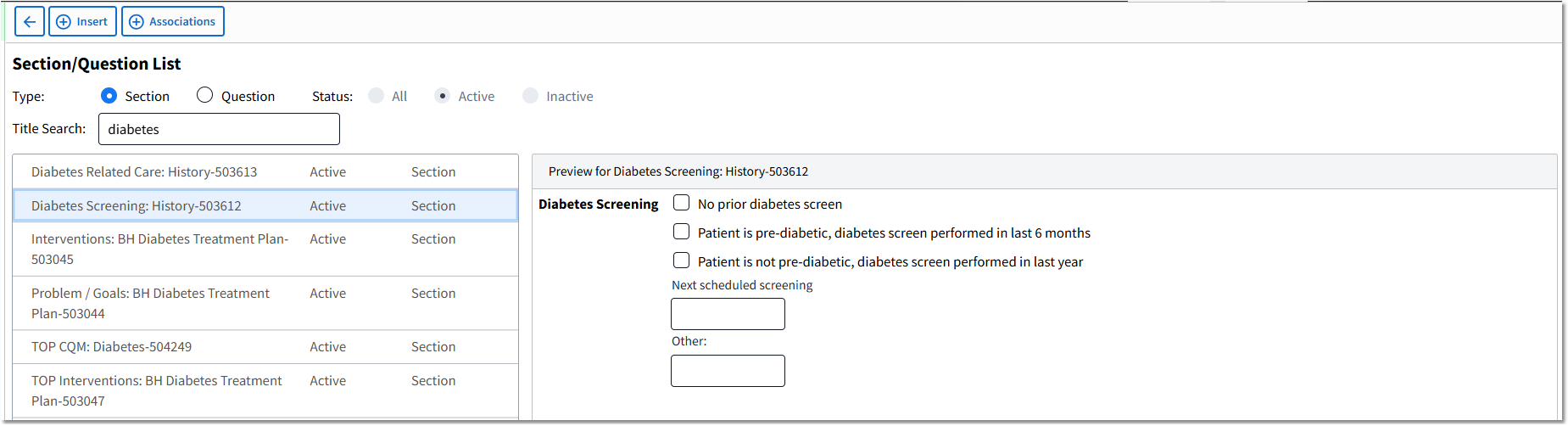
Section/Question List - Section Preview
4.Select Associations to display a list of all documents that include the highlighted section or question.
5.Select Insert to save the selected section or question and return to the Problem Maintenance screen.
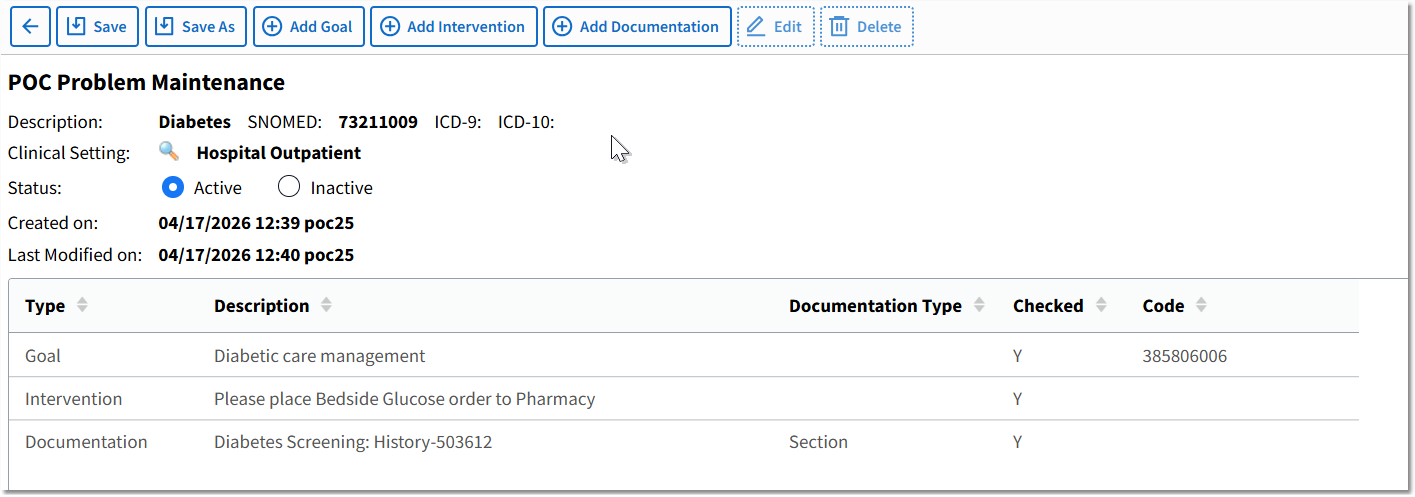
POC Problem Maintenance
6.Select Save to save the information and then select the Back Arrow to return to the Plan of Care Table.