|
<< Click to Display Table of Contents >> Point of Care Control Maintenance - Page 7 |
  
|
|
<< Click to Display Table of Contents >> Point of Care Control Maintenance - Page 7 |
|
Select Web Client > Tables > Clinical > Nursing > POC Control Maintenance > Page 7
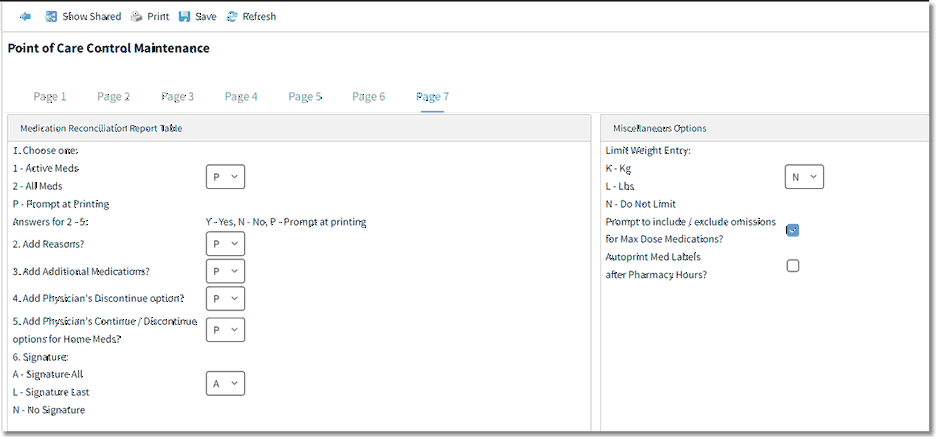
Point of Care Control Maintenance - Page 7
•Medication Reconciliation Report Table: Use the options below to designate the way in which the report is generated.
▪1. Choose one:
o1 - Active Meds: Select to display Active Meds only.
o2 - All Meds: Select to display All Meds.
oP - Prompt at Printing: Select for the ability to choose at the time of printing. Home Medications are listed on the report regardless of the option chosen here.
▪2. Add Reasons?
oY - Yes: Select to add a reason line for each medication.
oN - No: Select to remove the reason line.
oP - Prompt at Printing: Select for ability to choose at the time of printing.
▪3. Add Additional Medications?
oY - Yes: Select to add blank lines to write in additional medications.
oN - No: Select to remove the blanks lines.
oP - Prompt at Printing: Select for ability to choose at the time of printing.
▪4. Add Physician's Discontinue Option?
oY - Yes: Select to add a Discontinue Option for each Medication on the Pharmacy Profile. The Continue Option is hard-coded.
oN - No: Select to remove the Discontinue Option.
oP - Prompt at Printing: Select for ability to choose at the time of printing.
▪5. Add Physician's Continue/Discontinue Options for Home Meds?
oY - Yes: Select to add a Continue/Discontinue Options.
oN - No: Select to remove the Continue/Discontinue Options.
oP - Prompt at Printing: Select for ability to choose at the time of printing.
▪6. Signature:
oA - Signature All: Select this option to add a physician signature line to each page of the report.
oL - Signature Last: Select this option to add a physician signature line to the last page of the report.
oN - No Signature: Select this option to remove the signature line.
•Limit Weight Entry?
▪K - Kg: Select this option to record Weight in Kilograms/Grams. The system will deactivate the Pounds/Ounces fields, but conversion values will continue to display in the fields.
▪L - Lbs: Select this option to record Weight in Pounds/Ounces. The system will deactivate the Kilograms/Grams fields, but conversion values will continue to display in the fields.
▪N - Do Not Limit: Select this option for the ability to enter Weight without restriction.
•Prompt to include/exclude omissions for Max Dose Medications?: If selected, the user determines if an omission counts as an administration for a Max Dose Medication. If not selected, omissions are automatically deducted from the number of available doses.
•Autoprint Med Labels After Pharmacy Hours?: If selected, medication labels used for Med-Verify will automatically print for each order entered after Pharmacy Hours. Pharmacy hours are set up in the ChartLink Control Table. Please refer to the CL Tables section of the Business Office Tables User Guide for additional information.
•After setup is complete, the following options are available:
▪Blue Back Arrow: Select this option to return to the previous screen.
▪Show Shared: Select this option to view setup being shared by multiple facilities.
▪Print: Select this option to print setup.
▪Save: Select this option to save modifications.
▪Refresh: Select this option to refresh the page.