|
<< Click to Display Table of Contents >> Point of Care Control Maintenance - Page 5 |
  
|
|
<< Click to Display Table of Contents >> Point of Care Control Maintenance - Page 5 |
|
Select Web Client > Tables > Clinical > Nursing > POC Control Maintenance > Page 5
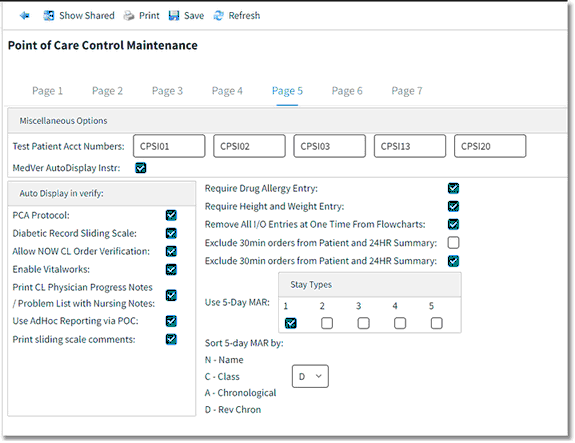
Point of Care Control Maintenance - Page 5
•Test Patient Acct Numbers: Up to five Test Patient account numbers may be entered at a time to be used in conjunction with the the Delete Test Patient Data option. See the Delete Test Patient Data section in the POC Setup User Guide for additional information.
•MedVer AutoDisplay Instr: Select this option to display Medication Instructions immediately after scanning a medication in Med-Verify.
•PCA Protocol: Select this option to display the PCA Protocol immediately after selecting the Look option when verifying orders.
•Diabetic Record Sliding Scale: Select this option to display the Diabetic Record Sliding Scale and/or Carb Formula immediately after selecting the Look option when verifying orders.
•Allow NOW CL Order Verification: Select this option to allow NOW orders placed by the physician via the ChartLink application to go to directly to nursing for verification rather than displaying in pharmacy first.
•Enable VitalWorks: Allows sites using VitalWorks software to interface with the TruBridge system.
•Print CL Physician Progress Notes / Problem List with Nursing Notes: **Inactive** (Enables progress notes and problem list entries entered by the physician via ChartLink to print to the Patient Progress Notes in POC.)
•Use Ad Hoc Reporting via Point of Care: Select to enable the Ad Hoc option via the Whiteboard.
•Print Sliding Scale Comments: Select to display Sliding Scale and Carb Formula comments on the Diabetic Flow Sheet.
•Require Drug Allergy Entry: If selected, Patient Allergies must be addressed before placing pharmacy orders via POC. The Pharmacy Department may require allergy entry independently of this option.
•Require Height and Weight Entry: If selected, Patient Height and Weight must be addressed before placing pharmacy orders via POC. The Pharmacy Department may require height and weight entry independently of this option.
•Remove All I/O Entries at One Time From Flowcharts: If selected, when one Intake or Output entry in a Date/Time Column is Amended (stricken), all other Intake and Output entries in the same Date/Time Column are Amended (stricken).
•Exclude 30min orders from Patient and 24HR Summary: Select to remove the “check” message associated with medications not given within the 30 minutes window before or after due time from the Patient Summary and 24hr Summary reports.
•Use 5-day MAR: Select Patient Stay Types (1-5) to utilize the 5-Day MAR instead of the 24hr MAR.
•Sort 5-day MAR by: Select one of the four options listed below to designate the order in which medications appear on the 5-Day MAR.
▪N – Name: Select this option to list medications in alphabetical order by description.
▪C – Class: Select this option to list medications by drug class.
▪A – Chronological: Select this option to list medications in chronological order of the start date/time.
▪D – Reverse Chronological: Select this option to list medications in reverse chronological order of the start date/time.
•After setup is complete, the following options are available:
▪Blue Back Arrow: Select this option to return to the previous screen.
▪Show Shared: Select this option to view setup being shared by multiple facilities.
▪Print: Select this option to print setup.
▪Save: Select this option to save modifications.
▪Refresh: Select this option to refresh the page.