|
<< Click to Display Table of Contents >> Pharmacy Orders |
  
|
|
<< Click to Display Table of Contents >> Pharmacy Orders |
|
The New Pharmacy option will populate a list of medication items within the hospital formulary.
Select Web Client > Tables > Clinical > Order Set/List/Protocol Maintenance > New > New Pharmacy
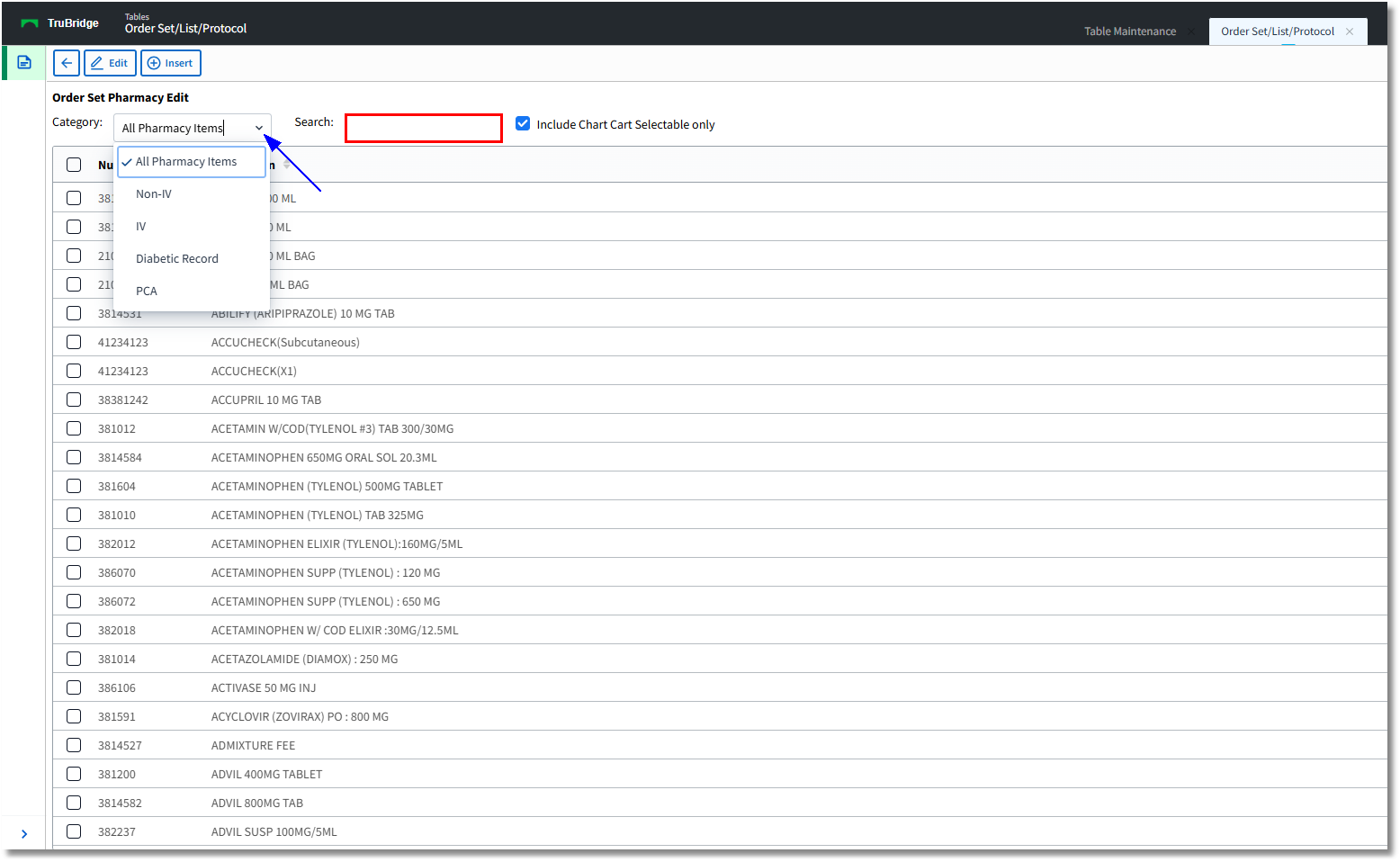
Order Set Pharmacy Edit
•The Order Set Pharmacy Edit screen will open with options to search by All Pharmacy Items as the default. The search may be narrowed down by selecting Non-IV, IV, Diabetic Record and PCA from the drop-down. The item number will display in the left column and the item description will display in the following column. Chart Cart Selectable Only should be checked as this will display items that are ordered by nursing and providers, but excludes items that are specific to the Pharmacy Department only.
•The Number and Item Description columns may be selected to sort items. The listing will default by alphabetic description.
•The Search field will utilize a keyword search by description and results will begin to populate as the text is entered.
•Select a Description and then select Insert to add to the order set/list. After the order is inserted, the screen will automatically return to the order set setup screen. An order may also be added to the set/list if it is double-clicked, but this will open the order editing screen. A description may also be edited by selecting the description and then selecting Edit.
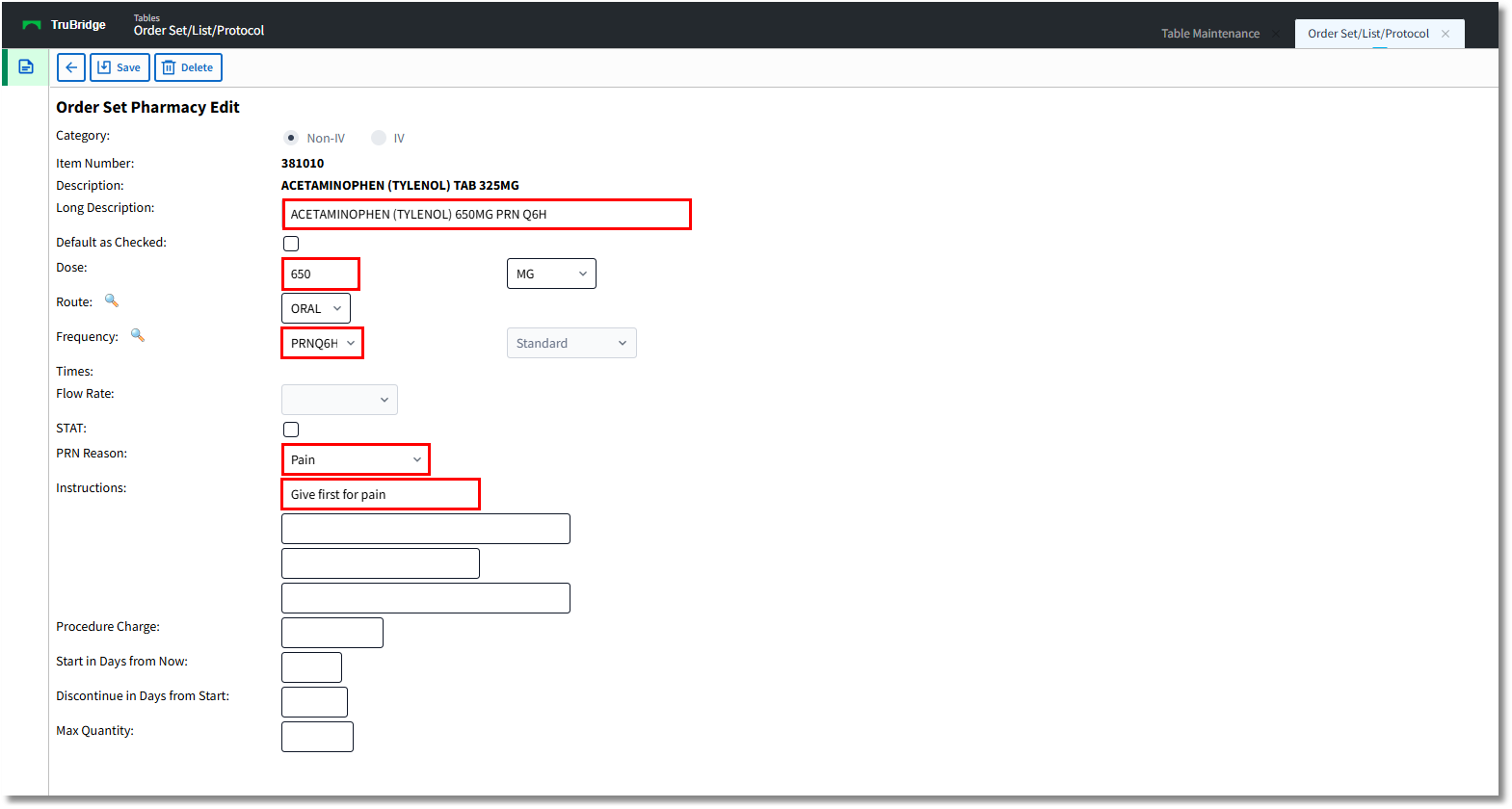
Order Set Pharmacy Edit (Non-IV)
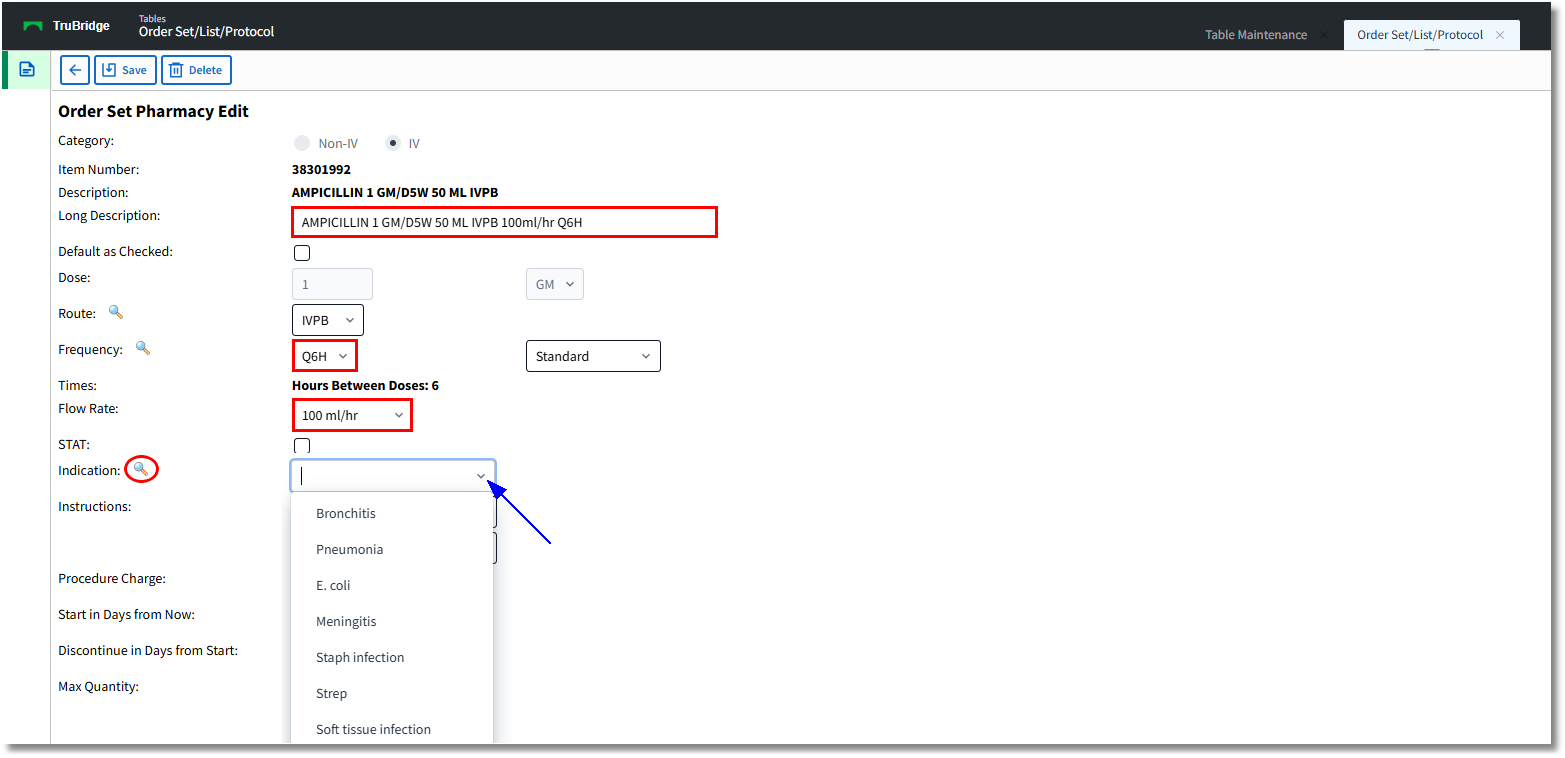
Order Set Pharmacy Edit (IV)
•Once the item is selected for editing, the Order Set Pharmacy Edit screen will open. The Category, the item number and the item description will display and may not be changed. The Long Description field may be added to display additional information, but is not required. If a long description is entered, it will pull to the Search Orders box within OE and display instead of the item description.
•Default as Checked will determine whether or not the item is pre-checked once the set/list is accessed in Order Entry.
•Dose will reflect the item dose and unit. Both fields may be edited to customize the order set/list.
•Route will reflect the item route. To change the route, select the magnifying glass icon and it will populate a table of all of the hospital routes.
•Frequency will reflect the item frequency. To change the frequency, select the magnifying glass icon and it will populate a table of all of the hospital frequencies. (See below for the PRN Reason and Indication based upon the default frequency.)
•Times will reflect any standard/scheduled times on the selected frequency.
•Flow Rate may be set for any IV items.
•STAT will set any item as a Stat or Now order.
•PRN Reason: If a PRN Frequency has been assigned to the pharmacy item, an existing or new PRN Reason may be added to the item in the Order Set/List so that it will pull the pre-defined PRN Reason for the item when it is ordered. Pharmacy may or may not have the PRN Reason field set up as Required. The drop-down for PRN Reasons should use the PRN Administration Reasons table and include an <OTHER> option.
•Indication: If a default frequency with set times/hours (QID, BID) in the pharmacy frequency table has been assigned to the item, the Indication field will appear and a magnifying glass icon is available to search for and pull in a default Indication reason for the medication. When the item is ordered from the Order List/Set, it will pull the pre-defined Indication listed in this field. Pharmacy may have certain items set with an Indication Required, especially for Antimicrobial agents.
•Instructions will reflect in the comments box of the item.
•Once all editing on the item has been completed, select Save to save the item and return to the Order Set Setup screen.