|
<< Click to Display Table of Contents >> Drop-Down Menus |
  
|
|
<< Click to Display Table of Contents >> Drop-Down Menus |
|
Select Web Client > Tables > Clinical > Physician Application > Physician Documentation Templates > New > enter title of template > Add Control > DropDown
or
Select Web Client > Charts > Inpatient Test Account > Documentation > Templates > New > enter title of template > Add Control > DropDown
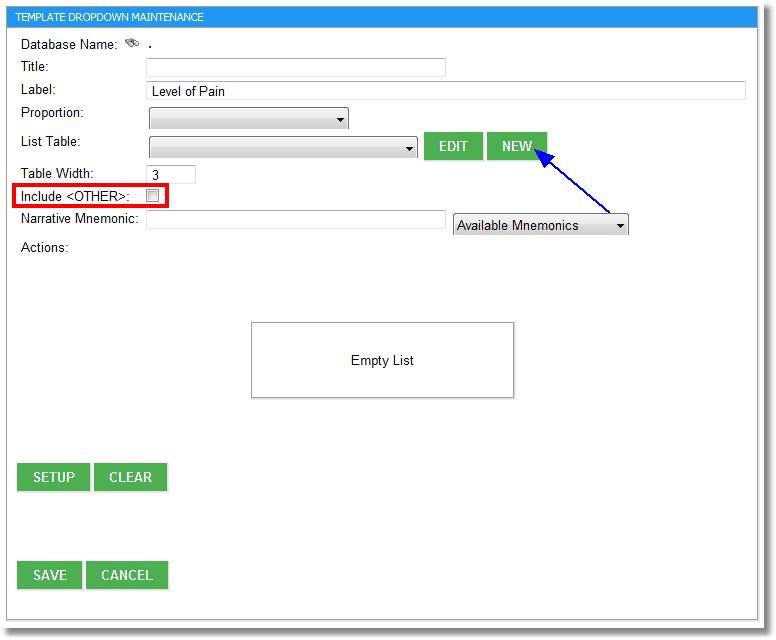
10.59 Template Dropdown Maintenance
•Database Name: This field should be left blank.
•Title: This field should be left blank. If information is entered in this field, it will be viewable in the Narrative Available Mnemonics Control window only.
•Label: Leave this field blank or enter the label for the drop-down menu. Information entered here will display on the template view.
•Proportion: This field should be left blank.
•List Table: Select the desired drop-down table.
▪Edit: Select the desired drop-down table then select Edit to make any changes.
▪New: Select this option to add a new drop-down table.
•Table Width: Enter the display length of the drop-down table.
•Include <OTHER>: Select this field if "Other" should pull as the last option in the drop-down. The user will be directed to a free text text box in order to enter information if this option is selected.
•Narrative Mnemonic: Enter the user-defined mnemonic. This mnemonic allows information to pull to the note. Spaces and special characters should not be included.
•Available Mnemonics: Select the drop-down to select an existing mnemonic. This option would only be used when creating a group. Items containing the same Narrative Mnemonic will pull into the note with the word "and" and/or commas if more than one selection is made.
•Actions: Displays orders or templates that are associated with this drop-down menu.
▪Setup: Select this option to set up orders or templates for this drop-down menu.
▪Clear: This option is for future use.
Select Save to save the information.
Select Cancel to exit the table without saving.
To create a new dropdown list, select New. To edit an existing list, select the List Title drop-down, select the desired list and then select Edit.
Select Web Client > Tables > Clinical > Physician Application > Physician Documentation Templates > New > enter Table Name > Add Control > DropDown > New
or
Select Web Client > Charts > Inpatient Test Account > Documentation > Templates > New > enter Table Name > Add Control > DropDown > New
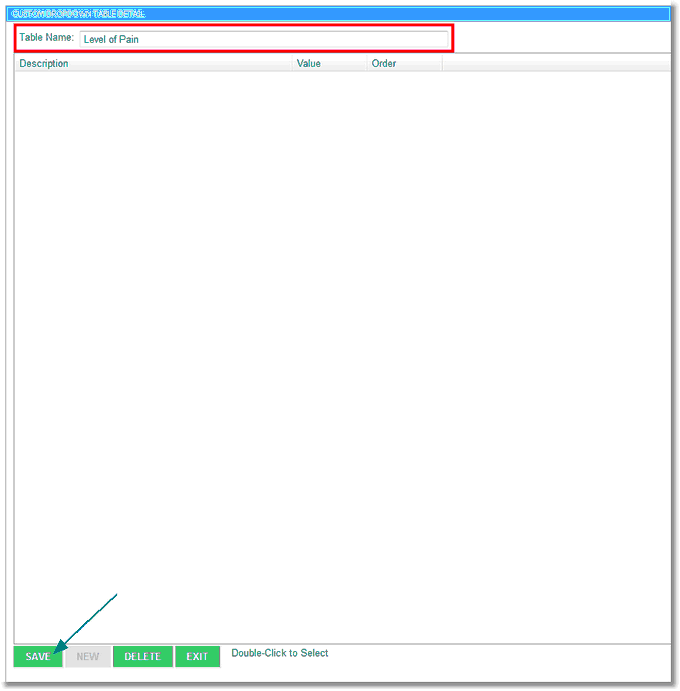
Custom Dropdown Table Detail
•Table Name: The name of the drop-down table.
Select Save to save the information in this table.
In UX, select Tables > Clinical > Physician Application > Physician Documentation Templates > New > enter Table Name > Add Control > DropDown > New
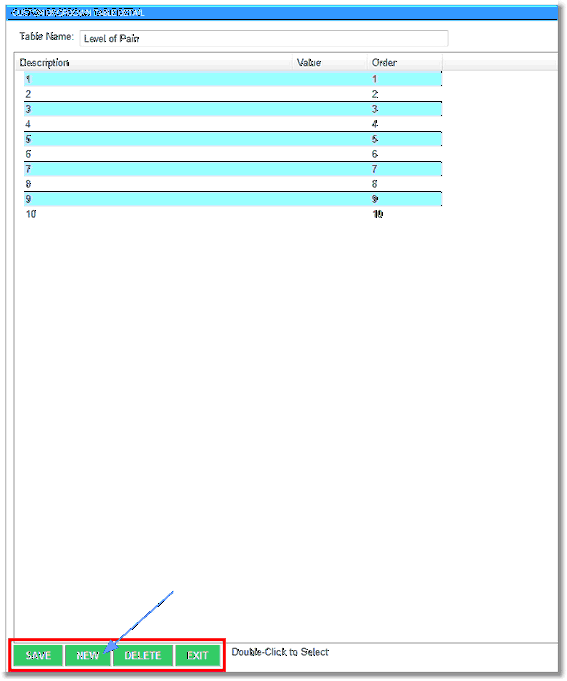
Custom Dropdown Table Detail
Select New to add a new line of detail to this table. Select Delete to delete this table. Select Exit to exit this table.
Select New or the desired line to make changes/corrections.
In UX, select Tables > Clinical > Physician Application > Physician Documentation Templates > New > enter Table Name > Add Control > DropDown > New
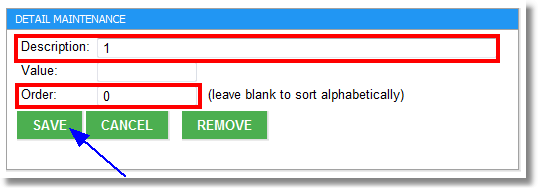
Detail Maintenance
•Description: Enter the description for this line of detail.
•Value: This field should be left blank.
•Order: This field will set the order that the description of the item will appear in the drop-down list from Physician Documentation. If left blank, the order will default alphabetically.
Select Save to save this detail. Select Cancel to exit this detail without saving. Select Remove to remove this detail from the table.